
Tag: PLM – Workflow & Lifecycle
-
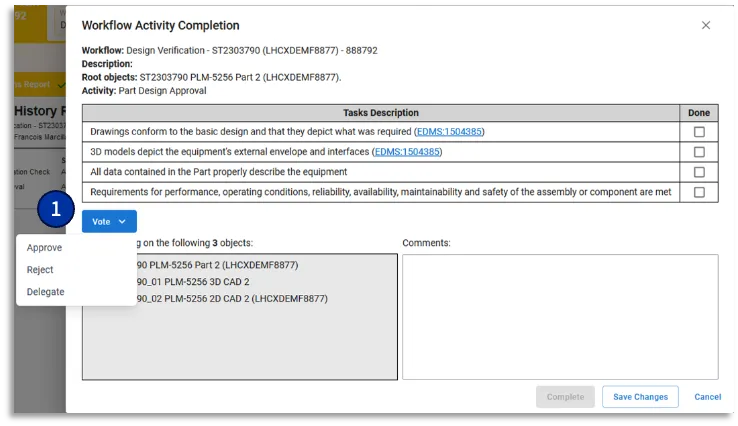
How to delegate a Design Verification Workflow activity ?
How to delegate a Design Verification Workflow activity ? You can delegate the Design Verification Workflow activity you have been assign to, to another user holding the role required for its completion (Design Reviewer or Equipment Owner). To do that, you need to access the "Workflow Activity Completion form" –> Select the "VOTE" button –>
-
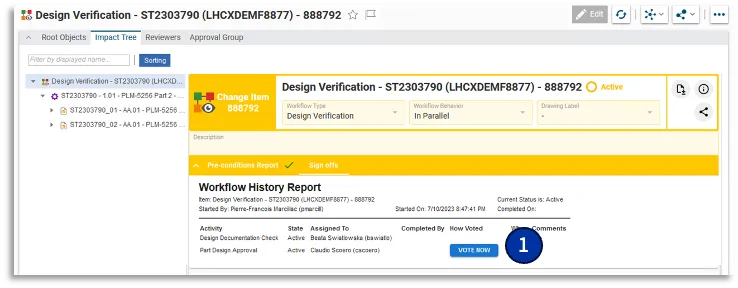
How can I control the Design Verification workflow activities I am responsible for ?
How can I control the Design Verification workflow activities I am responsible for ? Once you access the Profile Card of the Workflow, either using the hyperlink from the notification e-mail, or with My InBasket or via the notification icon on the Dasboard, click on the "VOTE NOW" button (1) available in the "Signs Off"
-
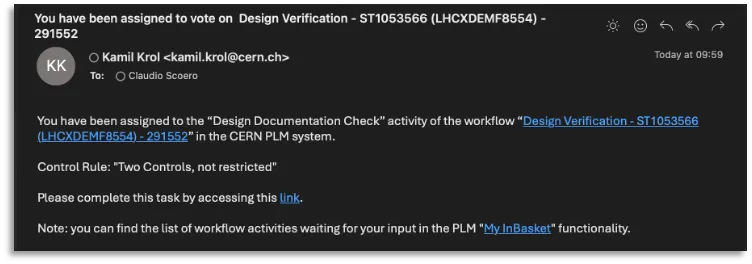
How can I be informed I have been assigned to a Design Verification Workflow activity ?
How can I be informed I have been assigned to a Design Verification Workflow activity ? As soon as the workflow is launched, the workflow assignees receive a notification email that contains: • The reference of the workflow • The name of the workflow activity the user is asked to vote on • The direct
-
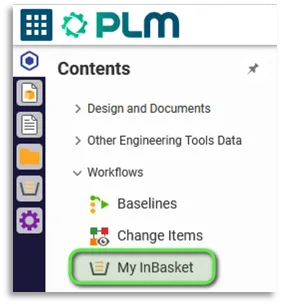
How to retrieve the list of all workflows activities that I have been assigned to ?
How to retrieve the list of all workflows activities that I have been assigned to ? The My InBasket feature is used to access the list of workflow tasks you are responsible for. You can access this functionality from the Table of Content → Workflows → My InBasket You can then access a each workflow
-

What is the concept of the Valid For Integration Workflow?
What is the concept of the Valid For Integration Workflow? The Valid For Integration Workflow is used to freeze an Integration Assembly at a given point in time. This Workflow operates on the Integration CAD Structure only, meaning the Integration Assembly itself and all its CAD Dependencies. For more information, please follow the document below:
-
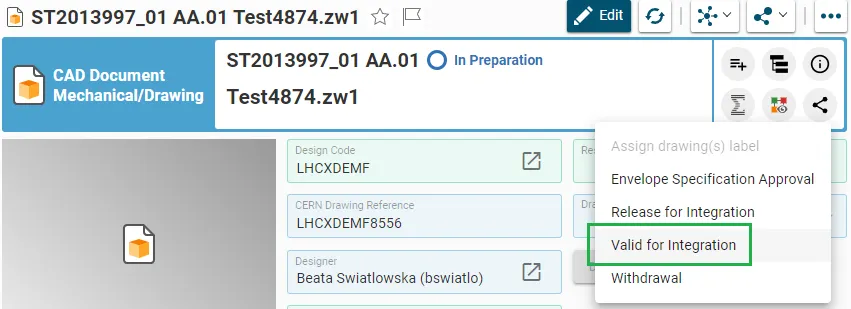
How to create the Valid For Integration Workflow?
How to create the Valid For Integration Workflow? The Valid For Integration Workflow can be created from CAD Documents. There are few basic pre-requirements that the CAD Document must fulfil: One the Change Item window appears, then the preparation of the Workflow can be finalized by using "Done" button. After launch the Precondition Checks and
-
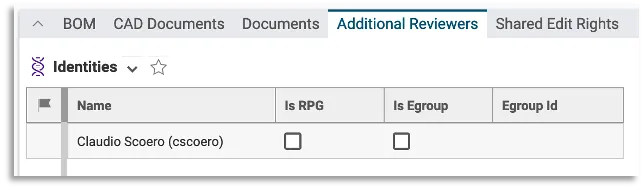
How to define the list of Additional Reviewers on a given Part ?
How to define the list of Additional Reviewers on a given Part ? You can define the additional reviewers in the "Additional Reviewers" tab of the Part: Once the Part is collected by a Design Verification workflow, this will automatically assign them a control activity that must be validated to complete the workflow successfully. Be
-

How to define the Approval Group responsible for the old CDD Control 3 / Approval Process ?
How to define the Approval Group responsible for the old CDD Control 3 / Approval Process ? In case the Control Rule defined on the Design Code set on the Root Object is “QAC A”, the “Review by Approval Group” workflow activity is mandatory, and the system automatically suggests you the Approval Group to use.
-
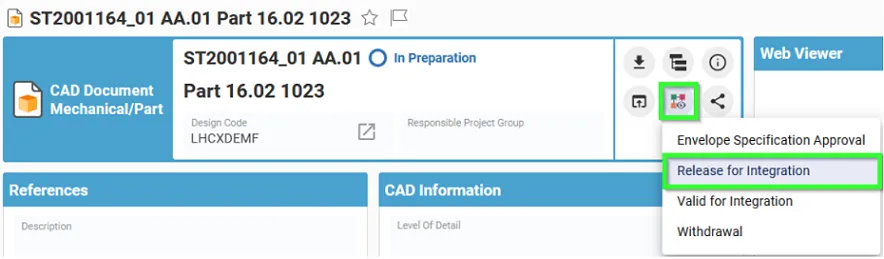
How to create and launch the Release For Integration Workflow?
How to create and launch the Release For Integration Workflow? The Release For Integration Workflow can be created from a CAD Document. There are few basics pre-requirements that the CAD Document must fulfill: In the Profile Card of a given CAD Document, the workflow can be created by selecting the "Create New Workflow" button. Then
-

How to define the assignees of the Design Verification workflow control activities ?
How to define the assignees of the Design Verification workflow control activities ? The workflow initiator has to select the people in charge of the “Design Documentation Check” and “Part Design Approval” activities from the “Reviewers” tab, available from the Design Verification workflow profile card. Design Documentation Check: to be assigned to users holding the