
Tag: PLM – Workflow & Lifecycle
-
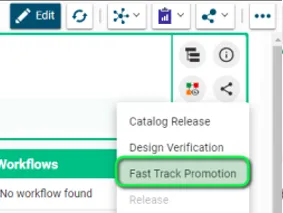
How to create the Fast-Track Promotion Workflow?
How to create the Fast-Track Promotion Workflow? The Fast-Track Promotion Workflow can be created from the Part Profile Card. You can then generate the "Precondition Report" that checks the following pre-requirements: If all them are fulfilled, you can launch the Workflow. Complete documentation: Fast-Track Promotion Workflow FAQ
-
What is the concept of the Fast-Track Promotion Workflow?
What is the concept of the Fast-Track Promotion Workflow? The Fast-Track Promotion can be used to approve the Part without going through a Design Verification, in case the Master CAD Documents are in Approved/Released state. Once the Part is Approved/Released, you may have the need to just attach to the Part additional documentation, without modifying
-
How to validate a Drawing in the PLM Platform ?
How to validate a Drawing in the PLM Platform ? It is not possible to validate a single CAD Document in the PLM platform. The Design Verification Workflow acts on the Part and collects all the CAD Documents and Documents attached to the Part, plus its BOM. Complete documentation: Design Verification Workflow FAQ
-

How to replace an Object (CAD Document/Document/Part) with another one ?
How to replace an Object (CAD Document/Document/Part) with another one ? The "Replace By" command can be accessed directly from the profile cards of the following object types: The command is accessible from the "More" menu . Please note that the name of this command adapts according to the object from which this command is
-
What are the prerequisites to perform an Assign Drawing(s) Label Workflow ?
What are the prerequisites to perform an Assign Drawing(s) Label Workflow ? There are few basic pre-requirements that must be fulfilled for being able to perform an Assign Drawing(s) Label Workflow. CAD Documents set as Root Objects must: – Be of type "Drawing". – Be in "Approved" or "Released" lifecycle state. – Have a Design
-
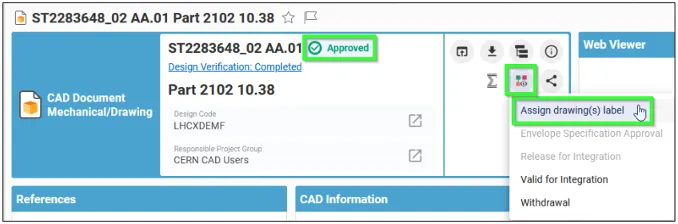
How to create and launch the Assign Drawing(s) Label Workflow ?
How to create and launch the Assign Drawing(s) Label Workflow ? The Assign Drawing(s) Label Workflow can be created from CAD Documents of type Drawing: Once the Change Item profile card appears, fill in its Description and choose the Drawing Label you need to apply: You can change the Label of multiple Drawings with the
-
What is the concept of the Assign Drawing(s) Label workflow?
What is the concept of the Assign Drawing(s) Label workflow? The Assign Drawing(s) Label workflow is used to change the Label of one or multiple Drawings. This workflow only operates on CAD Documents of type “Drawing”. As soon as the workflow is launched, this triggers the archiving of the Drawing, taking into account the up-to-date
-

How can I run the Design Verification workflow Preconditions Report ?
How can I run the Design Verification workflow Preconditions Report ? The Preconditions Report can be run by using the button from the Workflow Profile Card. All preconditions have to be “PASSED” for being able to launch the Workflow. In case a precondition check is “FAILED”, you will receive a specific error message for this
-
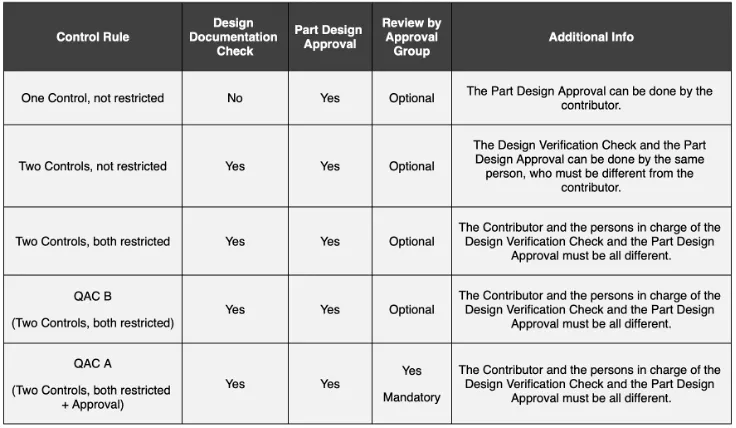
What are the Control Rules allowed for validating data with the Design Verification workflow ?
What are the Control Rules allowed for validating data with the Design Verification workflow ? The Design Verification workflow activates the “Control Activities” on the basis of the Control Rule defined on the Design Code set on the Root Objects and on the Parts composing their BOM (as well as on the attached Documents). The
-

How can I discard / abandon an active Design Verification Workflow ?
How can I discard / abandon an active Design Verification Workflow ? Users holding the Contributor role on the Design Code set on the Root Objects of the Workflow can discard / abandon it when the workflow is still in "Active" state. This implies that there is at least one control activity that must still