
Tag: PLM – Workflow & Lifecycle
-
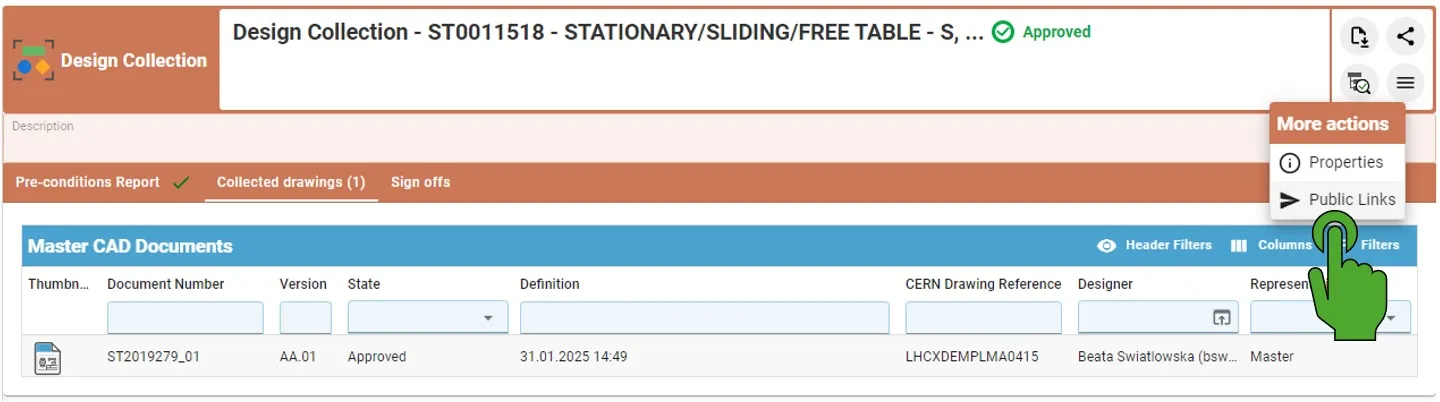
How to find already generated Public Link?
How to find already generated Public Link? By opening the Design Collection with the created before Public Links, it is possible to access them again by clicking on the left top button "More actions" (with three lines) and then choosing the Public Links. If the Public Link has been already created, it will open the
-
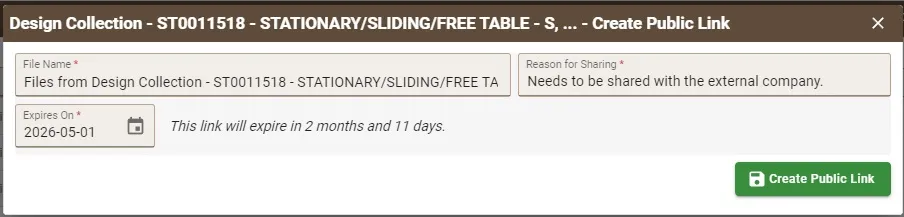
How to create the Public Link?
How to create the Public Link? Public Links must be created from an Approved Design Collection. In the creation window, users must: After completing the required fields: When the link is opened in any browser, the external user can directly download a ZIP file containing the documents related to the Part without authentication required.
-
What are the meanings of the drawing labels?
What are the meanings of the drawing labels? Below are the different drawing labels that can be assigned to a drawing via the 'Assign drawing label' workflow. Complete documentation: Assign Drawing(s) Label Workflow FAQ
-
How to resolve common Workflow precondition check errors?
How to resolve common Workflow precondition check errors? When launching a workflow to approve data in the PLM, a precondition report is ran to ensure that the data is in a suitable state and all the workflow pre-requirements are met. If the report finds an error, this must be resolved before the workflow can be
-
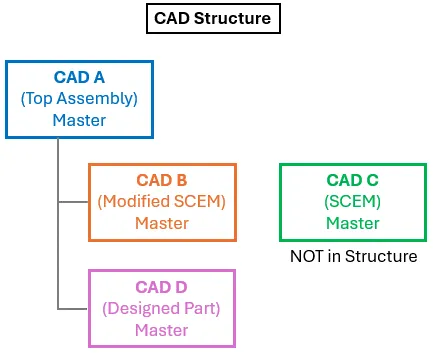
How to validate a CAD structure where a master document is not in BOM (PLM)?
How to validate a CAD structure where a master document is not in BOM (PLM)? In most situations all master CAD documents in a CAD structure are contained in the assembly’s BOM. However, there is a valid use case where this is not true. For example, a component in a structure will be manufactured from
-

How to create a workflow template?
How to create a workflow template? If you have multiple workflows to create, that will use the same properties (e.g workflow behaviour, drawing label & reviewers) it’s possible to create a workflow template so the properties do not have to be repetitively assigned. More: Design Verification Workflow FAQ
-
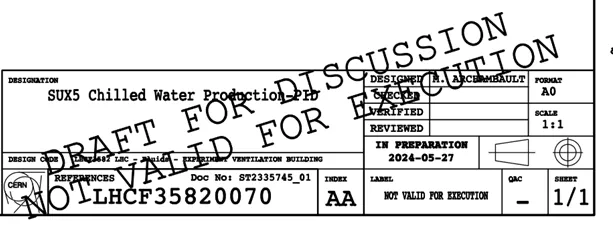
What is the difference between the regular Titleblock stamp and the Mini stamp?
What is the difference between the regular Titleblock stamp and the Mini stamp? Regular Titleblock stamp: Case 1: you are working at CERN with an official CAD tool and a PLM Connector (ex: BricsCAD, CATIA etc…). Thus, you must generate an official CERN Titleblock on your Drawing prior to validating it. Then when a Design
-
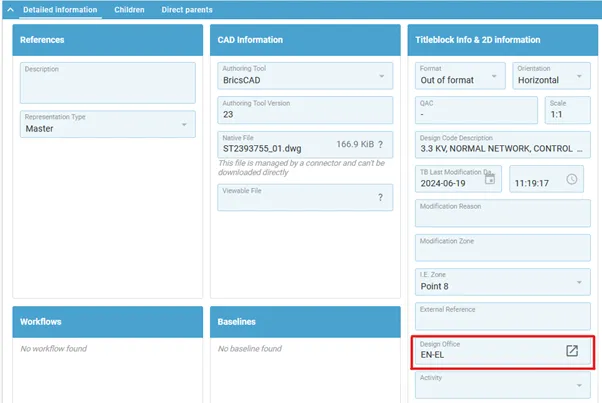
How is the position of the mini stamp defined?
How is the position of the mini stamp defined? The position of the mini stamp is defined via the “Design Office” property, that sets a specific position for the mini stamp for each drawing format (A0, A1…). As a result, this property becomes mandatory and must be filled for any Drawing that is not Connector
-
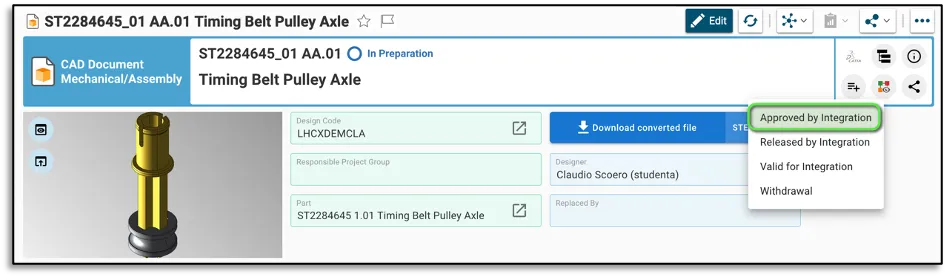
How to create and launch the Approved By Integration Workflow?
How to create and launch the Approved By Integration Workflow? The Approved By Integration Workflow can be created from the CAD Document profile card. There are few basic pre-requirements that the CAD Document must fulfil: – The CAD Document needs to be in “In Preparation” lifecycle state. – A Design Code needs to be assigned
-
What is the concept of the Approved By Integration Workflow?
What is the concept of the Approved By Integration Workflow? The Approved by Integration Workflow is used to approve Conceptual Drawings and 3D Models, or the envelope of a given equipment. Its aim is the validation of positions related to functions and beam line equipment, plus reserving space for the development of future equipment. This