
Tag: PLM – Getting Started
-
How to get the access rights in the Design Code?
How to get the access rights in the Design Code? PLM users can directly request Design Code access from the PLM platform through a dedicated access request interface. The administrators of the group will be responsible for handling your request and you'll get notified by email as soon as a decision is taken.
-
What tools are available in the PDM Workbenches (PWB)
What tools are available in the PDM Workbenches (PWB) The PLM and CATIA are connected through the connector, PDM Workbench (PWB). There is a toolbar and different workbenches for the various CATIA workbenches (Part Design, Assembly design, drafting). The PDM workbenches do not contain any modelling tools, but have tools to manage the documents such
-
What documents can be generated by the Public Link?
What documents can be generated by the Public Link? The following conditions apply to documents shared via Public Link. Access Restrictions:
-
How to find already generated Public Link?
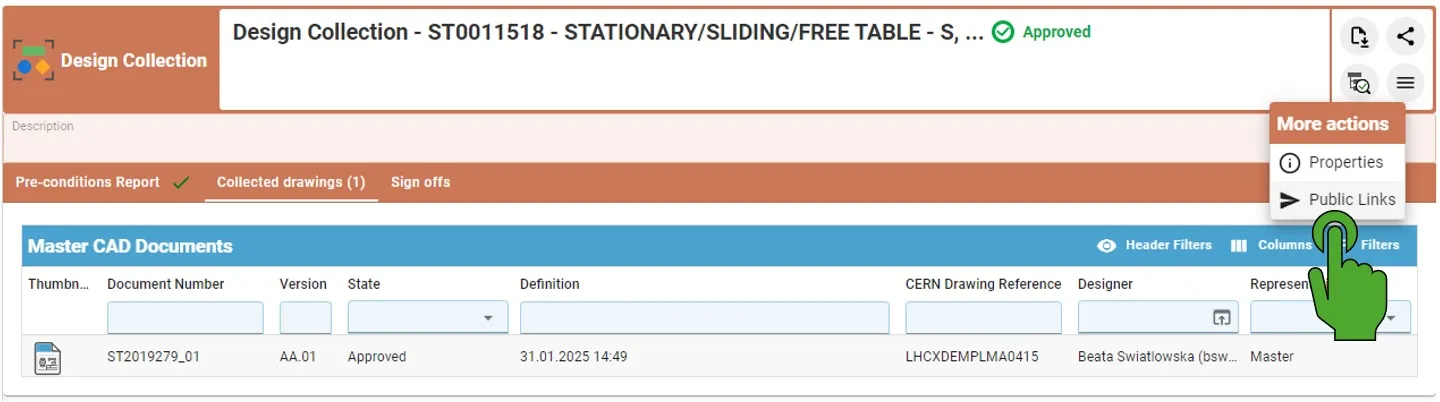
How to find already generated Public Link? By opening the Design Collection with the created before Public Links, it is possible to access them again by clicking on the left top button "More actions" (with three lines) and then choosing the Public Links. If the Public Link has been already created, it will open the
-
How to create the Public Link?
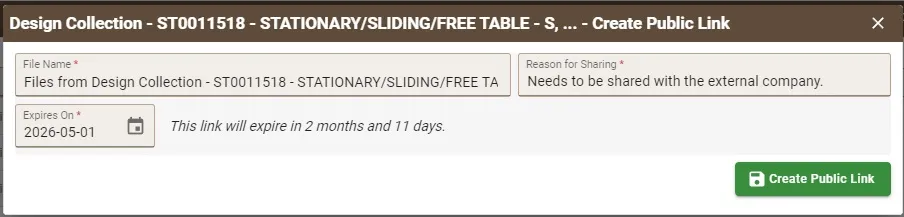
How to create the Public Link? Public Links must be created from an Approved Design Collection. In the creation window, users must: After completing the required fields: When the link is opened in any browser, the external user can directly download a ZIP file containing the documents related to the Part without authentication required.
-
How to change a Design Code?
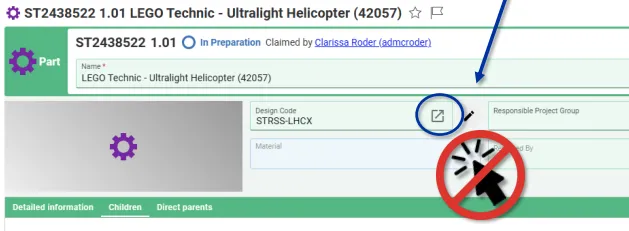
How to change a Design Code? To change the Design Code assigned to a Part follow the steps below: Note, in Edit mode, the icon next to the Design Code field opens the current Design Codes profile card. It cannot be used to search and select a new code. Note: If you would like to
-
How to search using the PLM dashboard?
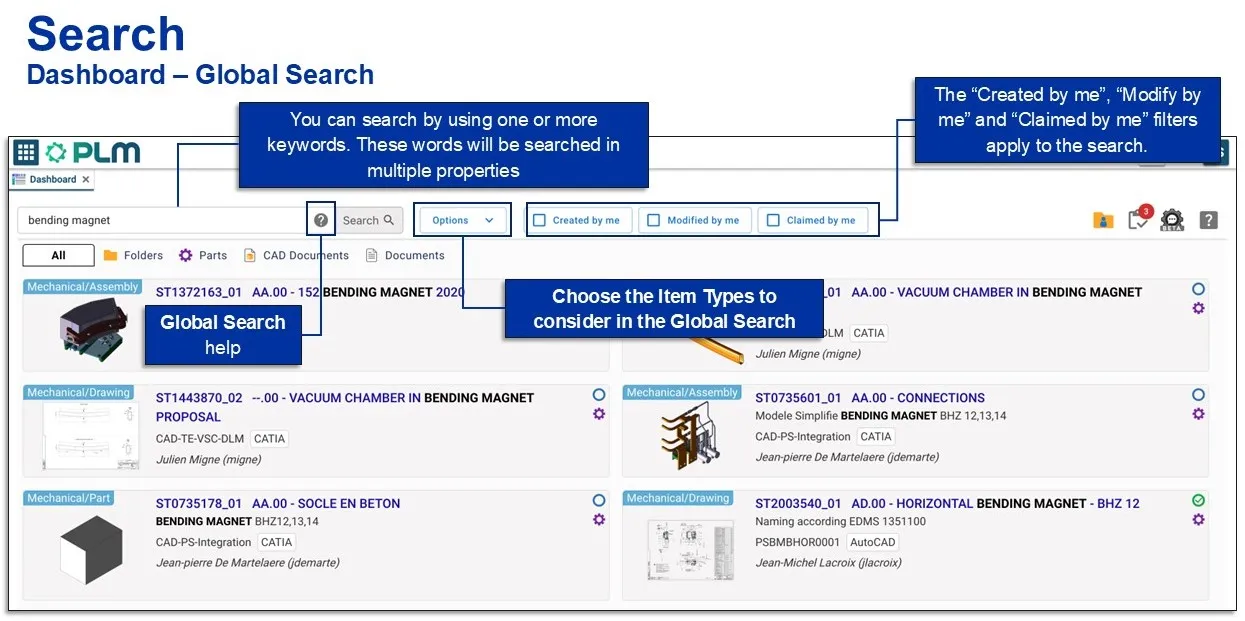
How to search using the PLM dashboard? The dashboard is the main page you will be greeted with when you open the PLM, it contains a search table. The images below explain the different options and filters you can use to enhance your search. This page will search for all items types: You can also
-
What are the official supported web browsers for PLM?
What are the official supported web browsers for PLM? The PLM can be opened through the Desktop app or in a web browser. The table below details the supported web browsers for different operating systems. Operating System Supported Browsers Windows 10 • Edge • Firefox 78 ESR or 91 ESR • Chrome 103 (minimum) Windows
-
What are the meanings of the CATIA & PLM Icons?
What are the meanings of the CATIA & PLM Icons? Icons are used throughout the PLM and in the CATIA specification tree to quickly convey information. See the documentation below to find the explanation of each icon. More: FAQ
-
How to access the PLM training?
How to access the PLM training? Before working in the PLM please follow the available training material depending on your usage and requirements. The trainings can be found here.