
Tag: PLM
-
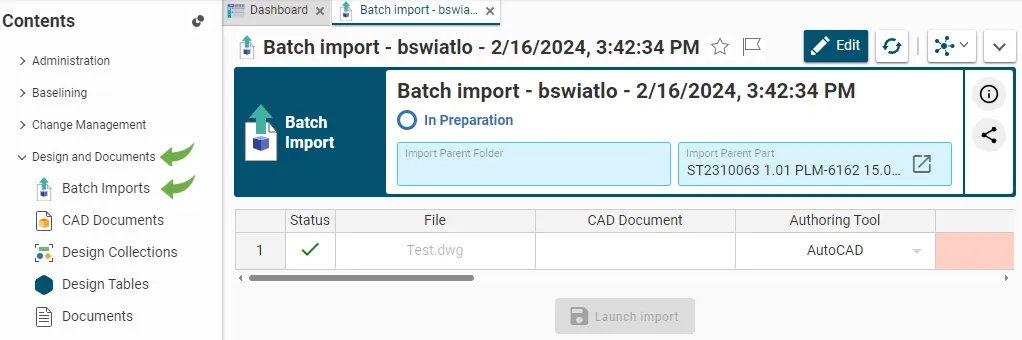
How to retrieve / find an existing job in Batch Import?
How to retrieve / find an existing job in Batch Import? Every time a file or a batch of files is dragged and dropped into a Part or a Folder in edit mode, the system automatically created an import job. Each job corresponds to a specific object, i.e. a Batch Import, that is created for
-

How to enter metadata with drag and drop (batch import)?
How to enter metadata with drag and drop (batch import)? When dropping a file into one of the two areas, a table appears. When importing CAD files, the table contains more fields to be completed. As many fields of the table as possible are prefilled but the proposed default values can be changed and the
-
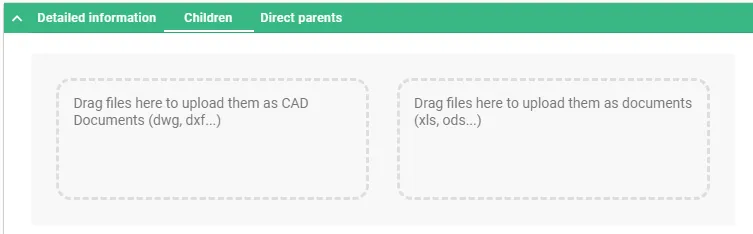
How to use a Batch Import?
How to use a Batch Import? The Batch Import can be performed from a Folder or a Part. In both cases, the object must be in edit mode. Once the Folder or the Part is in edit mode, two areas will appear in its Profile Card under “Children” tab. The files can be dragged and
-

What is the concept of Batch Import?
What is the concept of Batch Import? Batch importing involves uploading several files at once to the PLM platform from a File Explorer (Windows, Linux or Mac). To do so, the target folder or part in the PLM must be in edit mode, then the files can be dragged and dropped from the File Explorer
-

How to create a Drafts Container for Parts?
How to create a Drafts Container for Parts? The goal of the Drafts Container functionality is to allow users to approve the Part and its Master CAD Documents without being delayed by the finalisation of the other “secondary” objects that are related to the Part but not relevant for the approval of the Part. On
-
How to create a Design Collection in the PLM?
How to create a Design Collection in the PLM? The Design Collection replaces the EDMS Drawing Folder functionality and serves to support the data exchange process between the Design Office and the Workshop for the production of a given equipment. Please find more information in this FAQ: Design Collection functionality
-
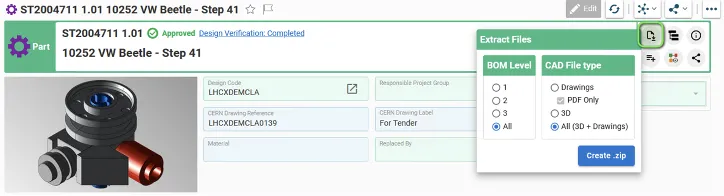
How to extract / download files from the PLM?
How to extract / download files from the PLM? To download CAD files from Parts, Parts attached to Folders, Design Collections or Change Items at once, you need to: When executing the "Extract Files" functionality, the selection of the Level applies on the Parts directly linked to the Folder or to the Change Item, or
-
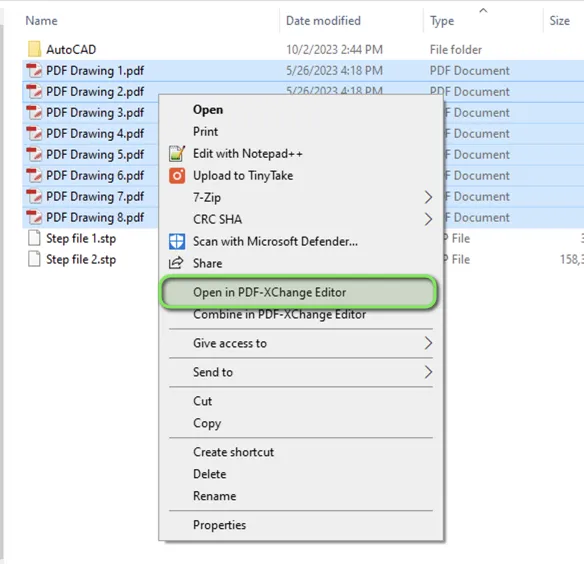
How to print multiple drawings at once with PDF X-Change Editor?
How to print multiple drawings at once with PDF X-Change Editor? To print multiple Drawings at once from your local folder in DFS, you need to: 1. Access data in your DFS folder and select all the Drawings you need to print 2. Right-Click and select the option "Open in PDF-XChange Editor" 3. Once PDF-XChange
-
What is the concept of a Part?
What is the concept of a Part? The Parts are the group of responsible objects for storing all engineering information related to the equipment like 2D, 3D or other documents and files. However, the Part does not contain any files: the files must be attached to the CAD or non-CAD Documents. In the PLM Platform
-
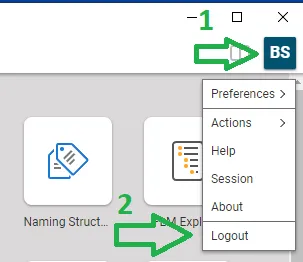
How to log-out from PLM?
How to log-out from PLM? To log-out from PLM Desktop you need to click on the button that represents your account (step 1) and use the "Logout" (2). Then you need to wait for confirmation window that appears and validate.