
Category: How To
-
How to use the Emergency Save (Upload) and Open function of the CERN CATIA PLM toolbox?
How to use the Emergency Save (Upload) and Open function of the CERN CATIA PLM toolbox? If you’re experiencing delays or failure when saving through the standard CATIA Connector, you can use the Emergency Save (also called Toolbox) function as a fallback to manually upload your work. You can also use this tool to open
-
How to link an existing object to a Folder?
How to link an existing object to a Folder? There are multiple ways to link a Folder or Content ( Part, Document, or CAD Document) to an existing Folder, with the prerequisite that you have the necessary rights to edit this Folder:
-
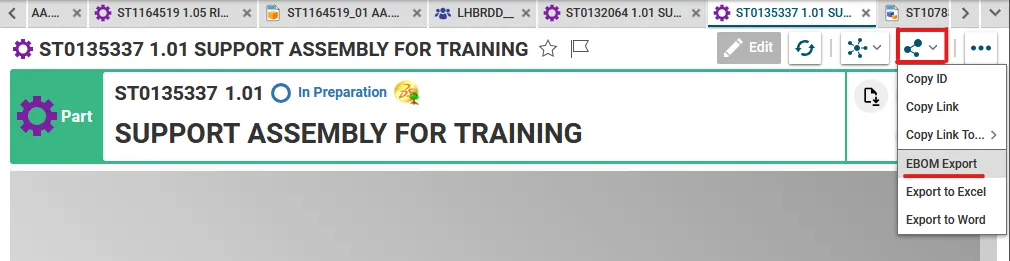
How to export a BOM in Excel from the PLM?
How to export a BOM in Excel from the PLM? There is 2 ways to get access to the Excel EBOM Export tool: 1. From a Part Profile Card, in the "Share" menu: 2. Or from the Part search grid. A. open the search grid: B. search for your Part. C.use the contextual menu
-
How to search in the PLM via SCEM or other make or buy attribute?
How to search in the PLM via SCEM or other make or buy attribute?
-
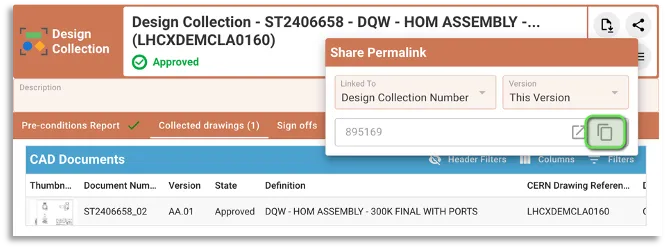
How to manage EDMS Drawing Folders with Design Collections ?
How to manage EDMS Drawing Folders with Design Collections ? The “Design Collection” functionality in PLM has been introduced to replace the EDMS Drawing Folders functionality. However it is still possible to use an EDMS Drawing Folder together with a PLM design collection as described hereafter. Detailed information about the PLM functionality can be found
-
How to find the PLM local supporters?
How to find the PLM local supporters? During the SmarTeam to PLM transition, a number of your already experienced colleagues will have the mandate as local supporters and some time dedicated to help you get started. To find your closest local supporter, please see the list following this link.
-
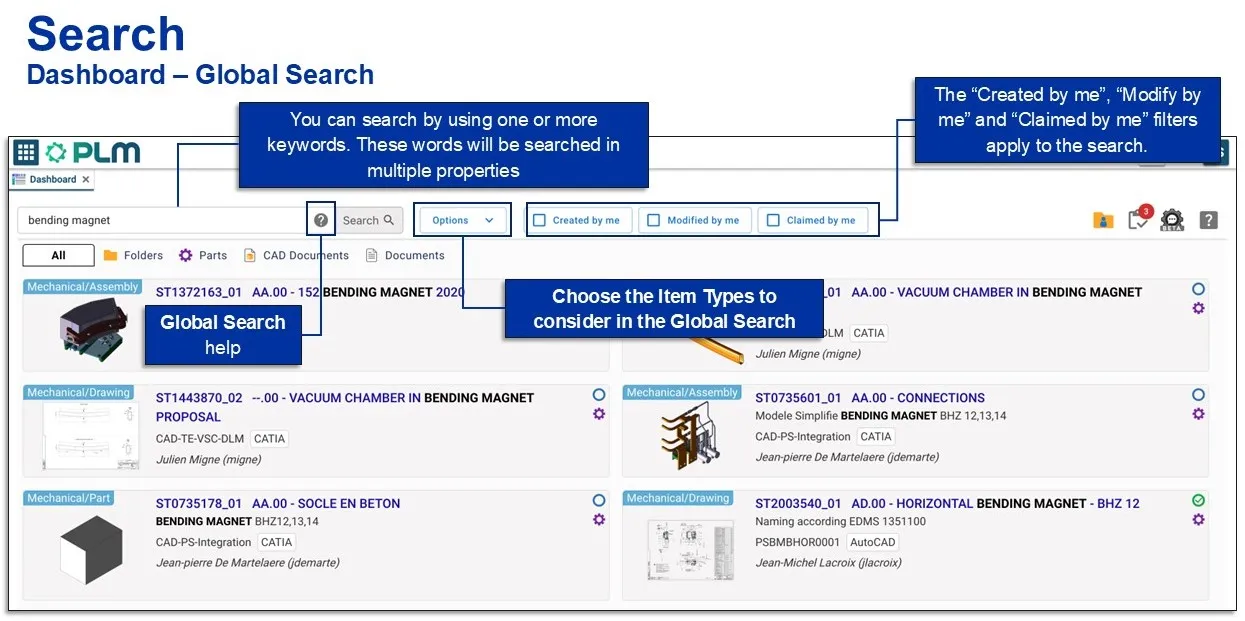
How to search using the PLM dashboard?
How to search using the PLM dashboard? The dashboard is the main page you will be greeted with when you open the PLM, it contains a search table. The images below explain the different options and filters you can use to enhance your search. This page will search for all items types: You can also
-
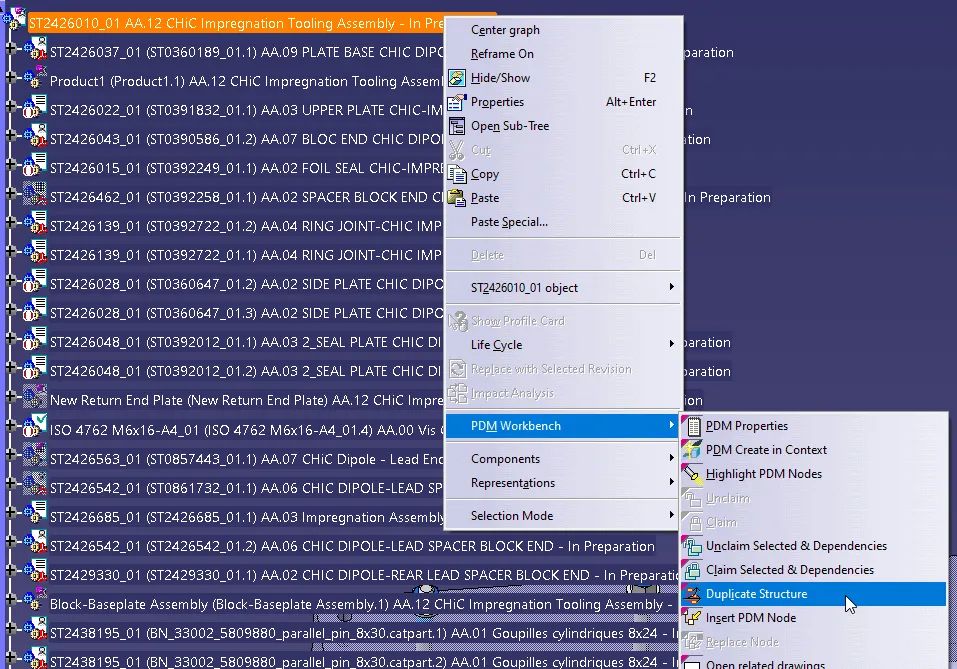
How to duplicate a structure?
How to duplicate a structure? You can duplicate an entire structure using the following tool from the PDM workbench contextual menu. It will duplicate the entire structure, top down from the selected node. Once clicked, a list of the selected structure will open in the duplicate window, see the image below. As standard the whole
-
How to collect the PWB & CATIA logs before reporting an incident to the PLM / CAD Support team?
How to collect the PWB & CATIA logs before reporting an incident to the PLM / CAD Support team? The log files can be very helpful to investigate some issues. They are required by the PWB supplier if we need to contact them. Log level: There are 3 log levels, 1,2 and 3. Working with
-

How to activate the PWB logs?
How to activate the PWB logs? The PWB log files write down every action you do with the T-Systems PWB connector. To be more efficient when investigating an issue, the PLM / CAD Support team, as well as the T-Systems team, need those files when an incident is reported. But for that, the log files