
Category: How To
-
What’s the difference between the different CATIA configurations?
What’s the difference between the different CATIA configurations? There are three main different CATIA configurations that can be selected from the drop down in the CATIA launcher menu, small, large and equipment systems. Below details the main differences in their set up: More: Getting started with CATIA / PLM at CERN FAQ
-
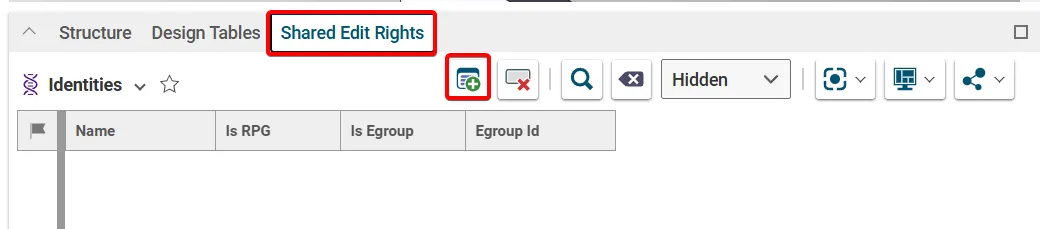
How to grant a user access to a specific document? (Shared edit rights)
How to grant a user access to a specific document? (Shared edit rights) Edit rights to a document is controlled via its Design Code and Responsible Project Group (RPG), which is set on its Parent Part. If a colleague requires edit rights to all the documents with one of these attributes, they should request access
-
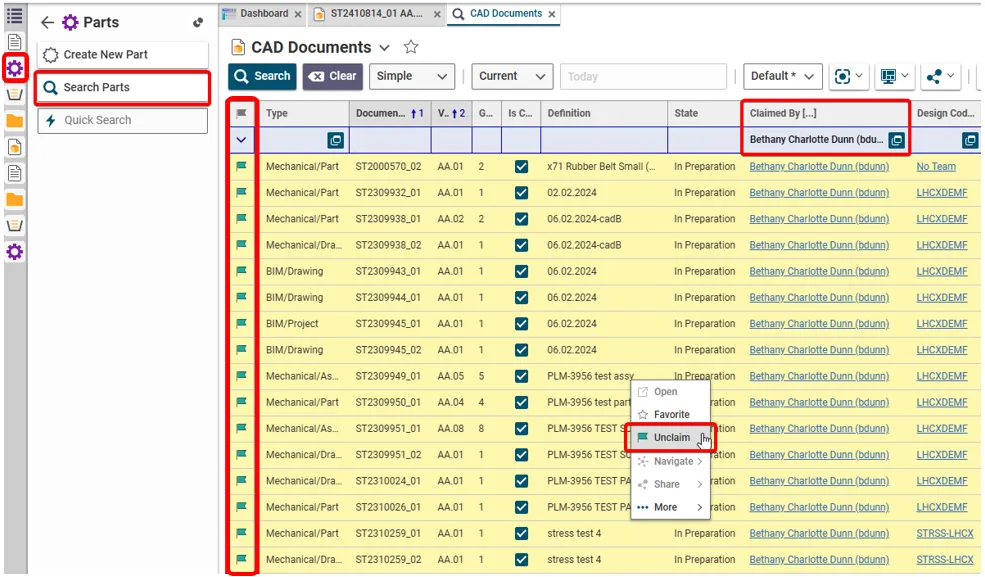
How to retrieve and unclaim all my Parts/Documents in one operation?
How to retrieve and unclaim all my Parts/Documents in one operation? There are two ways of retrieving all the objects that you have claimed. To unclaim all the objects in one go, use method 2 and highlight the results. (Press and hold the Ctrl key to select individual results. Alternatively, select a result then hold
-
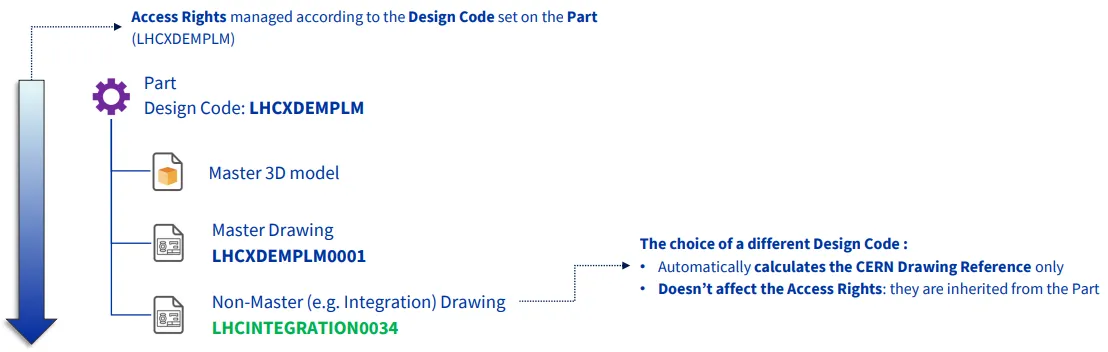
How to add a CERN Drawing Reference (CDR) to a non master drawing that is different to the design code on the parent part?
How to add a CERN Drawing Reference (CDR) to a non master drawing that is different to the design code on the parent part? The CERN Drawing reference (CDR) on a drawing is usually generated from the Design Code applied to its parent Part. However, on non-master drawings only, it is possible to apply a
-
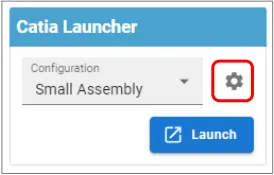
How to save customised CATIA & PWB settings?
How to save customised CATIA & PWB settings? CATIA customised settings, such as shortcuts, can be saved in the PLM dashboard to be used when CATIA is reopened. This is also true for PWB setting changed in the options toolbar. To save new customised settings, close the CATIA session in which the changes were made.
-
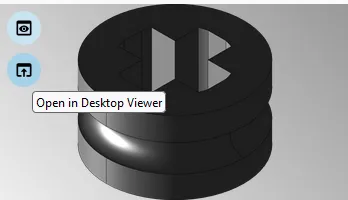
How to open or merge CAD Documents in SpinFire Ultimate?
How to open or merge CAD Documents in SpinFire Ultimate? To open a 3D CAD document in Spinfire Ultimate there is an icon available on each Profile Card. It is located on the thumbnail (the lower one, whilst the upper icon is used to display the web viewer): Open in Desktop Viewer. The first time
-
Subgroup: Other
Subgroup: Other Below are the remaining How-to's that are not present in other subgroups in the CATIA-PLM connector (PWB) category. Click on their links to find more information on these topics.
-
Subgroup: BOM
Subgroup: BOM Below is a group of How-to's that are related to the topic of 'BOM' in the CATIA-PLM connector (PWB) category. Click on their links to find more information on these topics.
-
Subgroup: Opening & Saving
Subgroup: Opening & Saving Below is a group of How-to's that are related to the topic of 'Opening & Saving' in the CATIA-PLM connector (PWB) category. Click on their links to find more information on these topics.
-
Subgroup: Installation & the Basics
Subgroup: Installation & the Basics Below is a group of How-to's that are related to the topic of 'Installation & the Basics' in the CATIA-PLM connector (PWB) category. Click on their links to find more information on these topics.