
Category: How To
-
Subgroup: Troubleshooting/Specific Use Cases
Subgroup: Troubleshooting/Specific Use Cases Below is a group of How-to's that are related to the topic of 'RFC in PLM Troubleshooting/Specific Use Cases' in the SmarTeam to PLM transition category. Click on their links to find more information on these topics.
-
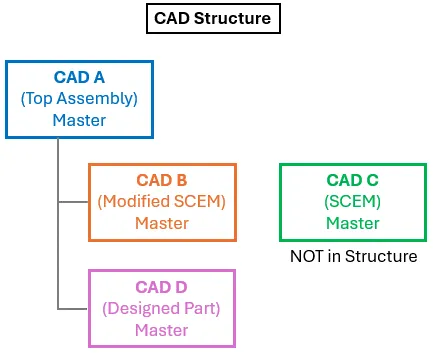
How to validate a CAD structure where a master document is not in BOM (PLM)?
How to validate a CAD structure where a master document is not in BOM (PLM)? In most situations all master CAD documents in a CAD structure are contained in the assembly’s BOM. However, there is a valid use case where this is not true. For example, a component in a structure will be manufactured from
-
How the Drawing ISO Lifecycle states match with old EDMS/CDD ones?
How the Drawing ISO Lifecycle states match with old EDMS/CDD ones? To comply with ISO Standards that has been implemented in the PLM platform, the Drawings Lifecycle States have been updated in EDMS after the data was synchronized with the PLM. ISO 11442:2006 specifies a limited set of Lifecycle States, each with a specific meaning:
-
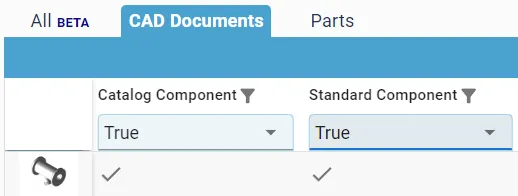
How to identify and search for ‘Standard’ and ‘Catalog’ components?
How to identify and search for ‘Standard’ and ‘Catalog’ components? Some objects are classified as either Catalog or/and Standard components. All standard components are Catalog Components, but not all Catalog Components are Standard. Both types are components that can be bought from a supplier catalog, as apposed to specifically designed for a CERN project. However,
-
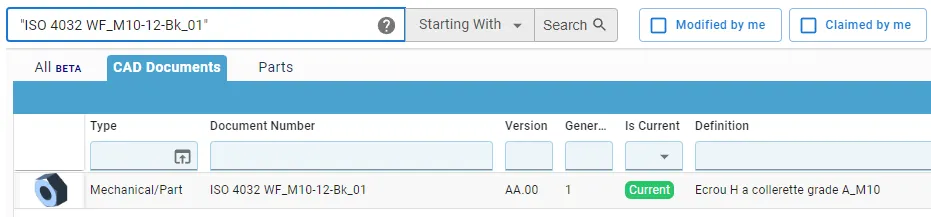
How to search for documents with a space in the name?
How to search for documents with a space in the name? Short answer: When searching in the global search box on the dashboard, you must put document numbers containing a space in quotation marks. Long answer: CAD Documents can be searched for either in the Dashboard or the dedicated CAD Document search window. In both
-
How do the CATIA-PLM icons compare to the CATIA-SmarTeam icons?
How do the CATIA-PLM icons compare to the CATIA-SmarTeam icons? To help with the transition from SmarTeam to PLM, we have put together a comparison between the different Specification tree icons. Some have remained the same, but others have changed or are new. Also note, previously with SmarTeam, the icons were viewable on both assemblies
-
What are the meanings of the CATIA & PLM Icons?
What are the meanings of the CATIA & PLM Icons? Icons are used throughout the PLM and in the CATIA specification tree to quickly convey information. See the documentation below to find the explanation of each icon. More: FAQ
-
Subgroup: Other
Subgroup: Other Below are the remaining How-to's that are not present in other subgroups in the SmarTeam to PLM transition category. Click on their links to find more information on these topics.
-
How to access the PLM training?
How to access the PLM training? Before working in the PLM please follow the available training material depending on your usage and requirements. The trainings can be found here.
-
How is metadata managed between the PLM and CATIA?
How is metadata managed between the PLM and CATIA? A CAD document is made up of data, metadata. Some of this comes from CATIA such as the geometry, mass and material. Some of it comes from the PLM, Design code and RPG. Two pieces of metadata can be changed in both the PLM and CATIA,