
Category: How To
-
What documents can be generated by the Public Link?
What documents can be generated by the Public Link? The following conditions apply to documents shared via Public Link. Access Restrictions:
-
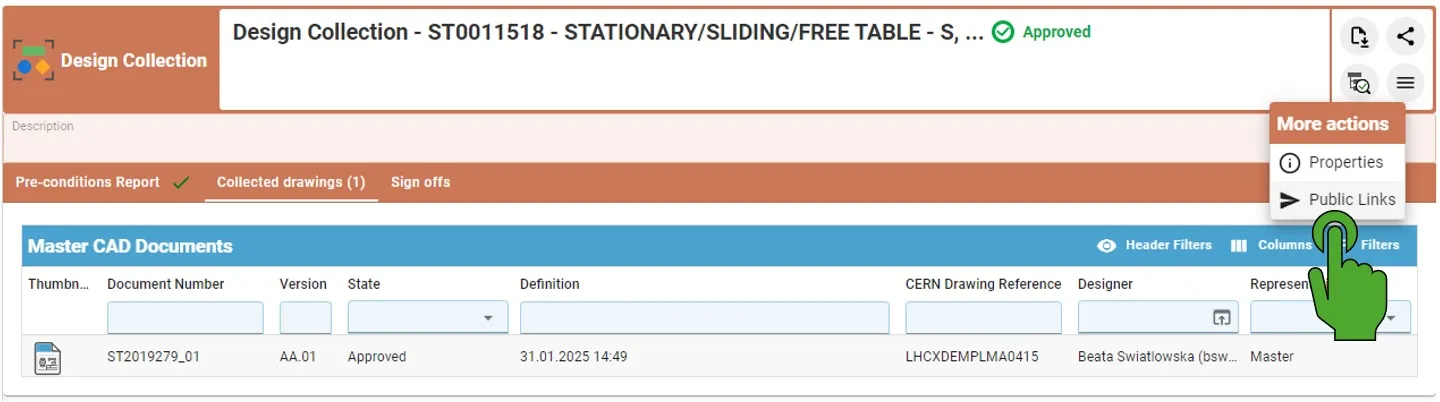
How to find already generated Public Link?
How to find already generated Public Link? By opening the Design Collection with the created before Public Links, it is possible to access them again by clicking on the left top button "More actions" (with three lines) and then choosing the Public Links. If the Public Link has been already created, it will open the
-
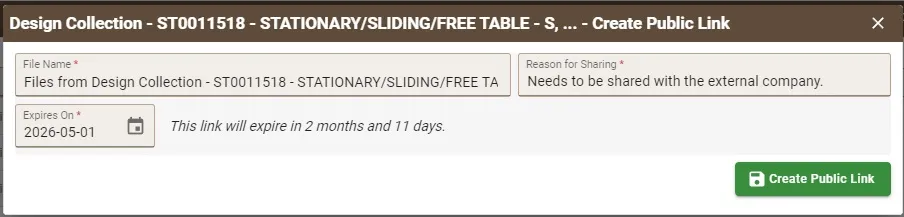
How to create the Public Link?
How to create the Public Link? Public Links must be created from an Approved Design Collection. In the creation window, users must: After completing the required fields: When the link is opened in any browser, the external user can directly download a ZIP file containing the documents related to the Part without authentication required.
-
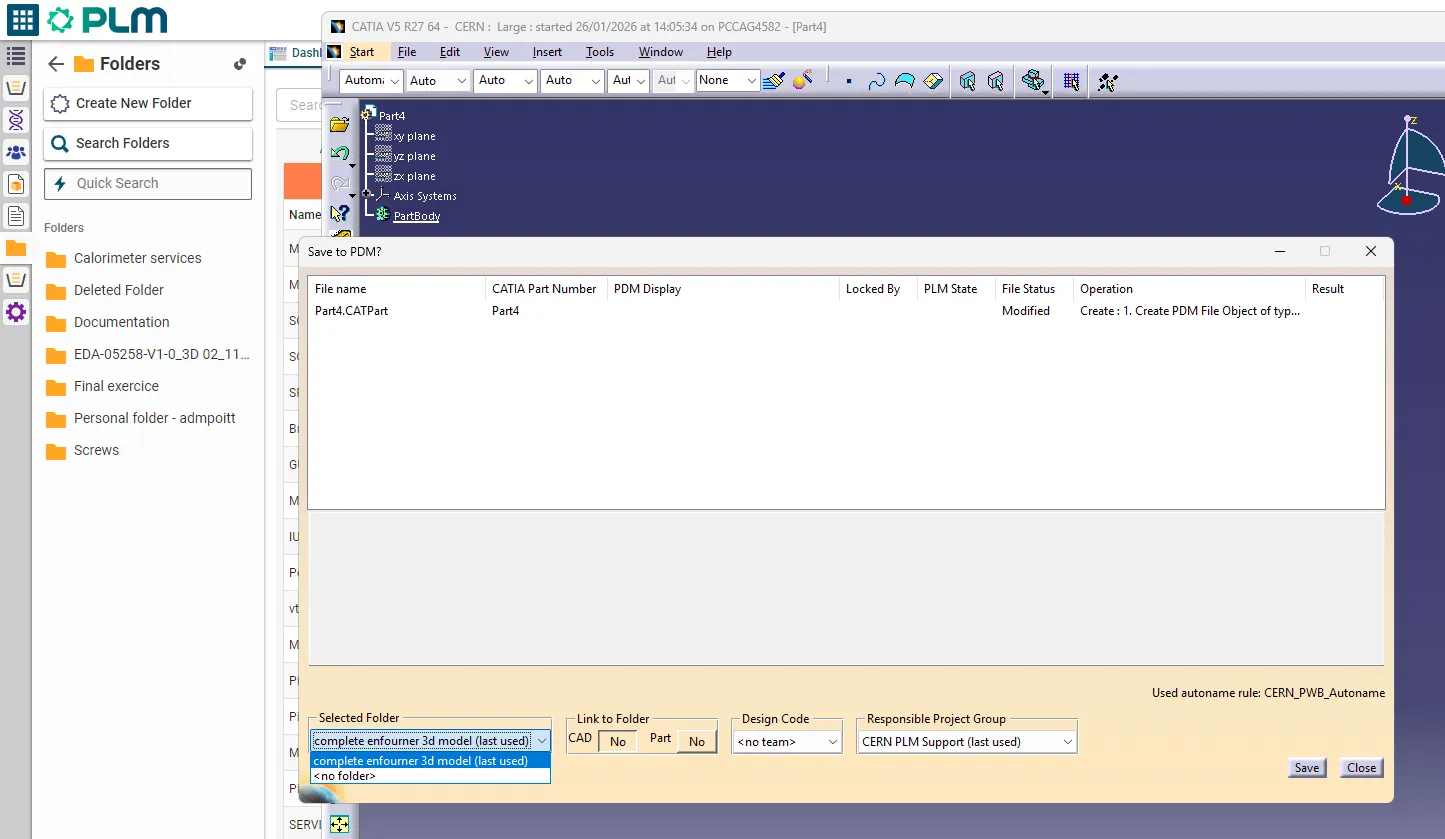
How to get back the list of favorite folders when saving from CATIA?
How to get back the list of favorite folders when saving from CATIA? Sometimes, when saving from CATIA in the PLM, the list of Folders in the SAVE window is empty, while you do have several Folders flagged as favourite in the PLM: This usually comes from the fact that one of the Folders flagged
-
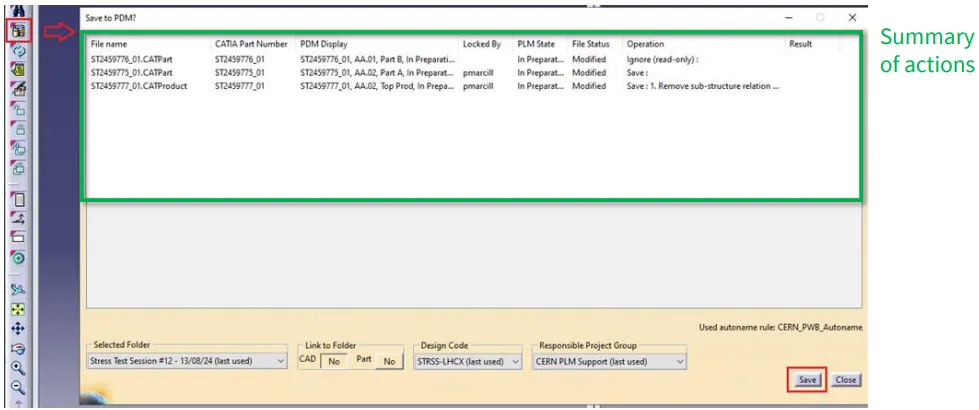
What changes were made to the CATIA Connector save process to prevent data loss?
What changes were made to the CATIA Connector save process to prevent data loss? To prevent data loss caused by save interruptions (for example, switching windows too quickly after pressing “Save“), a CATIA Connector update was deployed on Wednesday, 5th of November. This update introduces a temporary but safer save mechanism. Key Changes Implemented Save
-
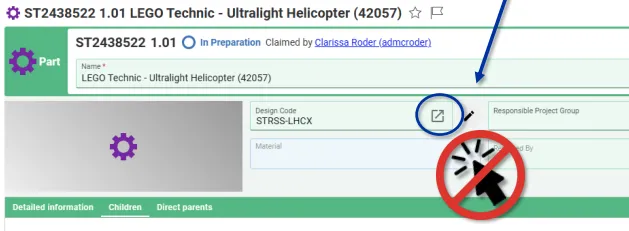
How to change a Design Code?
How to change a Design Code? To change the Design Code assigned to a Part follow the steps below: Note, in Edit mode, the icon next to the Design Code field opens the current Design Codes profile card. It cannot be used to search and select a new code. Note: If you would like to
-
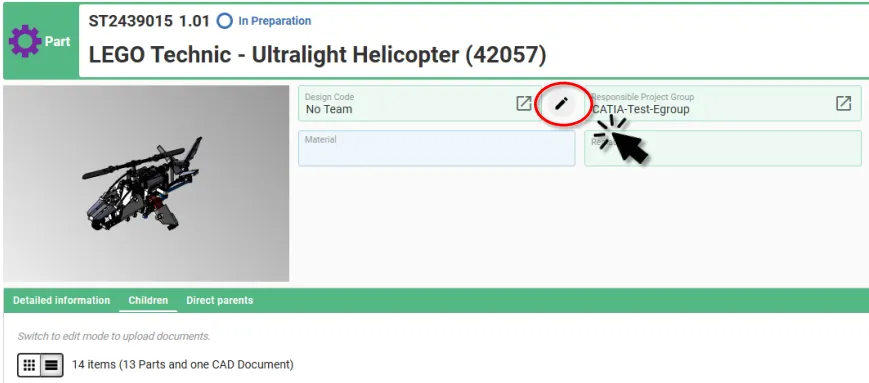
How to add and/or propagate a Design Code?
How to add and/or propagate a Design Code? In the PLM Platform there are two ways to add a Design Code to a Part, and one method to add and propagate it down to the child Parts: Adding and propagating Design Codes using the Pen Tool Selecting the small pen icon will display a new
-
What are the meanings of the drawing labels?
What are the meanings of the drawing labels? Below are the different drawing labels that can be assigned to a drawing via the 'Assign drawing label' workflow. Complete documentation: Assign Drawing(s) Label Workflow FAQ
-
How to resolve common Workflow precondition check errors?
How to resolve common Workflow precondition check errors? When launching a workflow to approve data in the PLM, a precondition report is ran to ensure that the data is in a suitable state and all the workflow pre-requirements are met. If the report finds an error, this must be resolved before the workflow can be
-
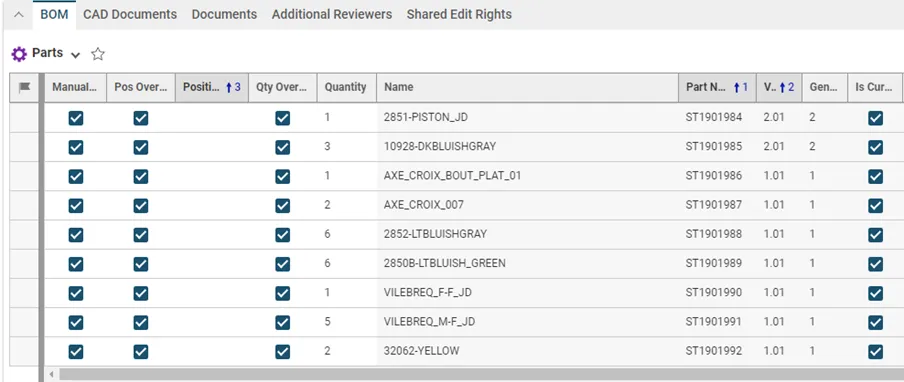
How to handle the BOM update of a SmarTeam to PLM migrated CAD structure?
How to handle the BOM update of a SmarTeam to PLM migrated CAD structure? Usually, when working with CATIA and the PLM, the Bill Of Materials is updated automatically after each CATIA save via the PWB connector (e-BOM sync). This is the case for all new CAD Documents created and modified in the PLM. However,