
Category: How To
-
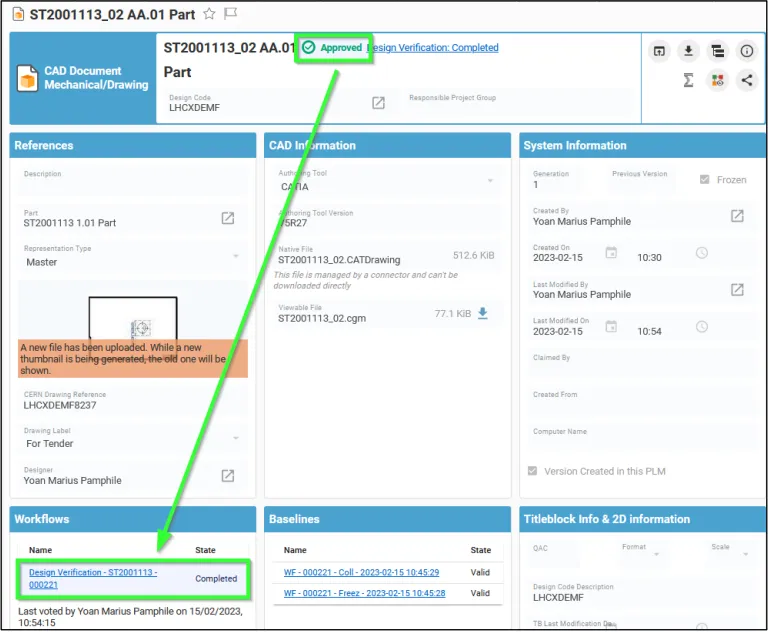
How to access the Workflow Profile Card?
How to access the Workflow Profile Card? Once the Workflow object (Change Item) has been launched: As Creator Go to Part/CAD Document from which the Workflow has been launched, then go to the "Workflow" section of the Part/CAD Document Profile Card and click on the link of the corresponding Workflow. As reviewer Go to "My
-
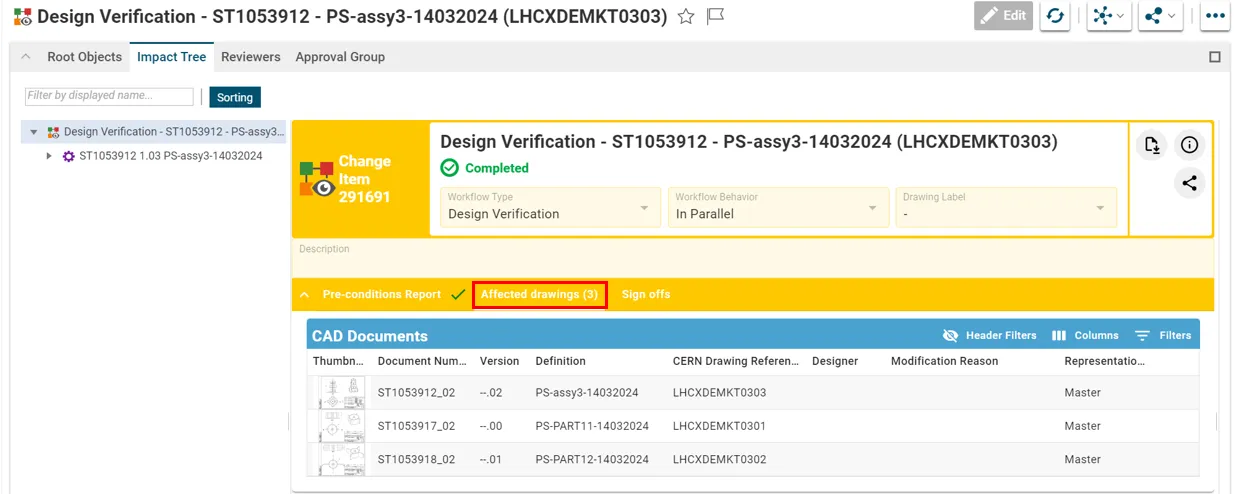
How to view drawings that need to be validated in a Design Verification Workflow?
How to view drawings that need to be validated in a Design Verification Workflow? As reviewer, you can access to the profile Card of the Workflow, either using the hyperlink from the notification e-mail, or through the My InBasket page or via the notification icon on the Dashboard. From the workflow profile card, all the
-
What are the prerequisites for creating a Design Verification Workflow?
What are the prerequisites for creating a Design Verification Workflow? There are few basic pre-requirements that must be fulfilled for being able to create a Design Verification Workflow: You can create and launch a Design Verification by following the information contained in this article. Complete documentation: Design Verification Workflow FAQ
-
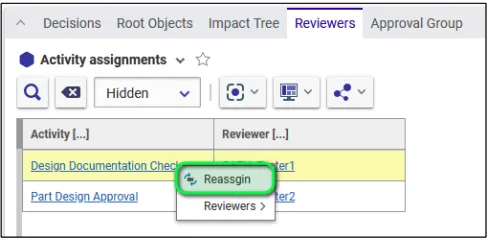
How to reassign the Design Verification Workflow activities?
How to reassign the Design Verification Workflow activities? Once the workflow is launched, the creator of the workflow can, in case of need, reassign the workflow activities (that are not yet completed) to another user. This one must have the role required by the activity (Design Reviewer or Equipment Owner) on all the Design Codes
-
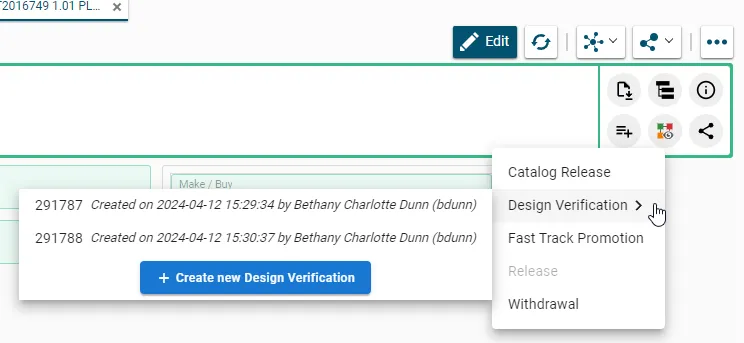
How to create and launch the Design Verification Workflow?
How to create and launch the Design Verification Workflow? You can create the Design Verification Workflow from the Part by clicking on the icon of the Workflow and then select Design Verification in the drop-down menu. Any already existing Design Verification workflows of the Part that are "In Preparation" will be proposed. Alternatively a new
-
What is the concept of the Design Verification Workflow?
What is the concept of the Design Verification Workflow? The Design Verification workflow is used to approve the Design data. Since we are working in Part Centric mode, this workflow allows to approve the Part and all its content. In other words, it will not be possible to approve a single Drawing by using this
-

What is the baseline’s behaviour?
What is the baseline’s behaviour? The baseline’s behaviour is determined by the expansion strategy and the filter it uses. The filter corresponds to the type of documents that are assigned (or not) to the baseline. The only expansion strategy used is the top-down strategy. You can use the filter to assign a baseline to a
-
What are the consequences of generating a baseline?
What are the consequences of generating a baseline? After a baseline has been created, the document(s) assigned to it cannot be edited or deleted (lifecycle status cannot be modified). The information about the baseline can be found in the document’s profile card. The structure covered by the baseline cannot be edited and is frozen. The
-
How to create the baseline?
How to create the baseline? You are able to create the baseline: Fill in all the necessary information and generate the baseline, click on the "Generate" button, which is enabled after the baseline has been saved. To more about baselines, follow the document below. Baseline
-
What is the purpose of creating a baseline?
What is the purpose of creating a baseline? The purpose of creating a baseline is to freeze any kind of structure (a part or a CAD document) along with all the documents belonging to that structure to which the baseline creator has access. By creating a baseline, you can: The FAQ document below will present