
Category: How To
-
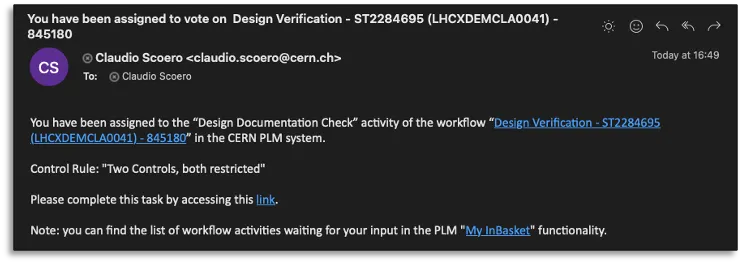
How to perform the CDD Control 1 in the PLM?
How to perform the CDD Control 1 in the PLM? The CDD Control 1 corresponds to the Design Documentation Check activity in the new PLM platform. The assignee of this control activity receives a notification email containing the direct link to the workflow object. Steps: Complete documentation: Design Verification Workflow FAQ
-

What is the concept of the Release by Integration Workflow?
What is the concept of the Release by Integration Workflow? The Release by Integration Workflow is used to validate an Integration Assembly. This workflow operated on the Integration CAD Structure only, meaning the Integration Assembly itself and all its CAD Dependencies if it has a valid lifecycle state (Approved, Released or Replaced). Once we identify
-

How to delete a file or document from a pending job in Batch Import?
How to delete a file or document from a pending job in Batch Import? If the Batch Import has not yet been launched and the job is still "In Preparation", it can be edited (by clicking on the "Edit" button at the top of the Profile Card). Go to the relationship grid at the bottom
-
How to add new files to a pending job or modify the metadata in Batch Import?
How to add new files to a pending job or modify the metadata in Batch Import? If the Batch Import has not yet been launched and the job is still "In Preparation", it can be edited (by clicking on the "Edit" button at the top of the Profile Card). Then the new files can be
-
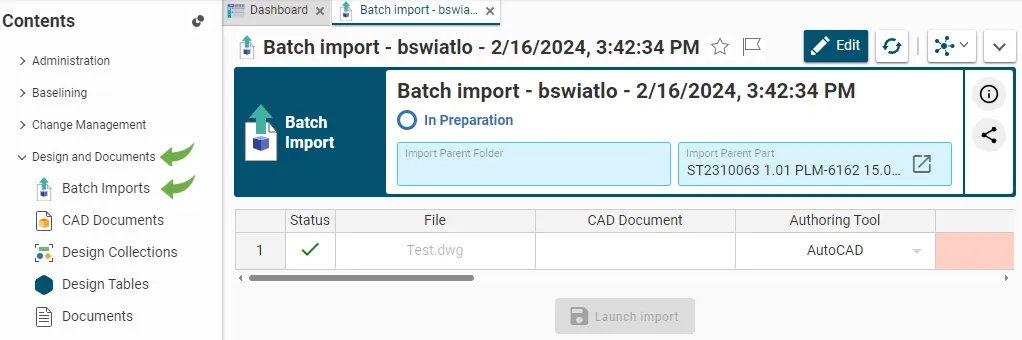
How to retrieve / find an existing job in Batch Import?
How to retrieve / find an existing job in Batch Import? Every time a file or a batch of files is dragged and dropped into a Part or a Folder in edit mode, the system automatically created an import job. Each job corresponds to a specific object, i.e. a Batch Import, that is created for
-

How to enter metadata with drag and drop (batch import)?
How to enter metadata with drag and drop (batch import)? When dropping a file into one of the two areas, a table appears. When importing CAD files, the table contains more fields to be completed. As many fields of the table as possible are prefilled but the proposed default values can be changed and the
-
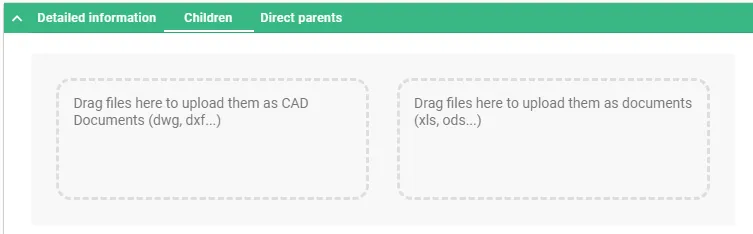
How to use a Batch Import?
How to use a Batch Import? The Batch Import can be performed from a Folder or a Part. In both cases, the object must be in edit mode. Once the Folder or the Part is in edit mode, two areas will appear in its Profile Card under “Children” tab. The files can be dragged and
-
What is the concept of Batch Import?
What is the concept of Batch Import? Batch importing involves uploading several files at once to the PLM platform from a File Explorer (Windows, Linux or Mac). To do so, the target folder or part in the PLM must be in edit mode, then the files can be dragged and dropped from the File Explorer
-

How to create a Drafts Container for Parts?
How to create a Drafts Container for Parts? The goal of the Drafts Container functionality is to allow users to approve the Part and its Master CAD Documents without being delayed by the finalisation of the other “secondary” objects that are related to the Part but not relevant for the approval of the Part. On
-
How to create a Design Collection in the PLM?
How to create a Design Collection in the PLM? The Design Collection replaces the EDMS Drawing Folder functionality and serves to support the data exchange process between the Design Office and the Workshop for the production of a given equipment. Please find more information in this FAQ: Design Collection functionality