
Category: How To
-
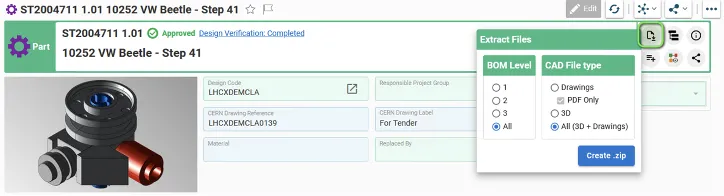
How to extract / download files from the PLM?
How to extract / download files from the PLM? To download CAD files from Parts, Parts attached to Folders, Design Collections or Change Items at once, you need to: When executing the "Extract Files" functionality, the selection of the Level applies on the Parts directly linked to the Folder or to the Change Item, or
-
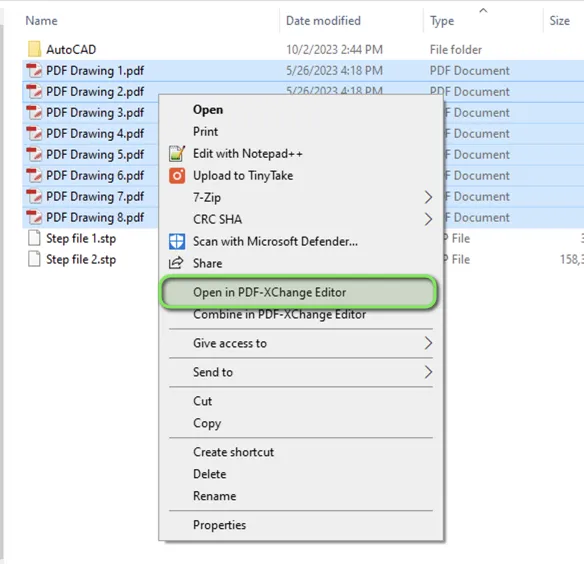
How to print multiple drawings at once with PDF X-Change Editor?
How to print multiple drawings at once with PDF X-Change Editor? To print multiple Drawings at once from your local folder in DFS, you need to: 1. Access data in your DFS folder and select all the Drawings you need to print 2. Right-Click and select the option "Open in PDF-XChange Editor" 3. Once PDF-XChange
-
What is the concept of a Part?
What is the concept of a Part? The Parts are the group of responsible objects for storing all engineering information related to the equipment like 2D, 3D or other documents and files. However, the Part does not contain any files: the files must be attached to the CAD or non-CAD Documents. In the PLM Platform
-

How to change the settings in Drawing to CGR or Approximate?
How to change the settings in Drawing to CGR or Approximate? The CGR and Approximate format contains only the graphical representation of the geometry. These options allows you to choose different appearances of the linework of your Drawing. The CGR files are facetted models for visualisation that can't be edited but they can be used
-
How to change the view generation mode?
How to change the view generation mode? To edit this properties go to the Drawing and right-click on the frame, then select "Properties". Scroll down in the new window and look for the section "Generation Mode". Below you can find the "View generation mode" and from there you can choose CGR or Approximate view. To
-
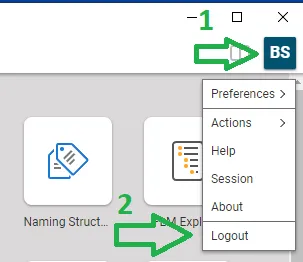
How to log-out from PLM?
How to log-out from PLM? To log-out from PLM Desktop you need to click on the button that represents your account (step 1) and use the "Logout" (2). Then you need to wait for confirmation window that appears and validate.
-
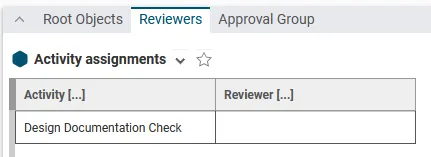
What to do in case all the activities of a workflow under edition are not visible?
What to do in case all the activities of a workflow under edition are not visible? Even if the Design Code(s) assigned to the Part(s) involved in the Workflow requires 2 Activities (and thus to define 2 reviewers), sometimes only 1 activity is visible in the Reviewers tab of a Design Verification Workflow under edition,
-
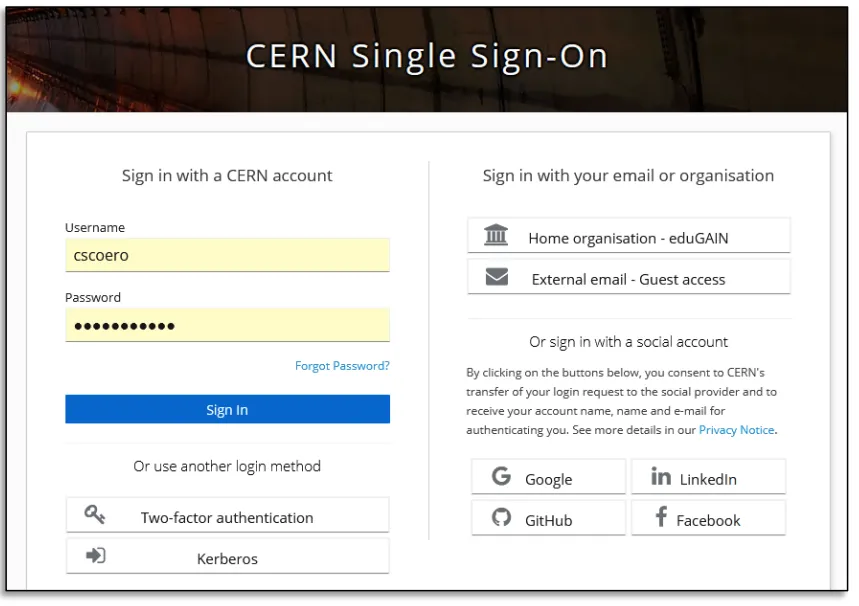
How to access to the PLM?
How to access to the PLM? CERN account holders can access the PLM with their nice CERN account.
-
How to check the Design Codes access rights?
How to check the Design Codes access rights? You need to go to the Design Code Profile Card and click on the tab "Team Members". From there you will find Identities (which are group of users) or users with their "Role". If you want to see the "Role" in the Team, you can search in
-
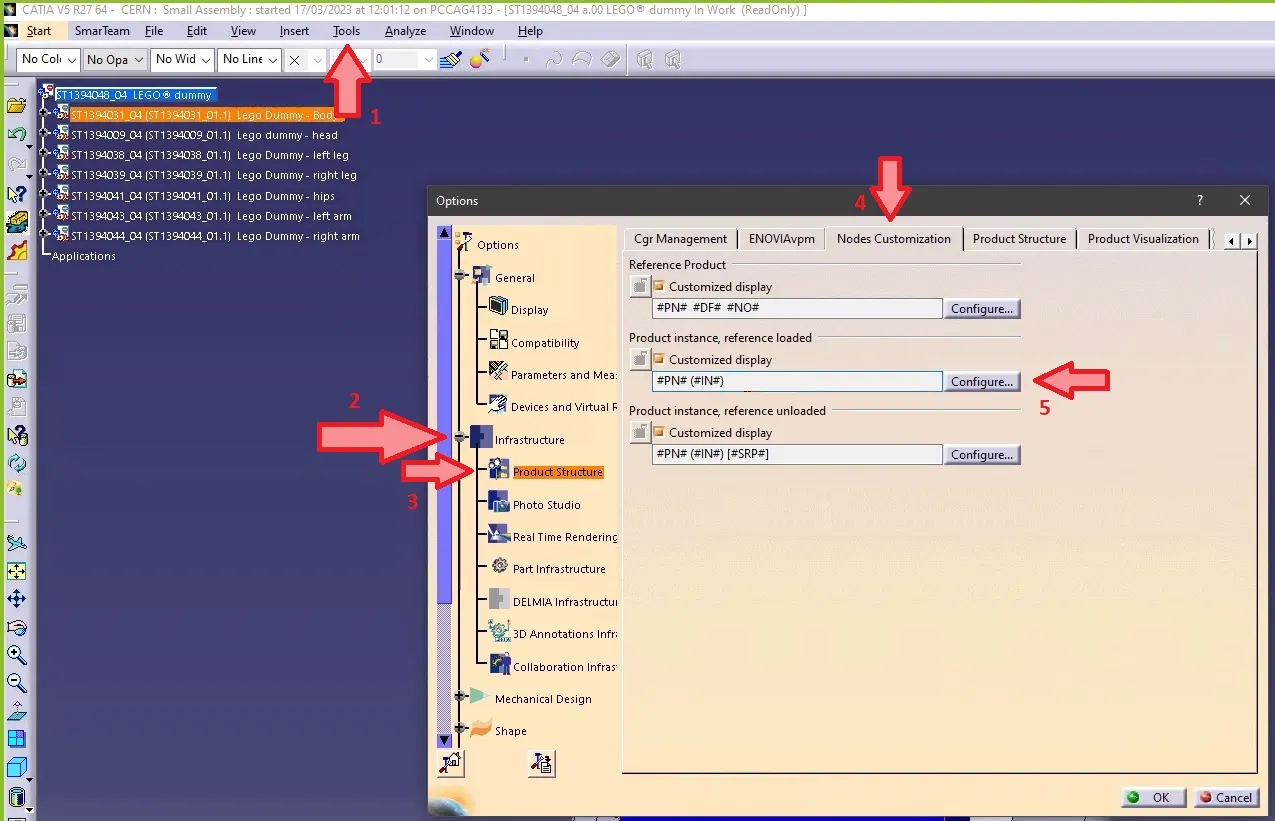
How to make the definition visible in CATIA tree when working with files not stored in PLM?
How to make the definition visible in CATIA tree when working with files not stored in PLM? Note 1: if in the same CATIA session, you visualize another product structure from the PLM, the Definition will appear twice. Note 2: if you want to keep this setting by default for your future CATIA sessions, you