
Tag: PLM – General
-
How to get the access rights in the Design Code?
How to get the access rights in the Design Code? PLM users can directly request Design Code access from the PLM platform through a dedicated access request interface. The administrators of the group will be responsible for handling your request and you'll get notified by email as soon as a decision is taken.
-
What documents can be generated by the Public Link?
What documents can be generated by the Public Link? The following conditions apply to documents shared via Public Link. Access Restrictions:
-
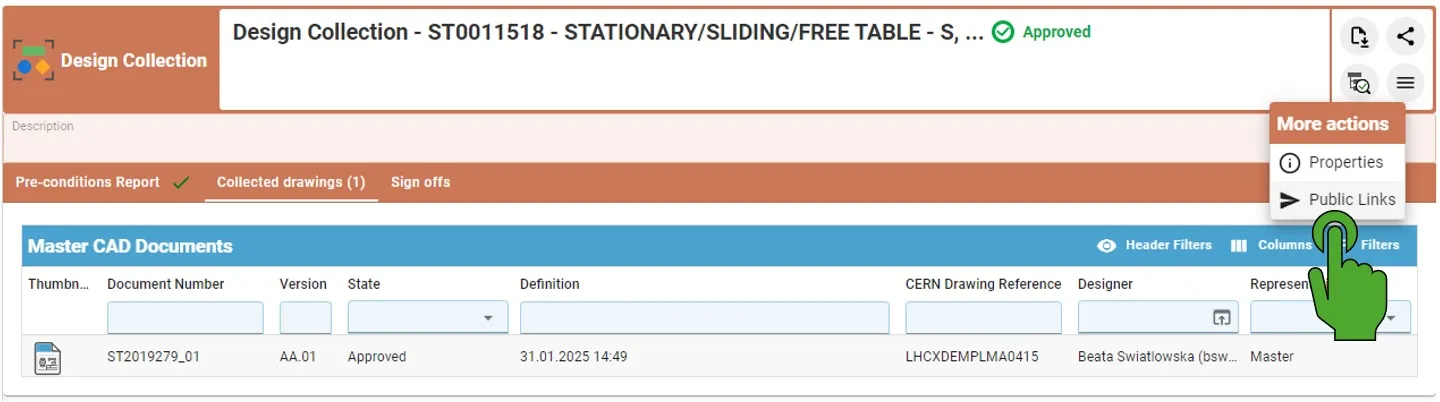
How to find already generated Public Link?
How to find already generated Public Link? By opening the Design Collection with the created before Public Links, it is possible to access them again by clicking on the left top button "More actions" (with three lines) and then choosing the Public Links. If the Public Link has been already created, it will open the
-
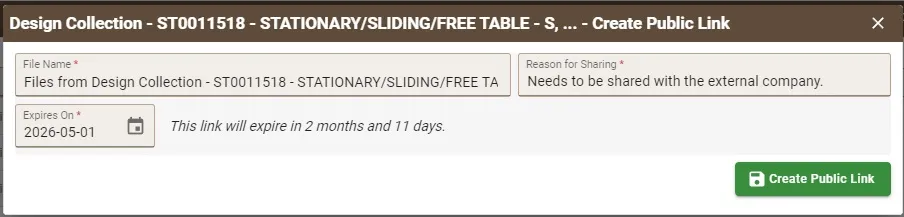
How to create the Public Link?
How to create the Public Link? Public Links must be created from an Approved Design Collection. In the creation window, users must: After completing the required fields: When the link is opened in any browser, the external user can directly download a ZIP file containing the documents related to the Part without authentication required.
-
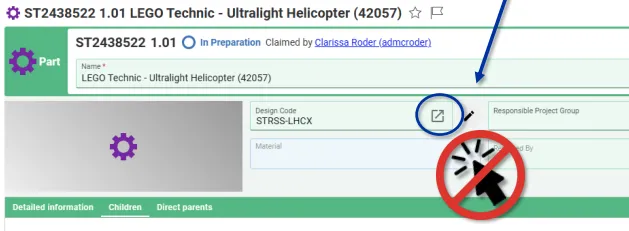
How to change a Design Code?
How to change a Design Code? To change the Design Code assigned to a Part follow the steps below: Note, in Edit mode, the icon next to the Design Code field opens the current Design Codes profile card. It cannot be used to search and select a new code. Note: If you would like to
-
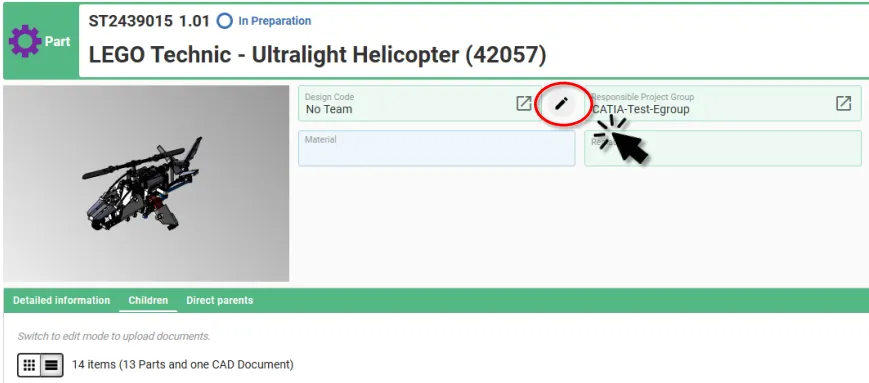
How to add and/or propagate a Design Code?
How to add and/or propagate a Design Code? In the PLM Platform there are two ways to add a Design Code to a Part, and one method to add and propagate it down to the child Parts: Adding and propagating Design Codes using the Pen Tool Selecting the small pen icon will display a new
-
How to link an existing object to a Folder?
How to link an existing object to a Folder? There are multiple ways to link a Folder or Content ( Part, Document, or CAD Document) to an existing Folder, with the prerequisite that you have the necessary rights to edit this Folder:
-
How to find the PLM local supporters?
How to find the PLM local supporters? During the SmarTeam to PLM transition, a number of your already experienced colleagues will have the mandate as local supporters and some time dedicated to help you get started. To find your closest local supporter, please see the list following this link.
-
PLM/PWB/CAD known issues and workarounds
PLM/PWB/CAD known issues and workarounds There are some known issues when working with the PLM and PWB CATIA connector. Whilst we are working on a resolution we have documented them at the link here, along with our suggested workarounds. We have also documented any known CAD issues and potential workarounds. These have been reported to
-
How to check if a document is ‘current’?
How to check if a document is ‘current’? Its important to know if your CAD structure contains 'non latest' versions of CAD Documents, especially if you need to work with the latest data, while the latest data might be available in SmarTeam only. Within the PLM and CATIA connector there are various ways you can