
Tag: CDD to PLM transition
-
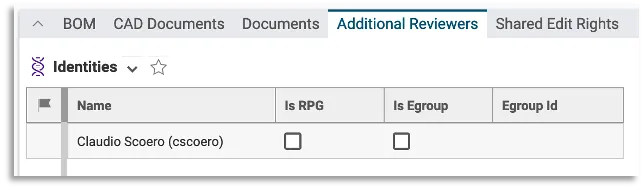
How to define the list of Additional Reviewers on a given Part ?
How to define the list of Additional Reviewers on a given Part ? You can define the additional reviewers in the "Additional Reviewers" tab of the Part: Once the Part is collected by a Design Verification workflow, this will automatically assign them a control activity that must be validated to complete the workflow successfully. Be
-

How to define the Approval Group responsible for the old CDD Control 3 / Approval Process ?
How to define the Approval Group responsible for the old CDD Control 3 / Approval Process ? In case the Control Rule defined on the Design Code set on the Root Object is “QAC A”, the “Review by Approval Group” workflow activity is mandatory, and the system automatically suggests you the Approval Group to use.
-

How to define the assignees of the Design Verification workflow control activities ?
How to define the assignees of the Design Verification workflow control activities ? The workflow initiator has to select the people in charge of the “Design Documentation Check” and “Part Design Approval” activities from the “Reviewers” tab, available from the Design Verification workflow profile card. Design Documentation Check: to be assigned to users holding the
-

How to define the set of data that needs to be approved by the Design Verification Workflow?
How to define the set of data that needs to be approved by the Design Verification Workflow? Root Objects represent the set of data you want to approve. In case you created the Design Verification workflow from the Part profile card, this Part is automatically added as Root Object of the workflow. It is possible
-
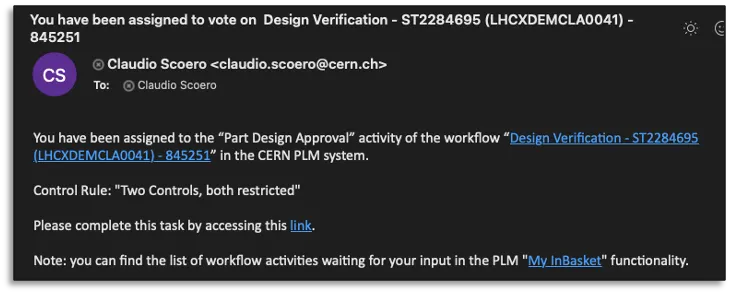
How to perform the CDD Control 2 in the PLM?
How to perform the CDD Control 2 in the PLM? The CDD Control 2 corresponds to the Part Design Approval activity in the new PLM platform. The assignee of this control activity receives a notification email containing the direct link to the workflow object. Steps: Complete documentation: Design Verification Workflow FAQ
-
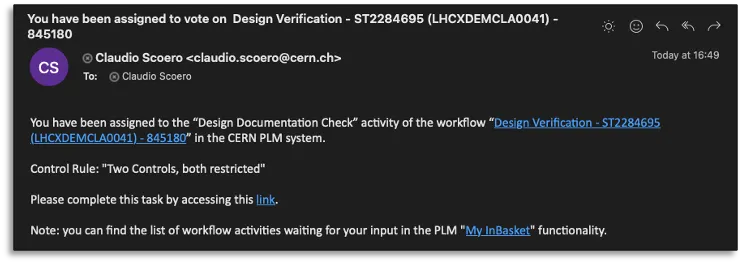
How to perform the CDD Control 1 in the PLM?
How to perform the CDD Control 1 in the PLM? The CDD Control 1 corresponds to the Design Documentation Check activity in the new PLM platform. The assignee of this control activity receives a notification email containing the direct link to the workflow object. Steps: Complete documentation: Design Verification Workflow FAQ
-
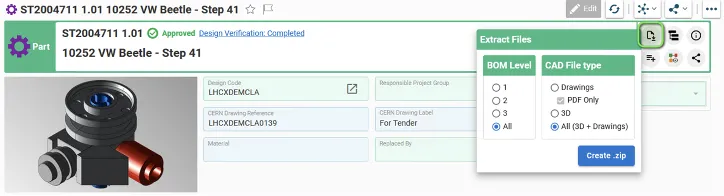
How to extract / download files from the PLM?
How to extract / download files from the PLM? To download CAD files from Parts, Parts attached to Folders, Design Collections or Change Items at once, you need to: When executing the "Extract Files" functionality, the selection of the Level applies on the Parts directly linked to the Folder or to the Change Item, or
-
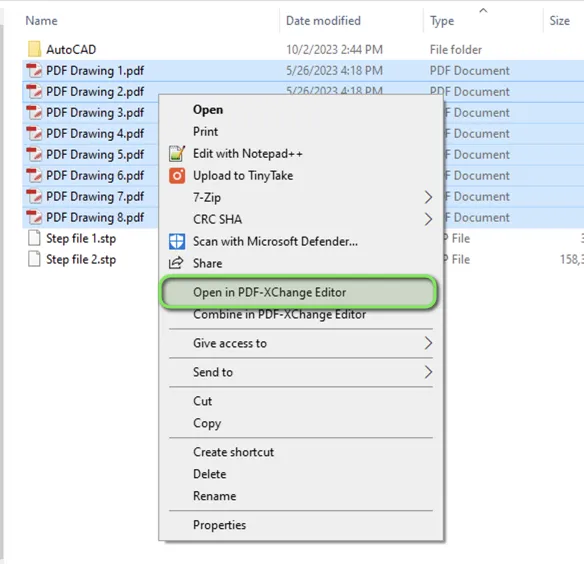
How to print multiple drawings at once with PDF X-Change Editor?
How to print multiple drawings at once with PDF X-Change Editor? To print multiple Drawings at once from your local folder in DFS, you need to: 1. Access data in your DFS folder and select all the Drawings you need to print 2. Right-Click and select the option "Open in PDF-XChange Editor" 3. Once PDF-XChange
-
What are the prerequisites for creating a Design Verification Workflow?
What are the prerequisites for creating a Design Verification Workflow? There are few basic pre-requirements that must be fulfilled for being able to create a Design Verification Workflow: You can create and launch a Design Verification by following the information contained in this article. Complete documentation: Design Verification Workflow FAQ
-
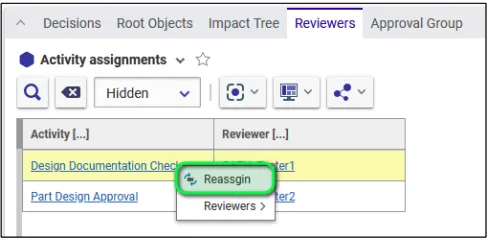
How to reassign the Design Verification Workflow activities?
How to reassign the Design Verification Workflow activities? Once the workflow is launched, the creator of the workflow can, in case of need, reassign the workflow activities (that are not yet completed) to another user. This one must have the role required by the activity (Design Reviewer or Equipment Owner) on all the Design Codes