
Tag: CDD to PLM transition
-
What are the prerequisites to perform an Assign Drawing(s) Label Workflow ?
What are the prerequisites to perform an Assign Drawing(s) Label Workflow ? There are few basic pre-requirements that must be fulfilled for being able to perform an Assign Drawing(s) Label Workflow. CAD Documents set as Root Objects must: – Be of type "Drawing". – Be in "Approved" or "Released" lifecycle state. – Have a Design
-
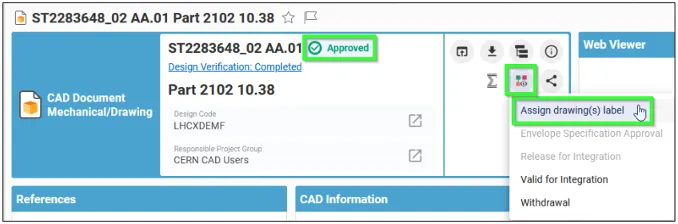
How to create and launch the Assign Drawing(s) Label Workflow ?
How to create and launch the Assign Drawing(s) Label Workflow ? The Assign Drawing(s) Label Workflow can be created from CAD Documents of type Drawing: Once the Change Item profile card appears, fill in its Description and choose the Drawing Label you need to apply: You can change the Label of multiple Drawings with the
-
What is the concept of the Assign Drawing(s) Label workflow?
What is the concept of the Assign Drawing(s) Label workflow? The Assign Drawing(s) Label workflow is used to change the Label of one or multiple Drawings. This workflow only operates on CAD Documents of type “Drawing”. As soon as the workflow is launched, this triggers the archiving of the Drawing, taking into account the up-to-date
-

How can I run the Design Verification workflow Preconditions Report ?
How can I run the Design Verification workflow Preconditions Report ? The Preconditions Report can be run by using the button from the Workflow Profile Card. All preconditions have to be “PASSED” for being able to launch the Workflow. In case a precondition check is “FAILED”, you will receive a specific error message for this
-
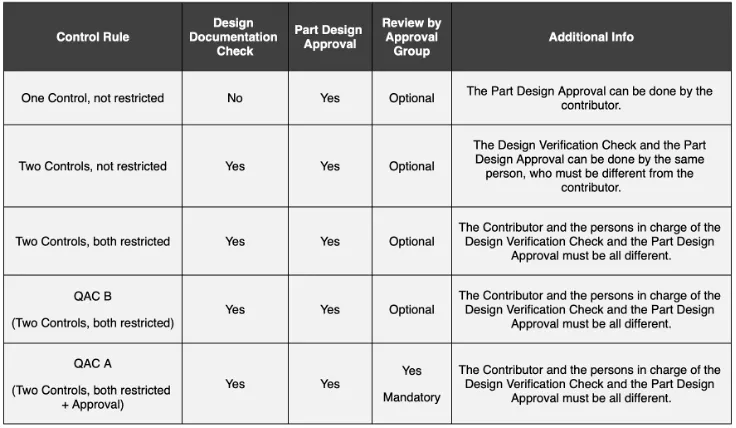
What are the Control Rules allowed for validating data with the Design Verification workflow ?
What are the Control Rules allowed for validating data with the Design Verification workflow ? The Design Verification workflow activates the “Control Activities” on the basis of the Control Rule defined on the Design Code set on the Root Objects and on the Parts composing their BOM (as well as on the attached Documents). The
-

How can I discard / abandon an active Design Verification Workflow ?
How can I discard / abandon an active Design Verification Workflow ? Users holding the Contributor role on the Design Code set on the Root Objects of the Workflow can discard / abandon it when the workflow is still in "Active" state. This implies that there is at least one control activity that must still
-
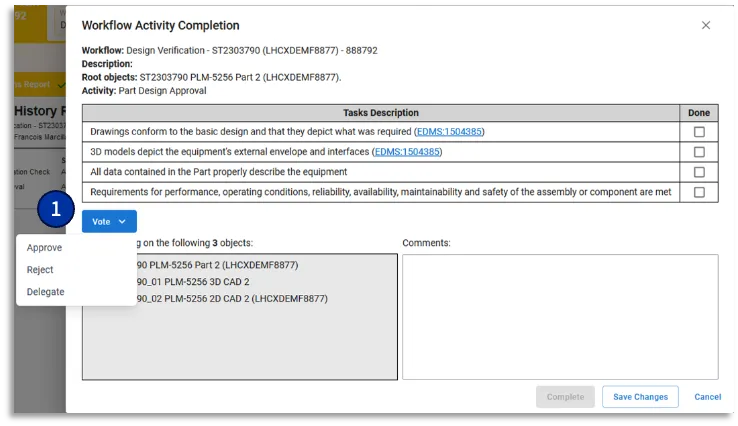
How to delegate a Design Verification Workflow activity ?
How to delegate a Design Verification Workflow activity ? You can delegate the Design Verification Workflow activity you have been assign to, to another user holding the role required for its completion (Design Reviewer or Equipment Owner). To do that, you need to access the "Workflow Activity Completion form" –> Select the "VOTE" button –>
-
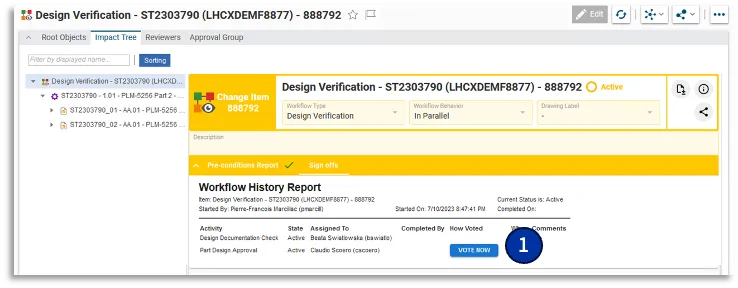
How can I control the Design Verification workflow activities I am responsible for ?
How can I control the Design Verification workflow activities I am responsible for ? Once you access the Profile Card of the Workflow, either using the hyperlink from the notification e-mail, or with My InBasket or via the notification icon on the Dasboard, click on the "VOTE NOW" button (1) available in the "Signs Off"
-
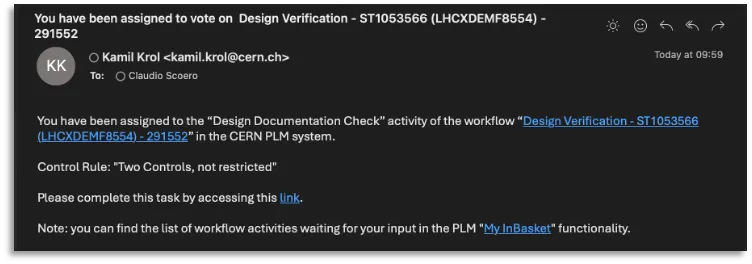
How can I be informed I have been assigned to a Design Verification Workflow activity ?
How can I be informed I have been assigned to a Design Verification Workflow activity ? As soon as the workflow is launched, the workflow assignees receive a notification email that contains: • The reference of the workflow • The name of the workflow activity the user is asked to vote on • The direct
-
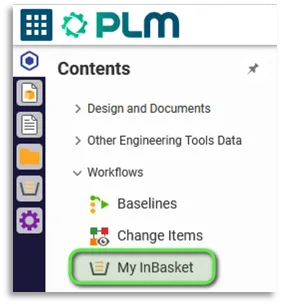
How to retrieve the list of all workflows activities that I have been assigned to ?
How to retrieve the list of all workflows activities that I have been assigned to ? The My InBasket feature is used to access the list of workflow tasks you are responsible for. You can access this functionality from the Table of Content → Workflows → My InBasket You can then access a each workflow