
Tag: CATIA-PLM Connector (PWB)
-
Subgroup: Installation & the Basics
Subgroup: Installation & the Basics Below is a group of How-to's that are related to the topic of 'Installation & the Basics' in the CATIA-PLM connector (PWB) category. Click on their links to find more information on these topics.
-
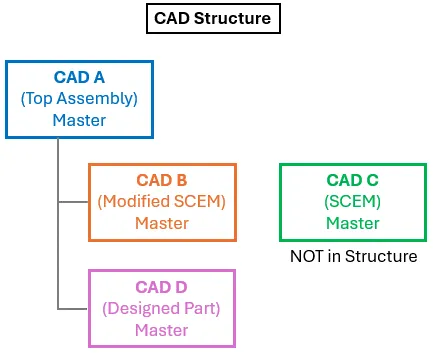
How to validate a CAD structure where a master document is not in BOM (PLM)?
How to validate a CAD structure where a master document is not in BOM (PLM)? In most situations all master CAD documents in a CAD structure are contained in the assembly’s BOM. However, there is a valid use case where this is not true. For example, a component in a structure will be manufactured from
-
What are the meanings of the CATIA & PLM Icons?
What are the meanings of the CATIA & PLM Icons? Icons are used throughout the PLM and in the CATIA specification tree to quickly convey information. See the documentation below to find the explanation of each icon. More: FAQ
-
How is metadata managed between the PLM and CATIA?
How is metadata managed between the PLM and CATIA? A CAD document is made up of data, metadata. Some of this comes from CATIA such as the geometry, mass and material. Some of it comes from the PLM, Design code and RPG. Two pieces of metadata can be changed in both the PLM and CATIA,
-
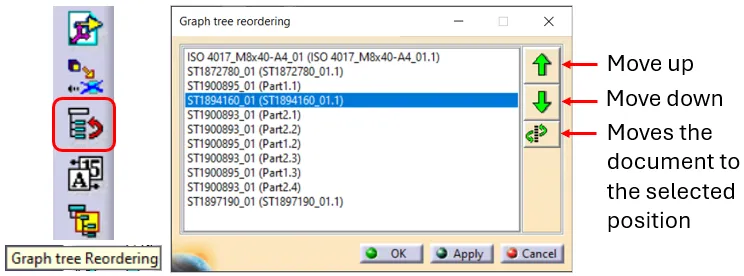
How to reorder a BOM?
How to reorder a BOM? The order of the BOM is determined by the CATIA tree. The BOM is built based on the positions and quantities in the CATIA tree, using a top-down approach. Please note: There are manual ways to override the CATIA positions & quantities, for further information on this see the FAQ
-

How to project a BOM on a drawing?
How to project a BOM on a drawing? A BOM can be projected onto a drawing using the Title Block Editor (TBE). When you click on the Title Block Editor icon in CATIA V5, it will open in a new window. The BOM can be found in the second tab, called “Bill of Materials”. Check
-
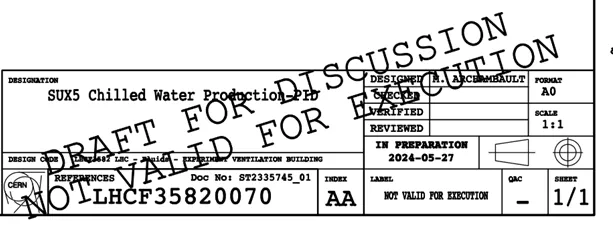
What is the difference between the regular Titleblock stamp and the Mini stamp?
What is the difference between the regular Titleblock stamp and the Mini stamp? Regular Titleblock stamp: Case 1: you are working at CERN with an official CAD tool and a PLM Connector (ex: BricsCAD, CATIA etc…). Thus, you must generate an official CERN Titleblock on your Drawing prior to validating it. Then when a Design
-
How to save a new CAD document in the PLM from CATIA?
How to save a new CAD document in the PLM from CATIA? The first part of the FAQ linked below will show you a quick method of saving a CAD document without dependencies, like a CATPart. The second, more detailed section will describe how to save a structure where the files are linked to each
-

How to update a BOM in the PLM?
How to update a BOM in the PLM? The PLM uses an automatic engineering BOM (EBOM). This means every time you save an assembly the BOM will be created/updated on each ‘claimed’ or ‘new’ assembly node. The BOM uses the positions and quantities of the instances in the CATIA tree, using a top-down approach. Please
-
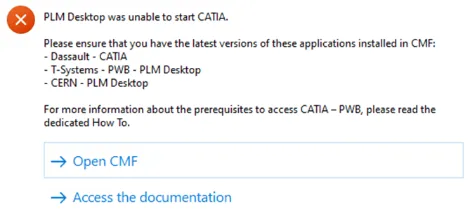
How to get started with CATIA / PLM at CERN
How to get started with CATIA / PLM at CERN Please follow the necessary training before using the PLM. You can access the training and learning path here, this will help you identify what training is necessary for you depending on your previous experience and knowledge. Training on the CATIA-PLM connector (PWB) is a prerequisite