
Tag: CATIA-PLM Connector (PWB)
-
What tools are available in the PDM Workbenches (PWB)
What tools are available in the PDM Workbenches (PWB) The PLM and CATIA are connected through the connector, PDM Workbench (PWB). There is a toolbar and different workbenches for the various CATIA workbenches (Part Design, Assembly design, drafting). The PDM workbenches do not contain any modelling tools, but have tools to manage the documents such
-
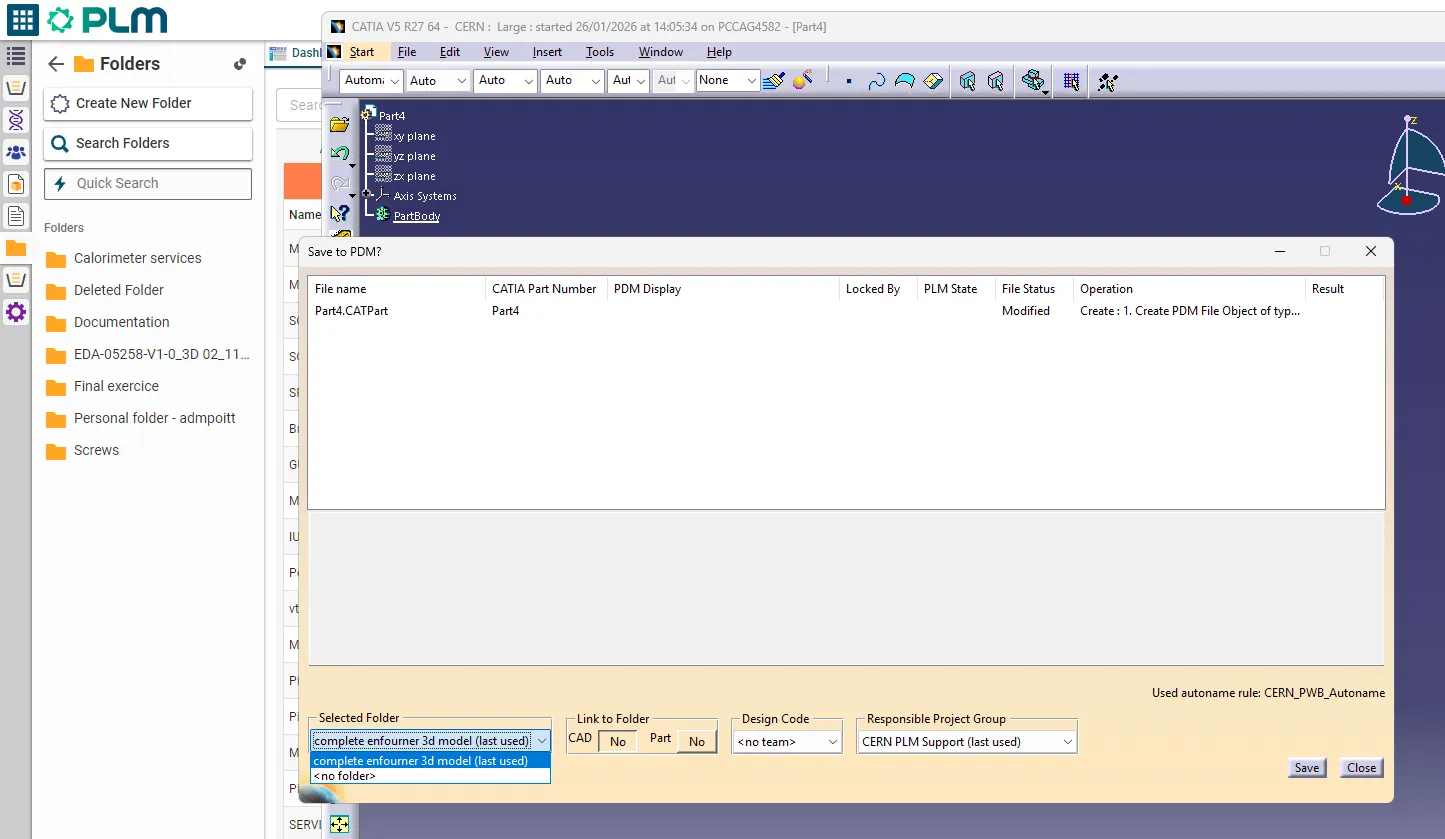
How to get back the list of favorite folders when saving from CATIA?
How to get back the list of favorite folders when saving from CATIA? Sometimes, when saving from CATIA in the PLM, the list of Folders in the SAVE window is empty, while you do have several Folders flagged as favourite in the PLM: This usually comes from the fact that one of the Folders flagged
-
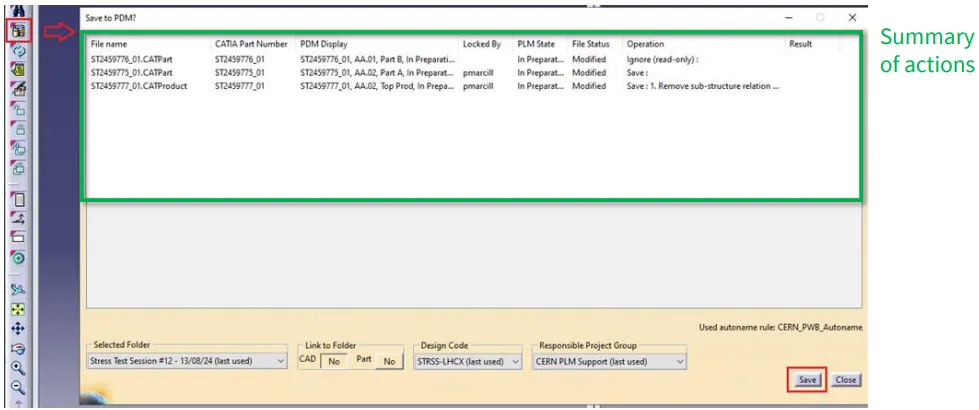
What changes were made to the CATIA Connector save process to prevent data loss?
What changes were made to the CATIA Connector save process to prevent data loss? To prevent data loss caused by save interruptions (for example, switching windows too quickly after pressing “Save“), a CATIA Connector update was deployed on Wednesday, 5th of November. This update introduces a temporary but safer save mechanism. Key Changes Implemented Save
-
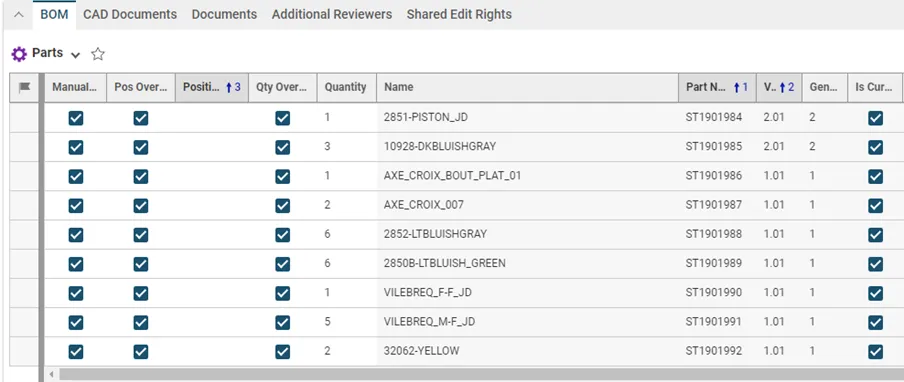
How to handle the BOM update of a SmarTeam to PLM migrated CAD structure?
How to handle the BOM update of a SmarTeam to PLM migrated CAD structure? Usually, when working with CATIA and the PLM, the Bill Of Materials is updated automatically after each CATIA save via the PWB connector (e-BOM sync). This is the case for all new CAD Documents created and modified in the PLM. However,
-
How to use the Emergency Save (Upload) and Open function of the CERN CATIA PLM toolbox?
How to use the Emergency Save (Upload) and Open function of the CERN CATIA PLM toolbox? If you’re experiencing delays or failure when saving through the standard CATIA Connector, you can use the Emergency Save (also called Toolbox) function as a fallback to manually upload your work. You can also use this tool to open
-
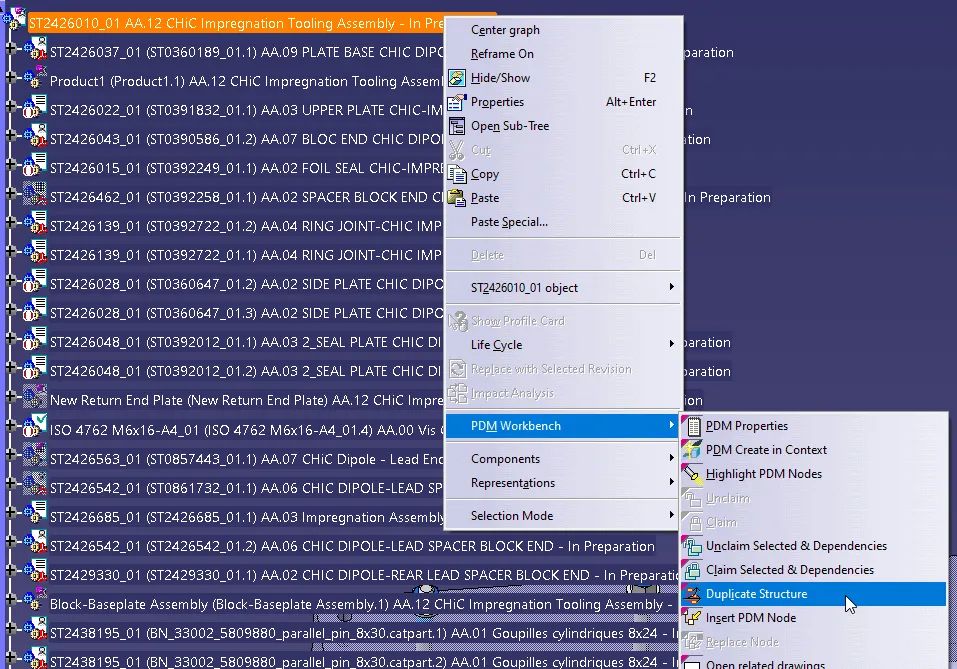
How to duplicate a structure?
How to duplicate a structure? You can duplicate an entire structure using the following tool from the PDM workbench contextual menu. It will duplicate the entire structure, top down from the selected node. Once clicked, a list of the selected structure will open in the duplicate window, see the image below. As standard the whole
-
How to collect the PWB & CATIA logs before reporting an incident to the PLM / CAD Support team?
How to collect the PWB & CATIA logs before reporting an incident to the PLM / CAD Support team? The log files can be very helpful to investigate some issues. They are required by the PWB supplier if we need to contact them. Log level: There are 3 log levels, 1,2 and 3. Working with
-

How to activate the PWB logs?
How to activate the PWB logs? The PWB log files write down every action you do with the T-Systems PWB connector. To be more efficient when investigating an issue, the PLM / CAD Support team, as well as the T-Systems team, need those files when an incident is reported. But for that, the log files
-
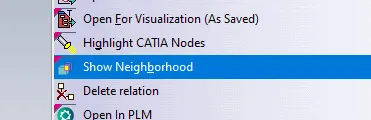
How to open via neighbourhood search (Spatial search and opening)
How to open via neighbourhood search (Spatial search and opening) In the PWB it is possible to open a specific document in context, along with any documents that touch its bounding box in the specified context. For example, if you have an engine and want to visualise only the parts that surround the crankshaft, this
-
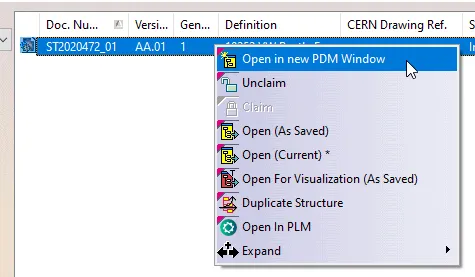
How to Open a structure in context (partial loading)?
How to Open a structure in context (partial loading)? In the PWB it is possible to open on demand only certain selected nodes of the PDM structure in CATIA. This may be useful when you only need to load a specific set of nodes from a heavy model, but would like to save it in