
Tag: PLM
-
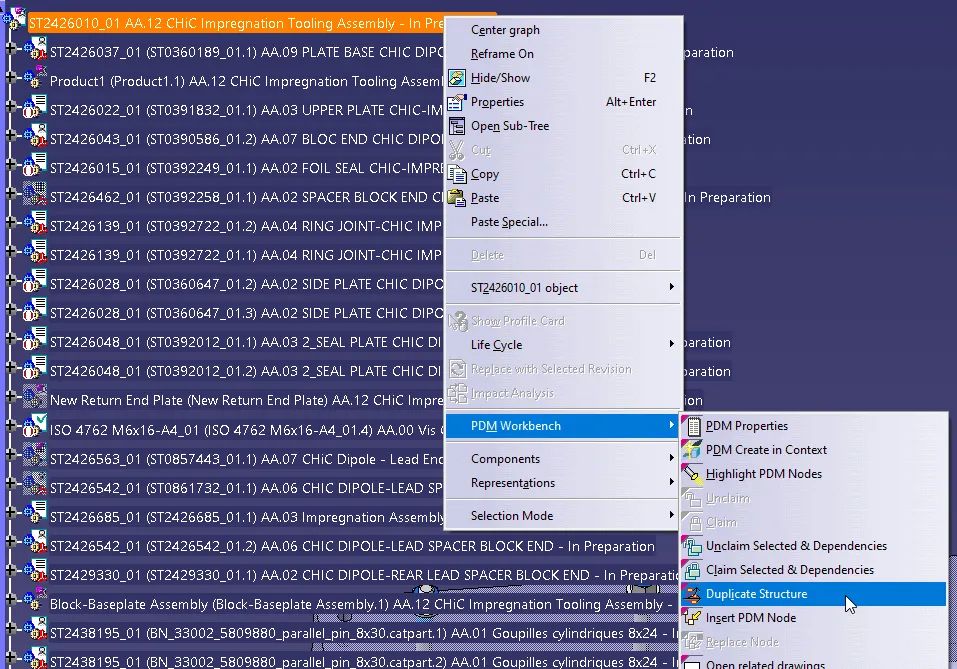
How to duplicate a structure?
How to duplicate a structure? You can duplicate an entire structure using the following tool from the PDM workbench contextual menu. It will duplicate the entire structure, top down from the selected node. Once clicked, a list of the selected structure will open in the duplicate window, see the image below. As standard the whole
-
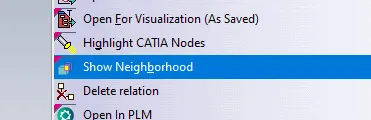
How to open via neighbourhood search (Spatial search and opening)
How to open via neighbourhood search (Spatial search and opening) In the PWB it is possible to open a specific document in context, along with any documents that touch its bounding box in the specified context. For example, if you have an engine and want to visualise only the parts that surround the crankshaft, this
-
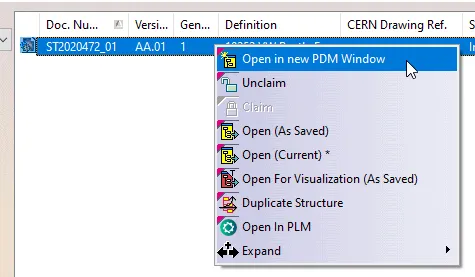
How to Open a structure in context (partial loading)?
How to Open a structure in context (partial loading)? In the PWB it is possible to open on demand only certain selected nodes of the PDM structure in CATIA. This may be useful when you only need to load a specific set of nodes from a heavy model, but would like to save it in
-
PLM/PWB/CAD known issues and workarounds
PLM/PWB/CAD known issues and workarounds There are some known issues when working with the PLM and PWB CATIA connector. Whilst we are working on a resolution we have documented them at the link here, along with our suggested workarounds. We have also documented any known CAD issues and potential workarounds. These have been reported to
-
How to book a specific CERN Drawing Reference before the creation of the Drawing?
How to book a specific CERN Drawing Reference before the creation of the Drawing? It is possible to book a new CDR before you even created the Drawing, in the case you want to create the drawing afterward and need to assign a specific CDR to it. In this case, access the Design Code profile
-
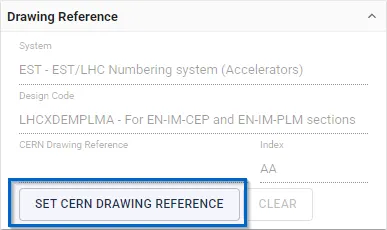
How to set an existing (booked) CERN Drawing Reference (CDR) to a new Drawing?
How to set an existing (booked) CERN Drawing Reference (CDR) to a new Drawing? General requirement: Prior to using this functionality, make sure you have one of the following roles in the Design Code corresponding to the CERN Drawing Reference (CDR): Contributor, Design Reviewer, or Equipment Owner. From the TitleBlock Editor To set an existing
-
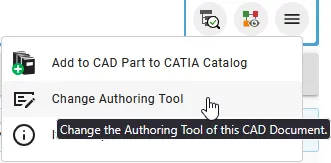
How to change the authoring tool of a CAD Document?
How to change the authoring tool of a CAD Document? In case you need to change the authoring tool of a CAD Document, from AutoCAD to CATIA for example, click on the following button in the CAD Document Profile Card header: The following window will appear, allowing you to change the Authoring Tool, add an
-

How to preview a CAD document in CATIA from the PLM?
How to preview a CAD document in CATIA from the PLM? If you require to quickly review a 3D CATIA model it may be advantageous to use the 'preview in CATIA' command. This will open documents much faster compared to the standard method of opening native files in CATIA, or even opening the converted STEP
-
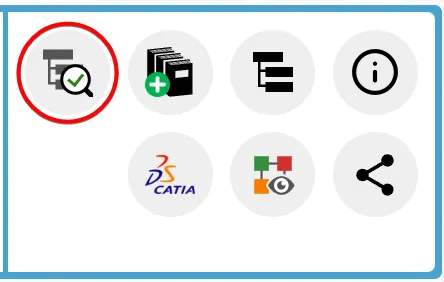
How to check if a document is ‘current’?
How to check if a document is ‘current’? Its important to know if your CAD structure contains 'non latest' versions of CAD Documents, especially if you need to work with the latest data, while the latest data might be available in SmarTeam only. Within the PLM and CATIA connector there are various ways you can
-
What is the significance of the different roles within a Design Code?
What is the significance of the different roles within a Design Code? Design Codes are used within the PLM to grant users access rights to documents. Within a Design Code there are different roles, which provide different access rights. A user can hold more than one type of role within a single Design Code. Role