
Tag: PLM – Search and Navigate
-
How to search in the PLM via SCEM or other make or buy attribute?
How to search in the PLM via SCEM or other make or buy attribute?
-
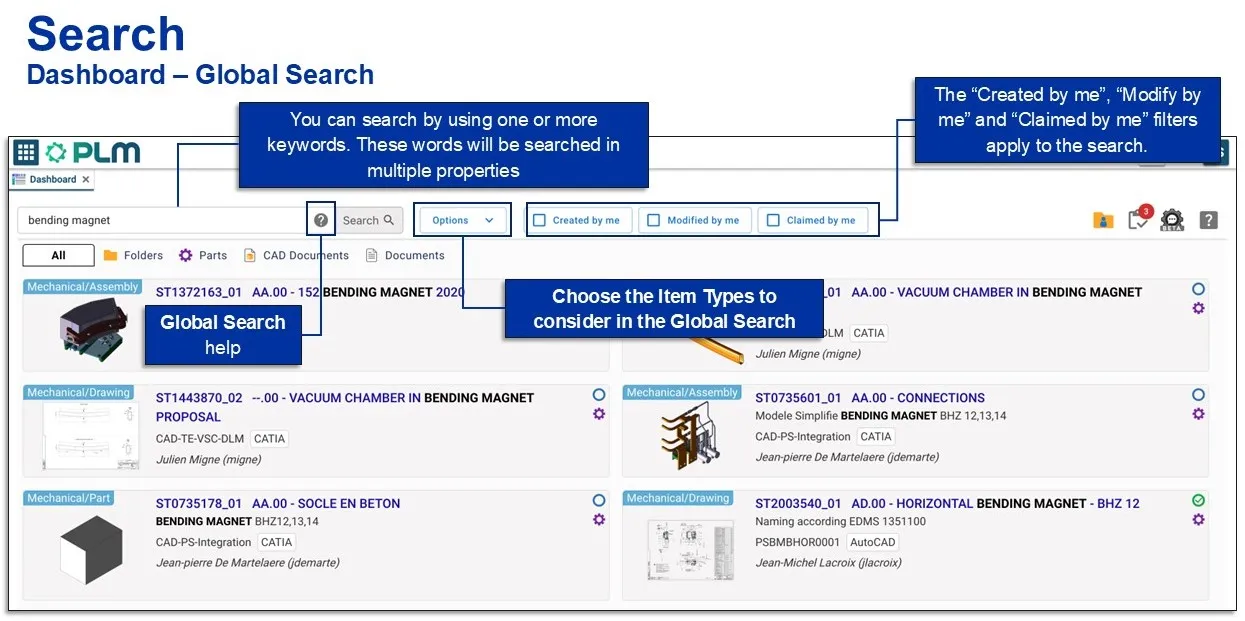
How to search using the PLM dashboard?
How to search using the PLM dashboard? The dashboard is the main page you will be greeted with when you open the PLM, it contains a search table. The images below explain the different options and filters you can use to enhance your search. This page will search for all items types: You can also
-
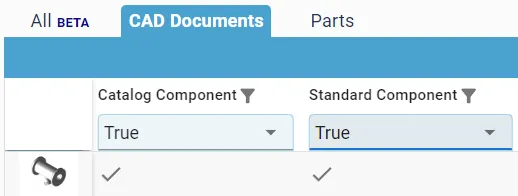
How to identify and search for ‘Standard’ and ‘Catalog’ components?
How to identify and search for ‘Standard’ and ‘Catalog’ components? Some objects are classified as either Catalog or/and Standard components. All standard components are Catalog Components, but not all Catalog Components are Standard. Both types are components that can be bought from a supplier catalog, as apposed to specifically designed for a CERN project. However,
-
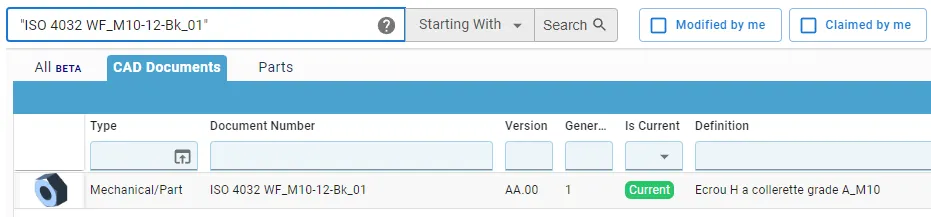
How to search for documents with a space in the name?
How to search for documents with a space in the name? Short answer: When searching in the global search box on the dashboard, you must put document numbers containing a space in quotation marks. Long answer: CAD Documents can be searched for either in the Dashboard or the dedicated CAD Document search window. In both
-
Subgroup: Search
Subgroup: Search Below is a group of How-to's that are related to the topic of 'Search' in the PLM – Search and Navigate subcategory. Click on their links to find more information on these topics.
-
Subgroup: Open & Share
Subgroup: Open & Share Below is a group of How-to's that are related to the topic of 'Open & Share' in the PLM – Search and Navigate subcategory. Click on their links to find more information on these topics.
-
Subgroup: Navigate
Subgroup: Navigate Below is a group of How-to's that are related to the topic of 'Navigate' in the PLM – Search and Navigate subcategory. Click on their links to find more information on these topics.
-
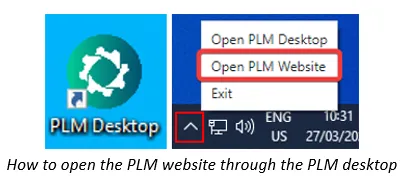
How to search and visualise files of SmarTeam CAD Documents in the PLM Platform?
How to search and visualise files of SmarTeam CAD Documents in the PLM Platform? To locate, view or open files of SmarTeam(ST) CAD Documents through the PLM platform, follow the subsequent steps. 1. Optional prerequisite to enable the opening of STEP files of ST CAD Document directly into SpinFire Ultimate: Install the software below from
-
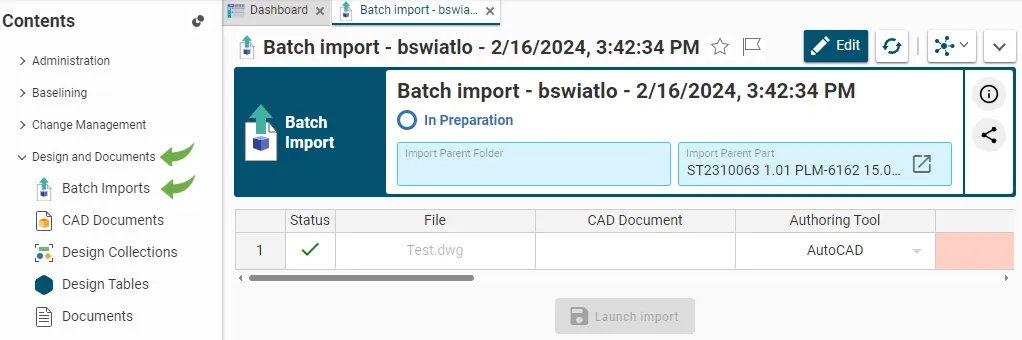
How to retrieve / find an existing job in Batch Import?
How to retrieve / find an existing job in Batch Import? Every time a file or a batch of files is dragged and dropped into a Part or a Folder in edit mode, the system automatically created an import job. Each job corresponds to a specific object, i.e. a Batch Import, that is created for
-
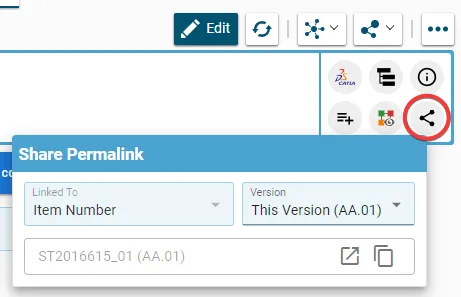
How to quickly share an object in PLM?
How to quickly share an object in PLM? Most objects can be accessed from a “Properties” window. From there, the “Copy Link” button copies a link to the clipboard that you can then share, giving direct access to that object (in the version you selected) to anyone who receives the link*. Click on the arrow