
Tag: PLM – Search and Navigate
-

How to navigate the platform using different interfaces?
How to navigate the platform using different interfaces? You can navigate the platform using several different interfaces: To know more about these interfaces, please follow the document below (page 34). Interface
-
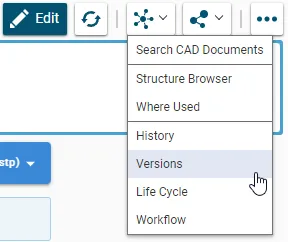
How to view other versions of an object?
How to view other versions of an object? The “Versions” command grants you access to view all of the versions of a given object. From the pop up window you can open an old version of the object in a new PLM window. It is also possible to compare two versions using the split screen
-
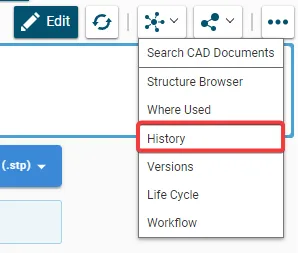
What is the “History” command used for?
What is the “History” command used for? The "History" command shows you an object's modification history, across all its versions. The history window displays the dates when actions were taken in relation to the object, as well as other information. The fields can be customized using the "Refine" and "Display" / "Save Layout" buttons.
-
How to use the “Where Used” command in PLM?
How to use the “Where Used” command in PLM? The “Where Used” command opens a new window showing where the selected object (in the selected version) is used. Structural links (children → parent links with objects of the same kind) are shown, as are links to objects of different kinds (e.g. a CAD document to
-
How to use the “Structure Browser” in PLM platform?
How to use the “Structure Browser” in PLM platform? The “Structure Browser” function allows you to view the structure of the selected object. You can open or close the nodes by clicking on the + or – to the left of each node. With the blue + and – at the top left of the
-
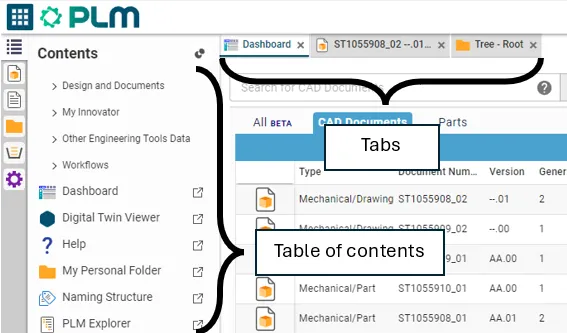
How to navigate in the PLM platform?
How to navigate in the PLM platform? The platform has a table of contents (TOC) on the left hand side. From here you can find all the options to navigate through the PLM to search and create objects. The platform is navigated using tabs. Every time you open a document, a search or a link,
-
How to use the simple search in PLM?
How to use the simple search in PLM? There are several ways to access the search page, if you want to know more about this procedure, please follow the document below (page 7). Search Navigation and preferences in the PLM See other ‘searching’ how-tos here
-
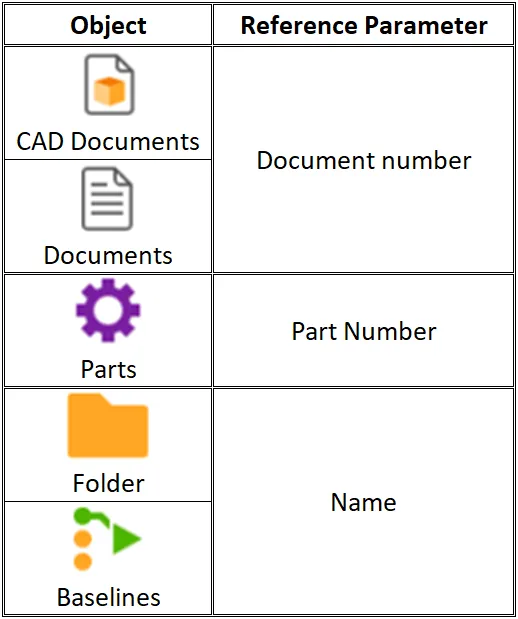
How to use the quick search in PLM?
How to use the quick search in PLM? To open the quick search function, first open the Navigation Panel, then select the icon corresponding to the type of object you are looking for or use one of the shortcuts in the sidebar. The quick search can be used to find an object if you know
-
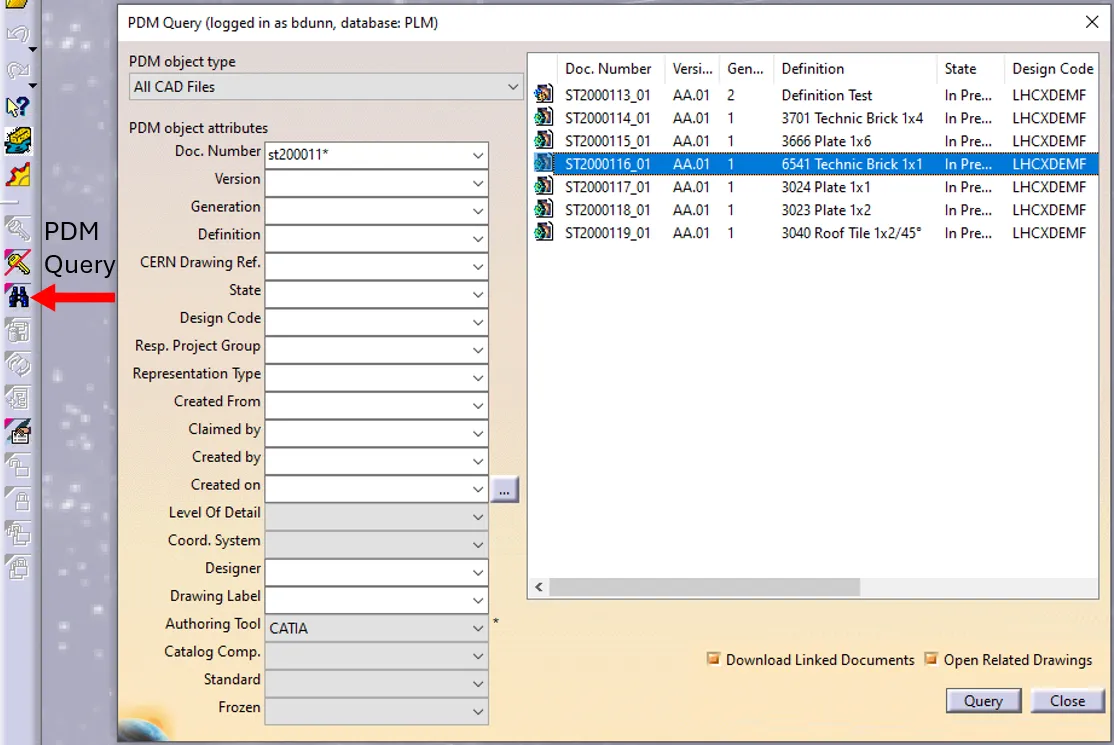
How to open a CAD document from CATIA using the connector?
How to open a CAD document from CATIA using the connector? In CATIA, from the connector toolbar, clicking on the Query icon, you will be able to access the PDM Query dialog and to search for any CAD document previously uploaded to the PLM platform. Once the searched CAD Document has been found and selected,
-
How to open a CAD document from the PLM?
How to open a CAD document from the PLM? Any CATIA document saved in the PLM platform can be opened from there directly in CATIA. There are various methods, see below: See the ‘Opening’ subgroup for related information See more: Open CAD Document in CATIA