
Tag: PLM – Print/Plot/Extract Files
-
What documents can be generated by the Public Link?
What documents can be generated by the Public Link? The following conditions apply to documents shared via Public Link. Access Restrictions:
-
How to find already generated Public Link?
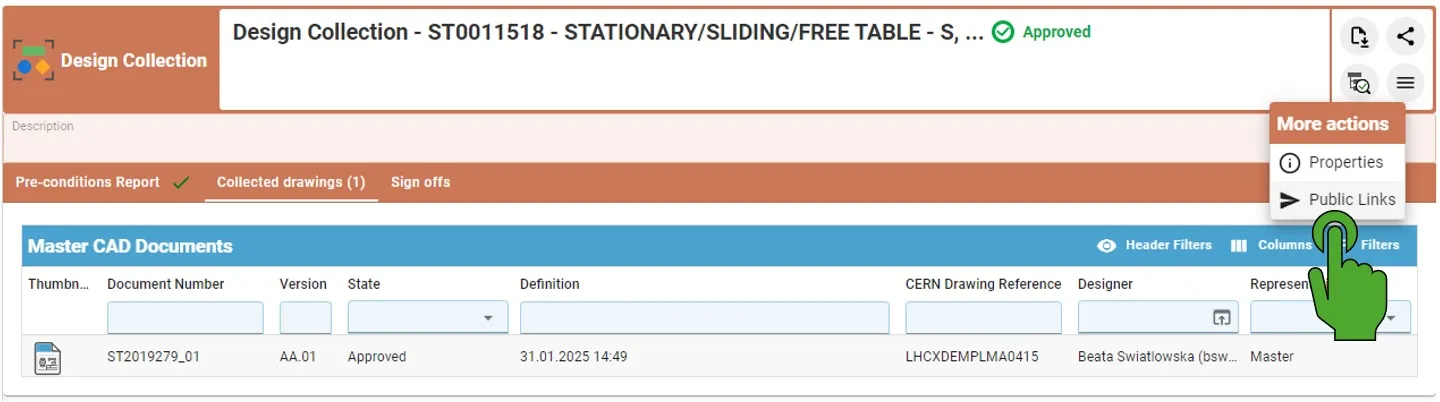
How to find already generated Public Link? By opening the Design Collection with the created before Public Links, it is possible to access them again by clicking on the left top button "More actions" (with three lines) and then choosing the Public Links. If the Public Link has been already created, it will open the
-
How to create the Public Link?
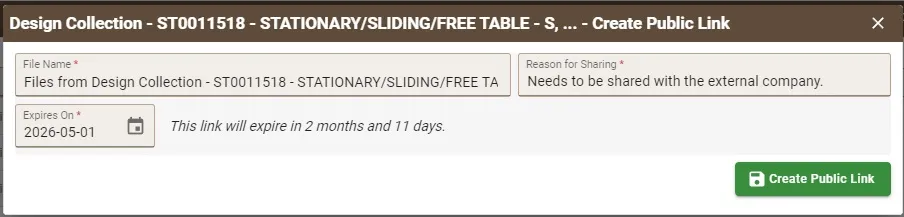
How to create the Public Link? Public Links must be created from an Approved Design Collection. In the creation window, users must: After completing the required fields: When the link is opened in any browser, the external user can directly download a ZIP file containing the documents related to the Part without authentication required.
-
How to search and visualise files of SmarTeam CAD Documents in the PLM Platform?
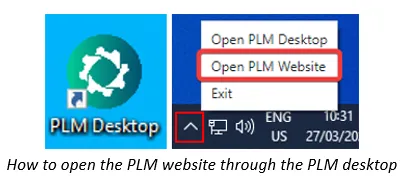
How to search and visualise files of SmarTeam CAD Documents in the PLM Platform? To locate, view or open files of SmarTeam(ST) CAD Documents through the PLM platform, follow the subsequent steps. 1. Optional prerequisite to enable the opening of STEP files of ST CAD Document directly into SpinFire Ultimate: Install the software below from
-
How to extract / download files from the PLM?
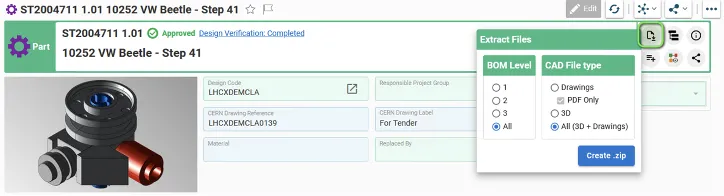
How to extract / download files from the PLM? To download CAD files from Parts, Parts attached to Folders, Design Collections or Change Items at once, you need to: When executing the "Extract Files" functionality, the selection of the Level applies on the Parts directly linked to the Folder or to the Change Item, or
-
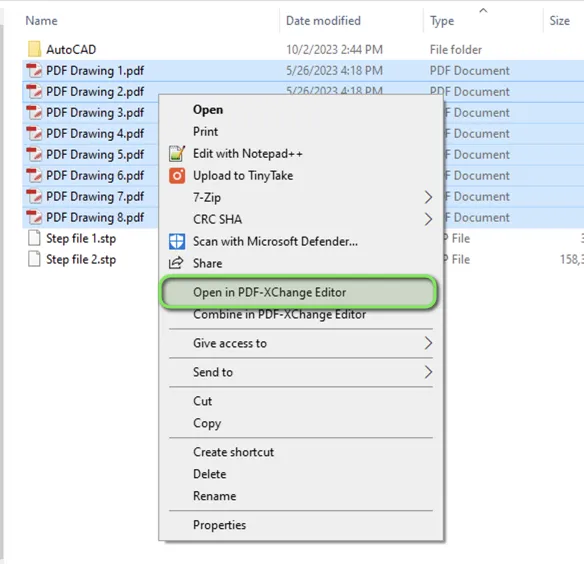
How to print multiple drawings at once with PDF X-Change Editor?
How to print multiple drawings at once with PDF X-Change Editor? To print multiple Drawings at once from your local folder in DFS, you need to: 1. Access data in your DFS folder and select all the Drawings you need to print 2. Right-Click and select the option "Open in PDF-XChange Editor" 3. Once PDF-XChange