
Tag: PLM – General
-

How to enter metadata with drag and drop (batch import)?
How to enter metadata with drag and drop (batch import)? When dropping a file into one of the two areas, a table appears. When importing CAD files, the table contains more fields to be completed. As many fields of the table as possible are prefilled but the proposed default values can be changed and the
-
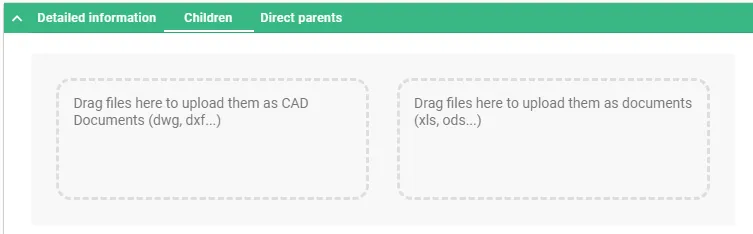
How to use a Batch Import?
How to use a Batch Import? The Batch Import can be performed from a Folder or a Part. In both cases, the object must be in edit mode. Once the Folder or the Part is in edit mode, two areas will appear in its Profile Card under “Children” tab. The files can be dragged and
-

What is the concept of Batch Import?
What is the concept of Batch Import? Batch importing involves uploading several files at once to the PLM platform from a File Explorer (Windows, Linux or Mac). To do so, the target folder or part in the PLM must be in edit mode, then the files can be dragged and dropped from the File Explorer
-
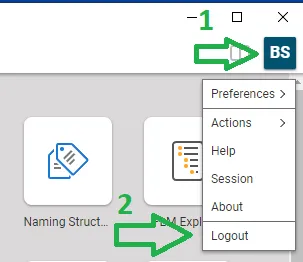
How to log-out from PLM?
How to log-out from PLM? To log-out from PLM Desktop you need to click on the button that represents your account (step 1) and use the "Logout" (2). Then you need to wait for confirmation window that appears and validate.
-
How to check the Design Codes access rights?
How to check the Design Codes access rights? You need to go to the Design Code Profile Card and click on the tab "Team Members". From there you will find Identities (which are group of users) or users with their "Role". If you want to see the "Role" in the Team, you can search in
-
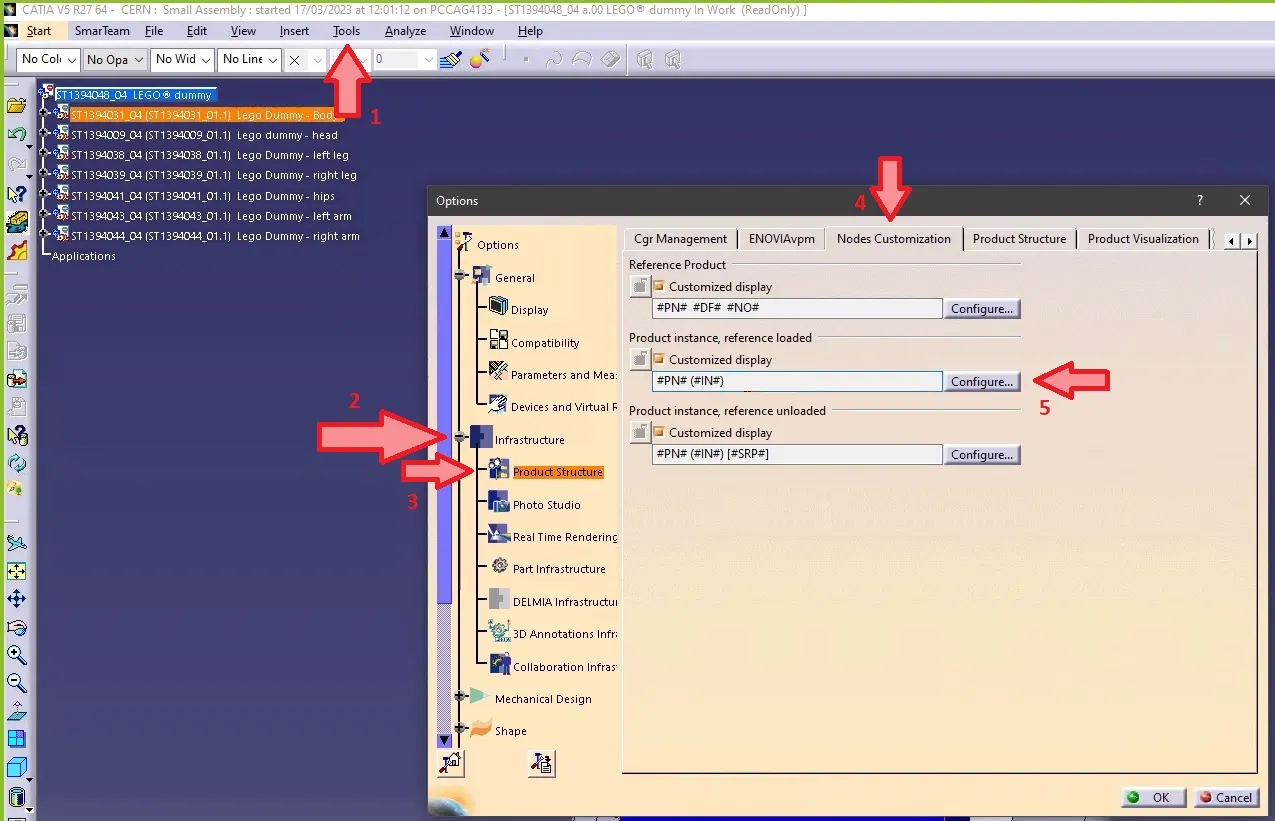
How to make the definition visible in CATIA tree when working with files not stored in PLM?
How to make the definition visible in CATIA tree when working with files not stored in PLM? Note 1: if in the same CATIA session, you visualize another product structure from the PLM, the Definition will appear twice. Note 2: if you want to keep this setting by default for your future CATIA sessions, you
-
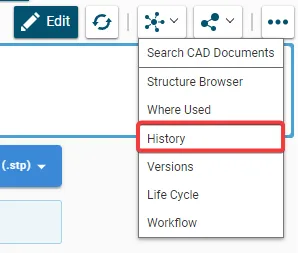
What is the “History” command used for?
What is the “History” command used for? The "History" command shows you an object's modification history, across all its versions. The history window displays the dates when actions were taken in relation to the object, as well as other information. The fields can be customized using the "Refine" and "Display" / "Save Layout" buttons.
-
How to access CATIA via the PLM?
How to access CATIA via the PLM? To access CATIA via the PLM please press the CATIA icon in the top right of the dashboard screen. Access to the CATIA connector is granted on request, therefore if you have not already done so please complete this form to work with CATIA. Prior to granting you
-
How to create an GMS group for an RPG synchronisation?
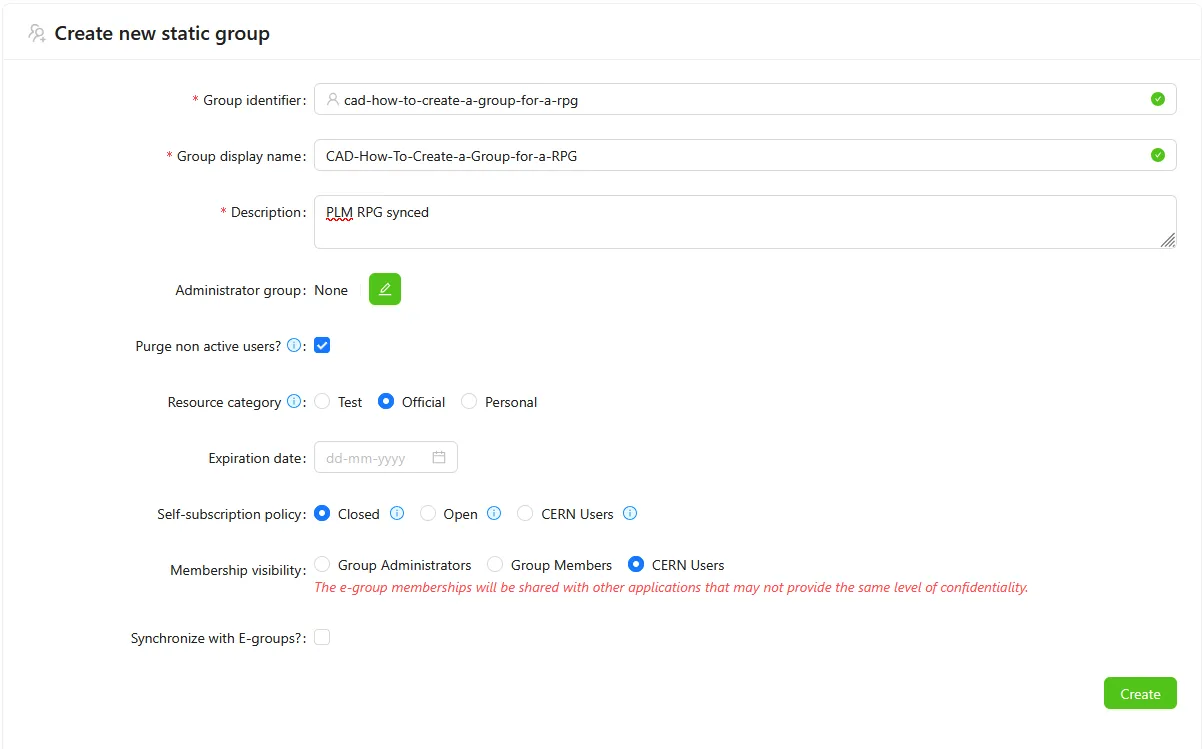
How to create an GMS group for an RPG synchronisation? If you have to create a group with the GMS application to sync it with a PLM Responsible Project Group (RPG), here are the steps to follow and the rules to respect: Use a name starting by "CAD-" with no space and with a maximum
-
What should be done before departing CERN?
What should be done before departing CERN? Note this FAQ is under review as it references Smt terminologies. However, the general advice remains the same, please unclaim your objects and assign a Design Code or RPG to allow others to continue using your work. To ease the collaborative work with SmarTeam, there are some steps