
Tag: PLM – CAD Document
-

How to enter metadata with drag and drop (batch import)?
How to enter metadata with drag and drop (batch import)? When dropping a file into one of the two areas, a table appears. When importing CAD files, the table contains more fields to be completed. As many fields of the table as possible are prefilled but the proposed default values can be changed and the
-
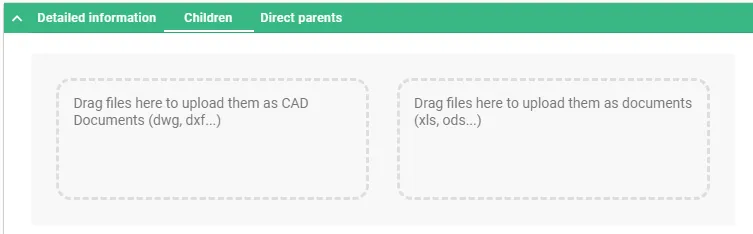
How to use a Batch Import?
How to use a Batch Import? The Batch Import can be performed from a Folder or a Part. In both cases, the object must be in edit mode. Once the Folder or the Part is in edit mode, two areas will appear in its Profile Card under “Children” tab. The files can be dragged and
-

What is the concept of Batch Import?
What is the concept of Batch Import? Batch importing involves uploading several files at once to the PLM platform from a File Explorer (Windows, Linux or Mac). To do so, the target folder or part in the PLM must be in edit mode, then the files can be dragged and dropped from the File Explorer
-
How to create a Design Collection in the PLM?
How to create a Design Collection in the PLM? The Design Collection replaces the EDMS Drawing Folder functionality and serves to support the data exchange process between the Design Office and the Workshop for the production of a given equipment. Please find more information in this FAQ: Design Collection functionality
-
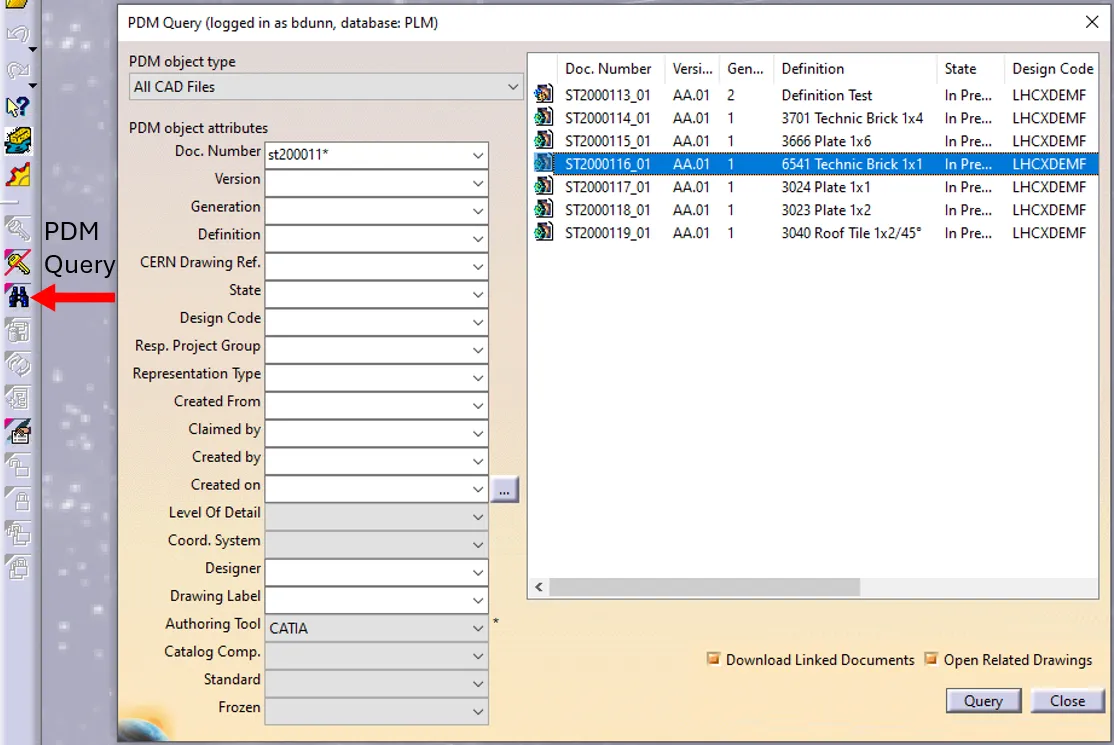
How to open a CAD document from CATIA using the connector?
How to open a CAD document from CATIA using the connector? In CATIA, from the connector toolbar, clicking on the Query icon, you will be able to access the PDM Query dialog and to search for any CAD document previously uploaded to the PLM platform. Once the searched CAD Document has been found and selected,
-
How to open a CAD document from the PLM?
How to open a CAD document from the PLM? Any CATIA document saved in the PLM platform can be opened from there directly in CATIA. There are various methods, see below: See the ‘Opening’ subgroup for related information See more: Open CAD Document in CATIA
-
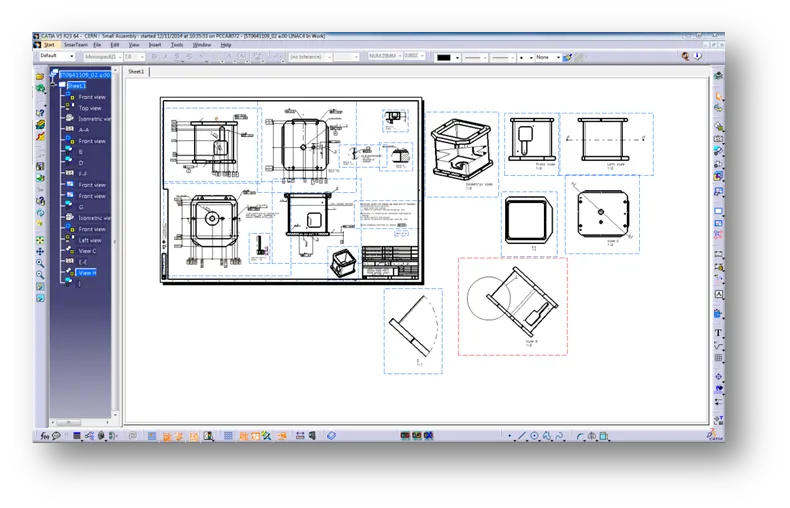
How to manage drawings with several sheets in PLM?
How to manage drawings with several sheets in PLM? Whilst the PLM is not able to support the multi-sheet drawings, here is the procedure to follow if you have a design that doesn’t fit only in one sheet of the drawing: Note: the procedure refers to CATIA, but it can be applied for other CAD
-
How to compare 2 different revisions of a document?
How to compare 2 different revisions of a document? Please note the FAQ referred to in this how-to is under review. The first 3 sections of this FAQ refer to the methodology for Smt. For the required methodology for the PLM please refer to page 19 of this FAQ . Section 4 is relevant for