
Tag: PLM – CAD Document
-
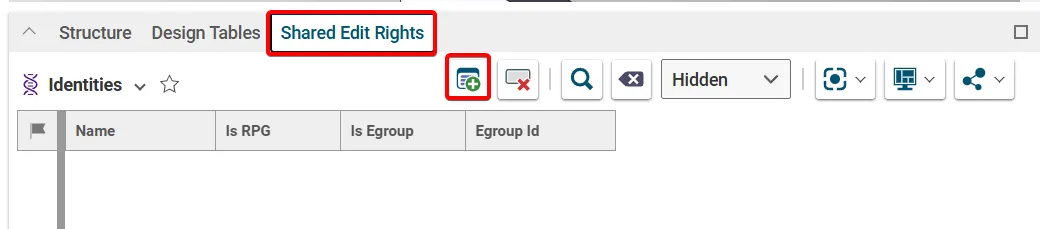
How to grant a user access to a specific document? (Shared edit rights)
How to grant a user access to a specific document? (Shared edit rights) Edit rights to a document is controlled via its Design Code and Responsible Project Group (RPG), which is set on its Parent Part. If a colleague requires edit rights to all the documents with one of these attributes, they should request access
-
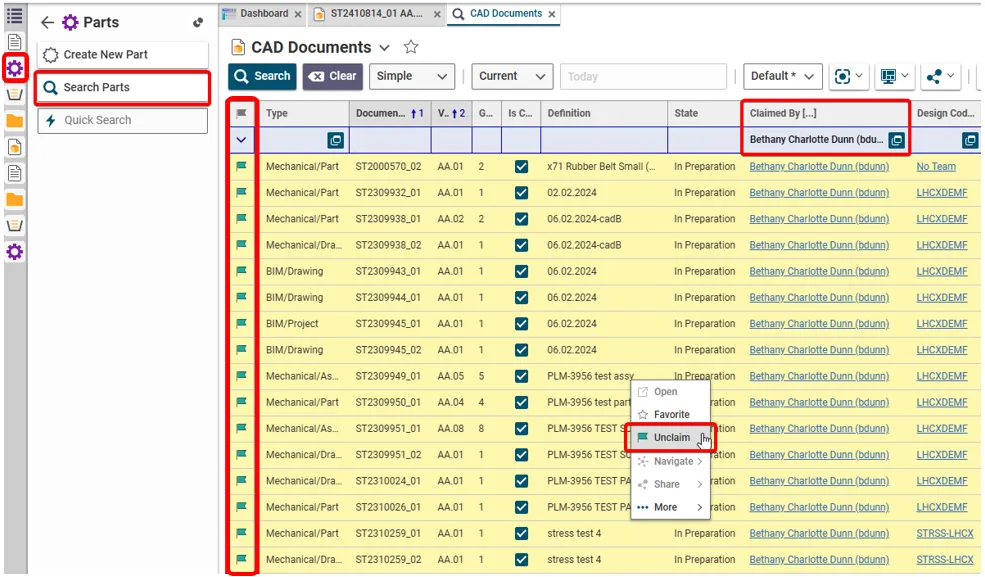
How to retrieve and unclaim all my Parts/Documents in one operation?
How to retrieve and unclaim all my Parts/Documents in one operation? There are two ways of retrieving all the objects that you have claimed. To unclaim all the objects in one go, use method 2 and highlight the results. (Press and hold the Ctrl key to select individual results. Alternatively, select a result then hold
-
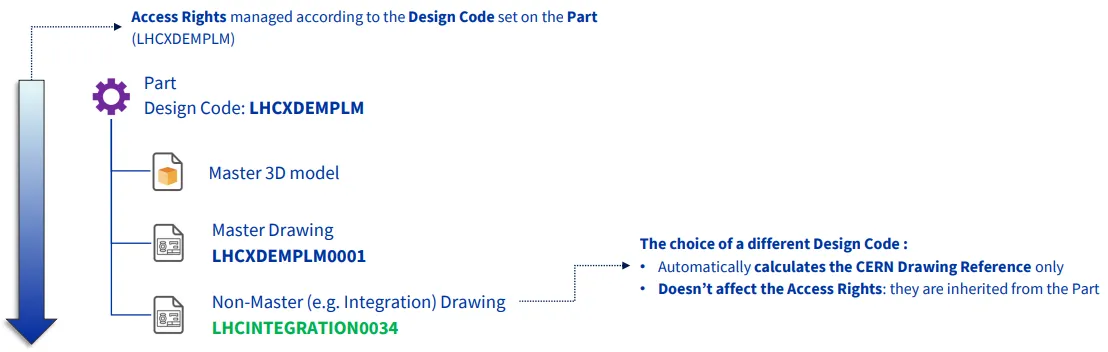
How to add a CERN Drawing Reference (CDR) to a non master drawing that is different to the design code on the parent part?
How to add a CERN Drawing Reference (CDR) to a non master drawing that is different to the design code on the parent part? The CERN Drawing reference (CDR) on a drawing is usually generated from the Design Code applied to its parent Part. However, on non-master drawings only, it is possible to apply a
-
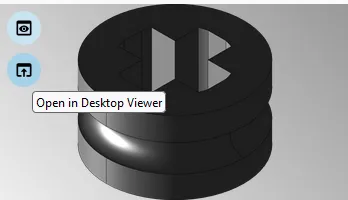
How to open or merge CAD Documents in SpinFire Ultimate?
How to open or merge CAD Documents in SpinFire Ultimate? To open a 3D CAD document in Spinfire Ultimate there is an icon available on each Profile Card. It is located on the thumbnail (the lower one, whilst the upper icon is used to display the web viewer): Open in Desktop Viewer. The first time
-
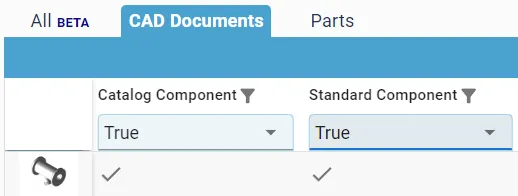
How to identify and search for ‘Standard’ and ‘Catalog’ components?
How to identify and search for ‘Standard’ and ‘Catalog’ components? Some objects are classified as either Catalog or/and Standard components. All standard components are Catalog Components, but not all Catalog Components are Standard. Both types are components that can be bought from a supplier catalog, as apposed to specifically designed for a CERN project. However,
-
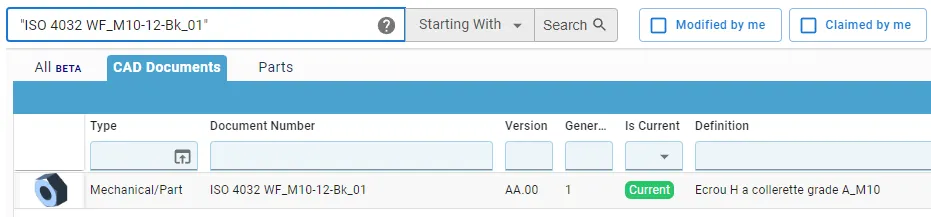
How to search for documents with a space in the name?
How to search for documents with a space in the name? Short answer: When searching in the global search box on the dashboard, you must put document numbers containing a space in quotation marks. Long answer: CAD Documents can be searched for either in the Dashboard or the dedicated CAD Document search window. In both
-
How is metadata managed between the PLM and CATIA?
How is metadata managed between the PLM and CATIA? A CAD document is made up of data, metadata. Some of this comes from CATIA such as the geometry, mass and material. Some of it comes from the PLM, Design code and RPG. Two pieces of metadata can be changed in both the PLM and CATIA,
-

How to create a new version of a CAD document using the batch import?
How to create a new version of a CAD document using the batch import? The batch import tool (drag and drop) can also be used to create new versions of CAD Documents already saved in the PLM. To create a new version, in the 'Version a CAD document' column enter an existing document/Part number, or
-
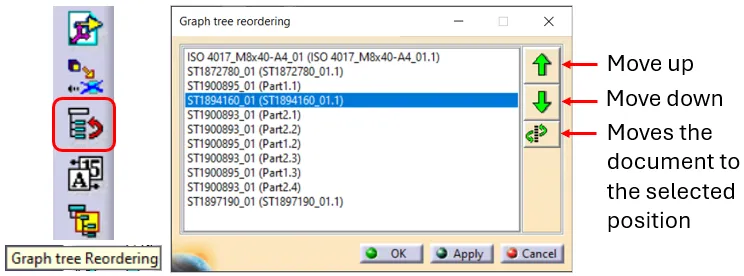
How to reorder a BOM?
How to reorder a BOM? The order of the BOM is determined by the CATIA tree. The BOM is built based on the positions and quantities in the CATIA tree, using a top-down approach. Please note: There are manual ways to override the CATIA positions & quantities, for further information on this see the FAQ
-

How to project a BOM on a drawing?
How to project a BOM on a drawing? A BOM can be projected onto a drawing using the Title Block Editor (TBE). When you click on the Title Block Editor icon in CATIA V5, it will open in a new window. The BOM can be found in the second tab, called “Bill of Materials”. Check