
Tag: CATIA
-
How to save a new CAD document in the PLM from CATIA?
How to save a new CAD document in the PLM from CATIA? The first part of the FAQ linked below will show you a quick method of saving a CAD document without dependencies, like a CATPart. The second, more detailed section will describe how to save a structure where the files are linked to each
-

How to update a BOM in the PLM?
How to update a BOM in the PLM? The PLM uses an automatic engineering BOM (EBOM). This means every time you save an assembly the BOM will be created/updated on each ‘claimed’ or ‘new’ assembly node. The BOM uses the positions and quantities of the instances in the CATIA tree, using a top-down approach. Please
-
How to get started with CATIA / PLM at CERN
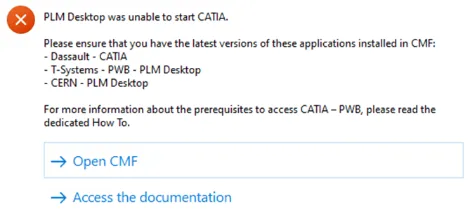
How to get started with CATIA / PLM at CERN Please follow the necessary training before using the PLM. You can access the training and learning path here, this will help you identify what training is necessary for you depending on your previous experience and knowledge. Training on the CATIA-PLM connector (PWB) is a prerequisite
-

How to change the settings in Drawing to CGR or Approximate?
How to change the settings in Drawing to CGR or Approximate? The CGR and Approximate format contains only the graphical representation of the geometry. These options allows you to choose different appearances of the linework of your Drawing. The CGR files are facetted models for visualisation that can't be edited but they can be used
-
How to change the view generation mode?
How to change the view generation mode? To edit this properties go to the Drawing and right-click on the frame, then select "Properties". Scroll down in the new window and look for the section "Generation Mode". Below you can find the "View generation mode" and from there you can choose CGR or Approximate view. To
-
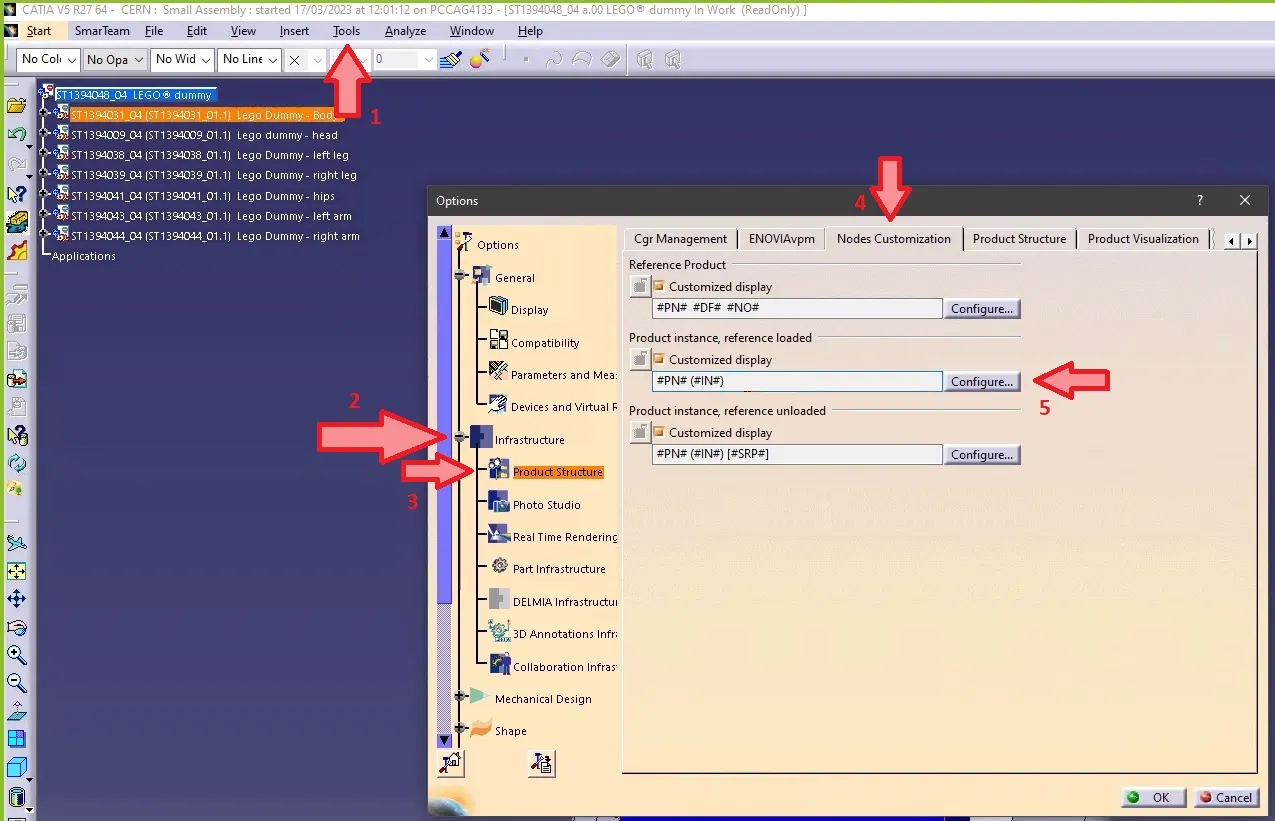
How to make the definition visible in CATIA tree when working with files not stored in PLM?
How to make the definition visible in CATIA tree when working with files not stored in PLM? Note 1: if in the same CATIA session, you visualize another product structure from the PLM, the Definition will appear twice. Note 2: if you want to keep this setting by default for your future CATIA sessions, you
-
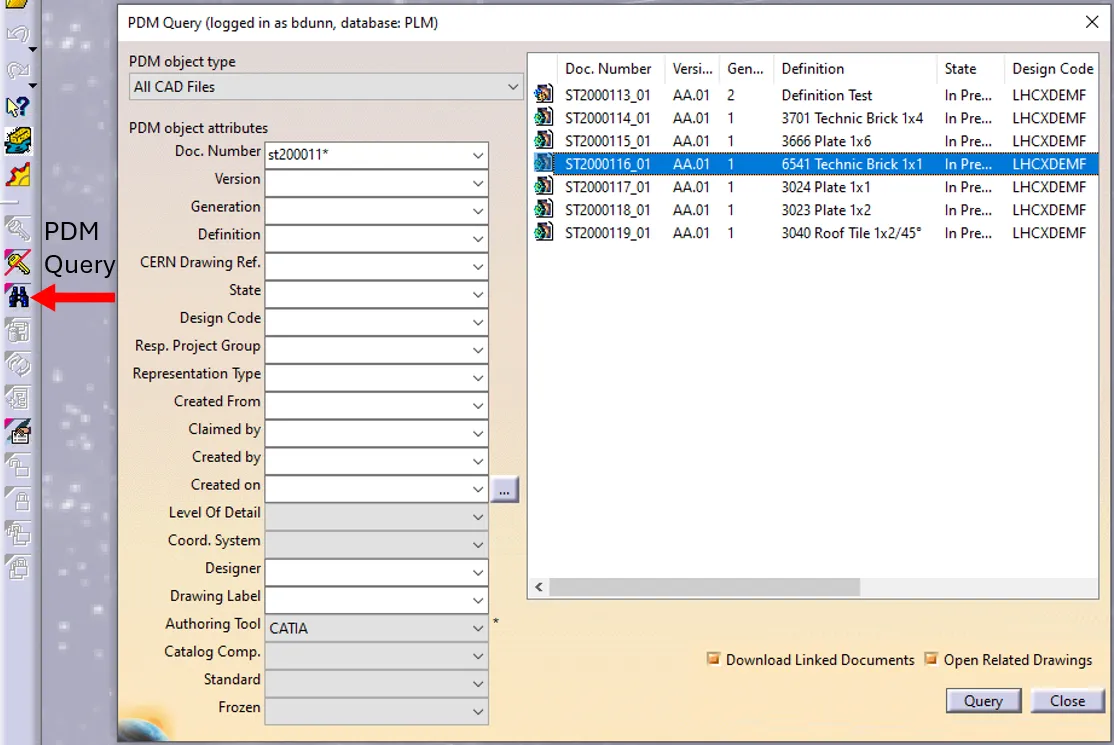
How to open a CAD document from CATIA using the connector?
How to open a CAD document from CATIA using the connector? In CATIA, from the connector toolbar, clicking on the Query icon, you will be able to access the PDM Query dialog and to search for any CAD document previously uploaded to the PLM platform. Once the searched CAD Document has been found and selected,
-
How to open a CAD document from the PLM?
How to open a CAD document from the PLM? Any CATIA document saved in the PLM platform can be opened from there directly in CATIA. There are various methods, see below: See the ‘Opening’ subgroup for related information See more: Open CAD Document in CATIA
-
Who to contact for support?
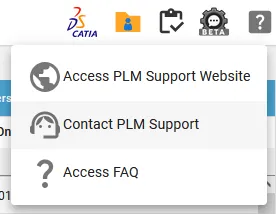
Who to contact for support? For support, please send an email to plm-support@cern.ch. A request will be automatically created in the Service-Now Platform. For urgent/blocking issues, please call the hotline: 160660 For CAD designers, it is also possible to report an issue from the PLM desktop application. This way, the request created in Service Now
-
How to install CATIA and the connector?
How to install CATIA and the connector? Access to the CATIA connector is granted on request, therefore if you have not already done so please complete this form to work with CATIA. Prior to granting you access, we would ask for you to complete the relevant training, please see a link to the learning path