
Tag: CATIA
-
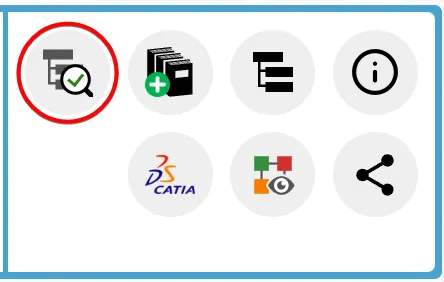
How to check if a document is ‘current’?
How to check if a document is ‘current’? Its important to know if your CAD structure contains 'non latest' versions of CAD Documents, especially if you need to work with the latest data, while the latest data might be available in SmarTeam only. Within the PLM and CATIA connector there are various ways you can
-
What’s the difference between the different CATIA configurations?
What’s the difference between the different CATIA configurations? There are three main different CATIA configurations that can be selected from the drop down in the CATIA launcher menu, small, large and equipment systems. Below details the main differences in their set up: More: Getting started with CATIA / PLM at CERN FAQ
-
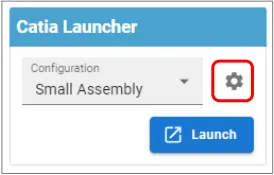
How to save customised CATIA & PWB settings?
How to save customised CATIA & PWB settings? CATIA customised settings, such as shortcuts, can be saved in the PLM dashboard to be used when CATIA is reopened. This is also true for PWB setting changed in the options toolbar. To save new customised settings, close the CATIA session in which the changes were made.
-
Subgroup: Installation & the Basics
Subgroup: Installation & the Basics Below is a group of How-to's that are related to the topic of 'Installation & the Basics' in the CATIA-PLM connector (PWB) category. Click on their links to find more information on these topics.
-
What are the meanings of the CATIA & PLM Icons?
What are the meanings of the CATIA & PLM Icons? Icons are used throughout the PLM and in the CATIA specification tree to quickly convey information. See the documentation below to find the explanation of each icon. More: FAQ
-
How is metadata managed between the PLM and CATIA?
How is metadata managed between the PLM and CATIA? A CAD document is made up of data, metadata. Some of this comes from CATIA such as the geometry, mass and material. Some of it comes from the PLM, Design code and RPG. Two pieces of metadata can be changed in both the PLM and CATIA,
-
What are the CATIA Acronyms?
What are the CATIA Acronyms? Below is a list of acronyms that are used in relation to CATIA. See the list of PLM Acronyms here. See the list of SmarTeam Acronyms here.
-
What are the PLM Acronyms?
What are the PLM Acronyms? Below is a list of acronyms that are used in relation to the PLM. See the list of CATIA Acronyms here. See the list of SmarTeam Acronyms here.
-
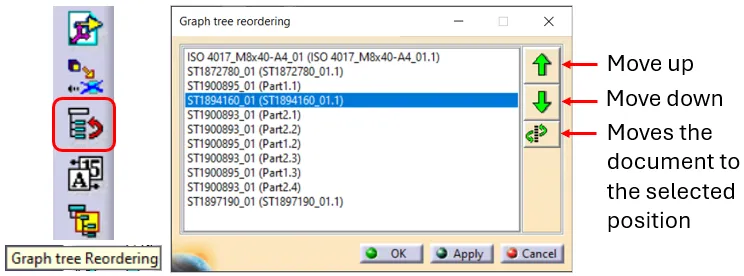
How to reorder a BOM?
How to reorder a BOM? The order of the BOM is determined by the CATIA tree. The BOM is built based on the positions and quantities in the CATIA tree, using a top-down approach. Please note: There are manual ways to override the CATIA positions & quantities, for further information on this see the FAQ
-

How to project a BOM on a drawing?
How to project a BOM on a drawing? A BOM can be projected onto a drawing using the Title Block Editor (TBE). When you click on the Title Block Editor icon in CATIA V5, it will open in a new window. The BOM can be found in the second tab, called “Bill of Materials”. Check