
The Pattern Analysis feature allows you to identify and analyze all the patterns present within a CATPart. You can use this tool to filter and review patterns based on specific types and contexts.
Using the Pattern Analysis Command
1. With your 3D Part open, select the Pattern Analysis command from the Analysis options

2. In the Pattern Analysis dialog box, select your desired filters by type and context:
- By Type: Rectangular, Circular, User
- By Context: Solid, Volume, Surface
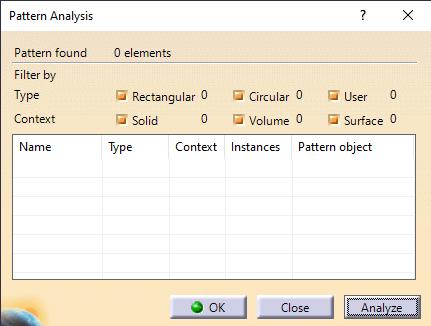
3. Click Analyze. The tool will display the total number of patterns found and show the detailed analysis in a table format.

*Note: You can change your type and context filters and click Analyze again at any time to generate a new analysis.
*Note 2: This is not a shape recognition tool. Holes made from a Boolean operation, pocket, or in a dead solid are not recognized and are not appearing in the analysis table.
4. Click Close when you are finished reviewing the data.
More: FAQ