
Category: How To
-
What is the concept of the Withdrawal workflow?
What is the concept of the Withdrawal workflow? The Withdrawal workflow is used to withdraw a Part (and all its content), a single CAD Document or a single Document. According to ISO standards, once withdrawn, an object is no longer available as an active object. A withdrawn version of an object must no longer be
-
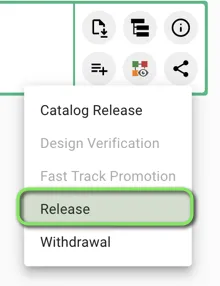
How to create the Release workflow?
How to create the Release workflow? The Release Workflow can be created from the Part Profile Card. You can then generate the "Precondition Report" that checks the following pre-requirements: If all them are fulfilled, you can launch the Workflow that will make the lifecycle state of the Part evolving to Released. Complete documentation: Release Workflow
-
What is the concept of the Release workflow?
What is the concept of the Release workflow? The Release workflow is used to declare that a given Part (and its BOM) is allowed to be used for its intended purpose, meaning that the required item function has been validated. A Part should be Released when the first asset created from this design is accepted.
-
Subgroup: Other
Subgroup: Other Below are the remaining How-to's that are not present in other subgroups in the PLM – CAD Document subcategory. Click on their links to find more information on these topics.
-
Subgroup: Opening
Subgroup: Opening Below is a group of How-to's that are related to the topic of 'Opening' in the PLM – CAD Document subcategory. Click on their links to find more information on these topics.
-
Subgroup: Batch import
Subgroup: Batch import Below is a group of How-to's that are related to the topic of 'Batch import' in the PLM – CAD Document subcategory. Click on their links to find more information on these topics.
-
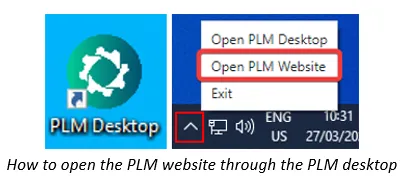
How to search and visualise files of SmarTeam CAD Documents in the PLM Platform?
How to search and visualise files of SmarTeam CAD Documents in the PLM Platform? To locate, view or open files of SmarTeam(ST) CAD Documents through the PLM platform, follow the subsequent steps. 1. Optional prerequisite to enable the opening of STEP files of ST CAD Document directly into SpinFire Ultimate: Install the software below from
-
How to delete an object from PLM Platform?
How to delete an object from PLM Platform? In order to be able to delete an object from the PLM platform (whether it is a Part, a CAD document, a non-CAD document or a Folder), there are a number of requirements that must be met. All these requirements and the necessary steps are explained in
-
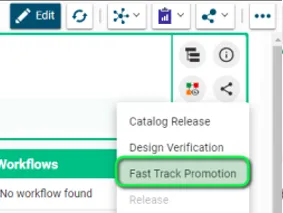
How to create the Fast-Track Promotion Workflow?
How to create the Fast-Track Promotion Workflow? The Fast-Track Promotion Workflow can be created from the Part Profile Card. You can then generate the "Precondition Report" that checks the following pre-requirements: If all them are fulfilled, you can launch the Workflow. Complete documentation: Fast-Track Promotion Workflow FAQ
-
What is the concept of the Fast-Track Promotion Workflow?
What is the concept of the Fast-Track Promotion Workflow? The Fast-Track Promotion can be used to approve the Part without going through a Design Verification, in case the Master CAD Documents are in Approved/Released state. Once the Part is Approved/Released, you may have the need to just attach to the Part additional documentation, without modifying