
Tag: PLM – Part & BOM
-
Subgroup: BOM
Subgroup: BOM Below is a group of How-to's that are related to the topic of 'BOM' in the PLM – Part & BOM subcategory. Click on their links to find more information on these topics.
-
Subgroup: Batch import
Subgroup: Batch import Below is a group of How-to's that are related to the topic of 'Batch import' in the PLM – Part & BOM subcategory. Click on their links to find more information on these topics.
-
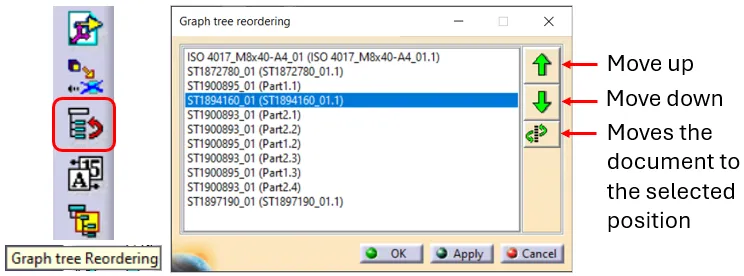
How to reorder a BOM?
How to reorder a BOM? The order of the BOM is determined by the CATIA tree. The BOM is built based on the positions and quantities in the CATIA tree, using a top-down approach. Please note: There are manual ways to override the CATIA positions & quantities, for further information on this see the FAQ
-

How to project a BOM on a drawing?
How to project a BOM on a drawing? A BOM can be projected onto a drawing using the Title Block Editor (TBE). When you click on the Title Block Editor icon in CATIA V5, it will open in a new window. The BOM can be found in the second tab, called “Bill of Materials”. Check
-

How to update a BOM in the PLM?
How to update a BOM in the PLM? The PLM uses an automatic engineering BOM (EBOM). This means every time you save an assembly the BOM will be created/updated on each ‘claimed’ or ‘new’ assembly node. The BOM uses the positions and quantities of the instances in the CATIA tree, using a top-down approach. Please
-
How to delete an object from PLM Platform?
How to delete an object from PLM Platform? In order to be able to delete an object from the PLM platform (whether it is a Part, a CAD document, a non-CAD document or a Folder), there are a number of requirements that must be met. All these requirements and the necessary steps are explained in
-

How to delete a file or document from a pending job in Batch Import?
How to delete a file or document from a pending job in Batch Import? If the Batch Import has not yet been launched and the job is still "In Preparation", it can be edited (by clicking on the "Edit" button at the top of the Profile Card). Go to the relationship grid at the bottom
-

How to add new files to a pending job or modify the metadata in Batch Import?
How to add new files to a pending job or modify the metadata in Batch Import? If the Batch Import has not yet been launched and the job is still "In Preparation", it can be edited (by clicking on the "Edit" button at the top of the Profile Card). Then the new files can be
-
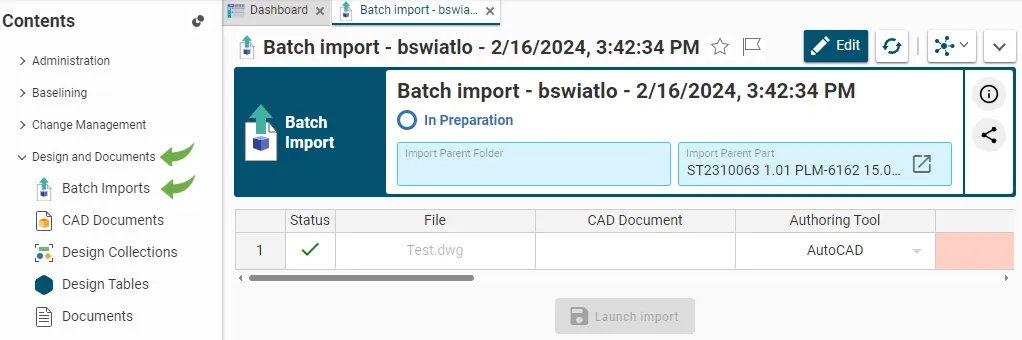
How to retrieve / find an existing job in Batch Import?
How to retrieve / find an existing job in Batch Import? Every time a file or a batch of files is dragged and dropped into a Part or a Folder in edit mode, the system automatically created an import job. Each job corresponds to a specific object, i.e. a Batch Import, that is created for
-

How to enter metadata with drag and drop (batch import)?
How to enter metadata with drag and drop (batch import)? When dropping a file into one of the two areas, a table appears. When importing CAD files, the table contains more fields to be completed. As many fields of the table as possible are prefilled but the proposed default values can be changed and the