
Tag: PLM – Document
-
How to get the access rights in the Design Code?
How to get the access rights in the Design Code? PLM users can directly request Design Code access from the PLM platform through a dedicated access request interface. The administrators of the group will be responsible for handling your request and you'll get notified by email as soon as a decision is taken.
-
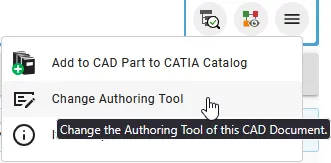
How to change the authoring tool of a CAD Document?
How to change the authoring tool of a CAD Document? In case you need to change the authoring tool of a CAD Document, from AutoCAD to CATIA for example, click on the following button in the CAD Document Profile Card header: The following window will appear, allowing you to change the Authoring Tool, add an
-
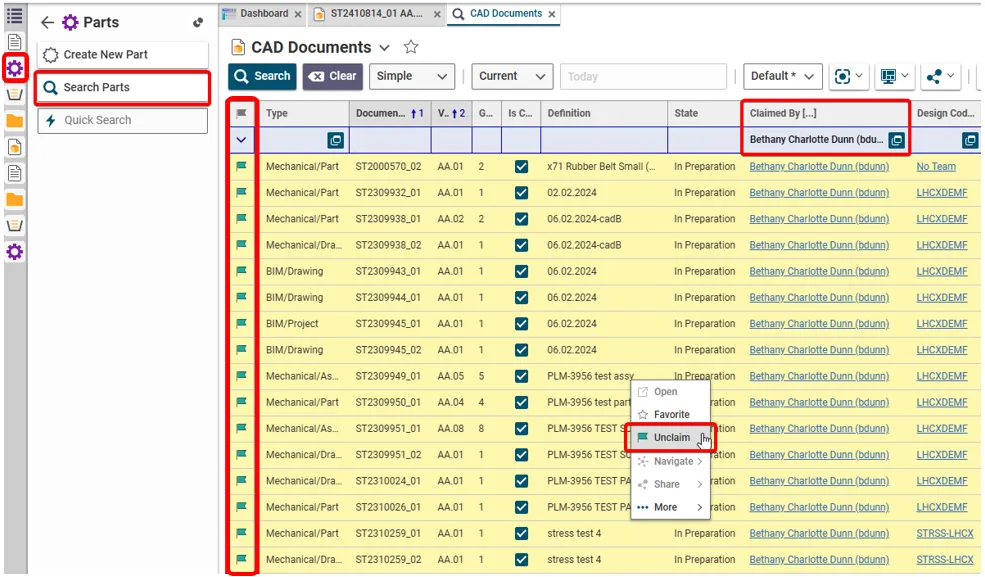
How to retrieve and unclaim all my Parts/Documents in one operation?
How to retrieve and unclaim all my Parts/Documents in one operation? There are two ways of retrieving all the objects that you have claimed. To unclaim all the objects in one go, use method 2 and highlight the results. (Press and hold the Ctrl key to select individual results. Alternatively, select a result then hold
-
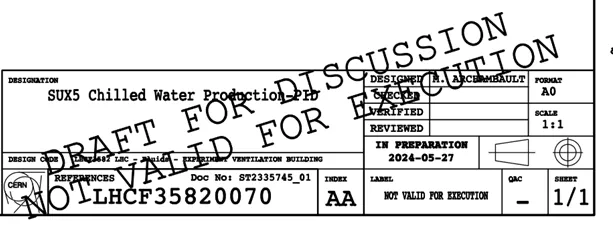
What is the difference between the regular Titleblock stamp and the Mini stamp?
What is the difference between the regular Titleblock stamp and the Mini stamp? Regular Titleblock stamp: Case 1: you are working at CERN with an official CAD tool and a PLM Connector (ex: BricsCAD, CATIA etc…). Thus, you must generate an official CERN Titleblock on your Drawing prior to validating it. Then when a Design
-
Subgroup: Other
Subgroup: Other Below are the remaining How-to's that are not present in other subgroups in the PLM – Document subcategory. Click on their links to find more information on these topics.
-
Subgroup: Batch import
Subgroup: Batch import Below is a group of How-to's that are related to the topic of 'Batch import' in the PLM – Document subcategory. Click on their links to find more information on these topics.
-
How to delete an object from PLM Platform?
How to delete an object from PLM Platform? In order to be able to delete an object from the PLM platform (whether it is a Part, a CAD document, a non-CAD document or a Folder), there are a number of requirements that must be met. All these requirements and the necessary steps are explained in
-

How to delete a file or document from a pending job in Batch Import?
How to delete a file or document from a pending job in Batch Import? If the Batch Import has not yet been launched and the job is still "In Preparation", it can be edited (by clicking on the "Edit" button at the top of the Profile Card). Go to the relationship grid at the bottom
-

How to add new files to a pending job or modify the metadata in Batch Import?
How to add new files to a pending job or modify the metadata in Batch Import? If the Batch Import has not yet been launched and the job is still "In Preparation", it can be edited (by clicking on the "Edit" button at the top of the Profile Card). Then the new files can be
-
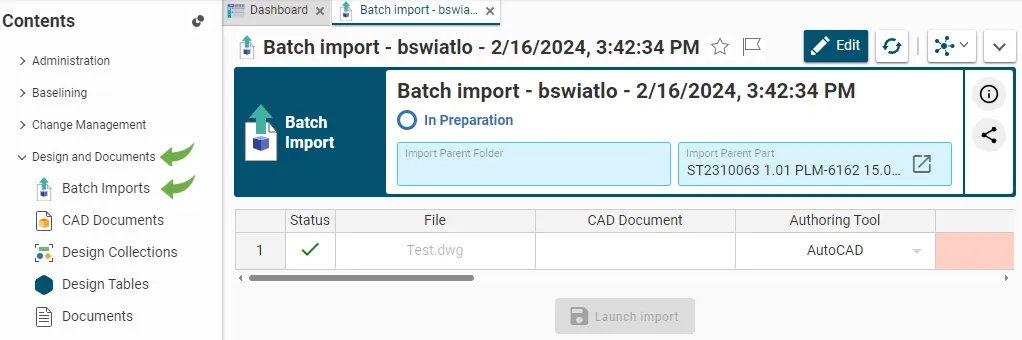
How to retrieve / find an existing job in Batch Import?
How to retrieve / find an existing job in Batch Import? Every time a file or a batch of files is dragged and dropped into a Part or a Folder in edit mode, the system automatically created an import job. Each job corresponds to a specific object, i.e. a Batch Import, that is created for