
Tag: CATIA – Assembly
-
Subgroup: Constraints & Positioning
Subgroup: Constraints & Positioning Below is a group of How-to's that are related to the topic of 'Constraints & Positioning' in the CATIA – Assembly subcategory. Click on their links to find more information on these topics. General:
-
Subgroup: Open/Import
Subgroup: Open/Import Below is a group of How-to's that are related to the topic of 'Open/Import' in the CATIA – Assembly subcategory. Click on their links to find more information on these topics. General: PLM Related:
-
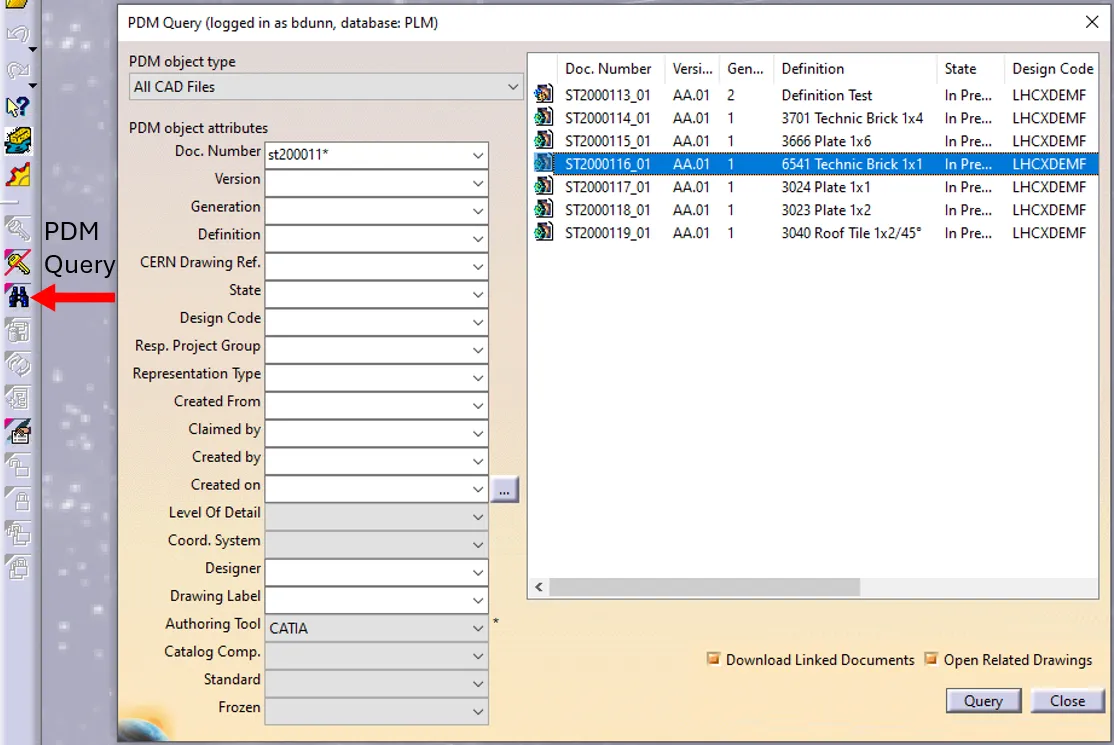
How to open a CAD document from CATIA using the connector?
How to open a CAD document from CATIA using the connector? In CATIA, from the connector toolbar, clicking on the Query icon, you will be able to access the PDM Query dialog and to search for any CAD document previously uploaded to the PLM platform. Once the searched CAD Document has been found and selected,
-
How to open a CAD document from the PLM?
How to open a CAD document from the PLM? Any CATIA document saved in the PLM platform can be opened from there directly in CATIA. There are various methods, see below: See the ‘Opening’ subgroup for related information See more: Open CAD Document in CATIA
-

How to open a 3D from the corresponding 2D in CATIA?
How to open a 3D from the corresponding 2D in CATIA? Often enough, there is a need to switch between a 2D opened in CATIA to its corresponding 3D. In order to facilitate and quicken this task, it is possible to open the 3D directly from the 2D. To know more about this procedure, please
-
Why the instance names do not have the same number as the instance name?
Why the instance names do not have the same number as the instance name? To study this problem, please follow the document below. Updating Instance Names
-
How to use the new TRACEPARTS Web V3?
How to use the new TRACEPARTS Web V3? To launch the TRACEPARTS Web from CATIA, click on the Icon: This will open thee web page with list of companies’ logos. To find the component that you are looking for select the main filter or the starting letter of your desired category. You can also skip
-
How to use “Scenes” to create a mounting or welding sequence?
How to use “Scenes” to create a mounting or welding sequence? The scene tool in the “Assembly Design” workbench allows you to create multiple states of your model. By doing so, it enables you to study a variant of your assembly by defining specific component positions and specific attributes. The following document covers the main
-
How to work with “Scenes”?
How to work with “Scenes”? A "Scene" is an alternative view of an assembly in a defined state. It enables you to study a variant of your Assembly by defining specific component positions and specific attributes. Please follow the document below to understand more details. Scenes
-
How to use the “Replace Component” command?
How to use the “Replace Component” command? If you don't have an icon "Replace Component" in CATIA tools, find it this way: The following document will show you more information about this function. Replace Component command