
Public Links must be created from an Approved Design Collection.
-
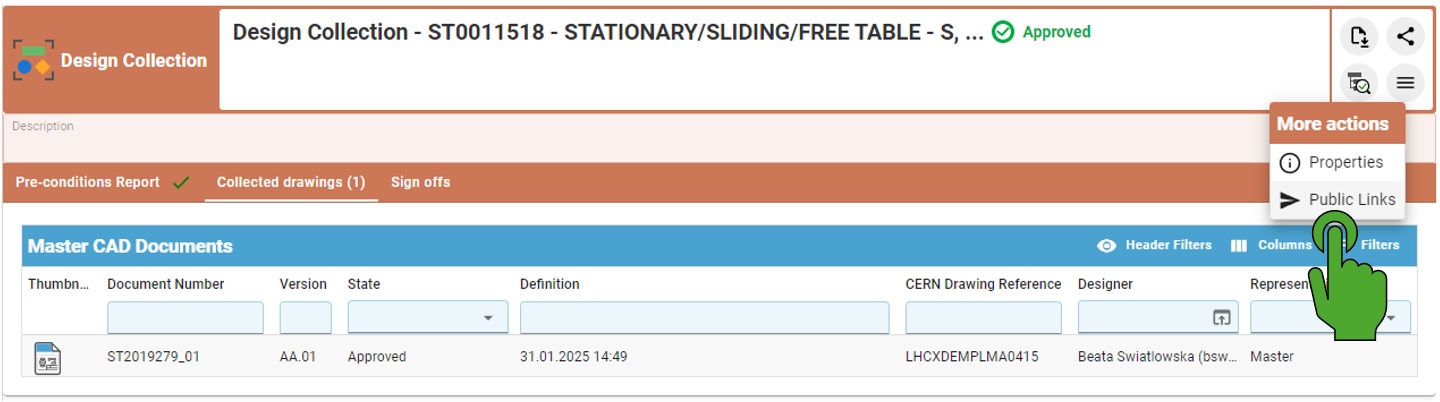
Open the approved Design Collection.
-
In the top-left corner of the profile card, click “More actions” (three-line menu).
-
Select “Public Links”.
-
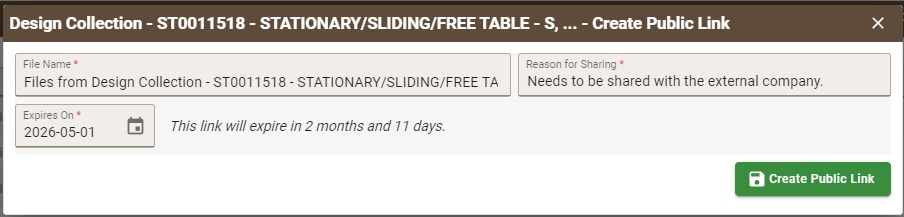
A creation window opens with the related Design Collection automatically added.
In the creation window, users must:
-
Modify the file name (optional).
-
Provide a reason for sharing (minimum 10 characters and it is mandatory).
-
Define the expiration date.
-
Minimum: 1 day
-
Maximum: 6 months
-
After completing the required fields:
-
Click the “Create Public Link” button.
-
The system generates the Public Link.
-
Copy the link to the clipboard and share it with the external partner.
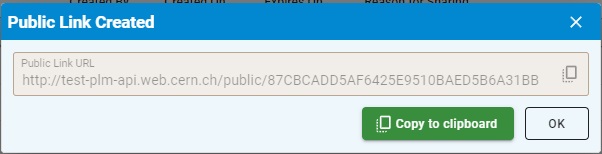
When the link is opened in any browser, the external user can directly download a ZIP file containing the documents related to the Part without authentication required.